 Fynq
Fynq Why Your New Products or Labels Aren’t Showing in Fynq (And How to Fix It Quickly)
You just added a shiny new product to your store, or applied a label to highlight a bestseller, and rushed to your storefront to see it in action. But… nothing shows up in the search results or product filters.
Sound familiar?
Before you worry, take a deep breath. This is one of the most common situations merchants face, and the fix is usually quicker than you think. Fynq is designed to sync automatically with your Shopify data, but there are a few simple reasons things might not appear right away.
Let’s walk through it step by step.
Check If the Product Is “Active” and Published in Shopify
Fynq can only display what Shopify makes publicly available. So the first place to check is your Shopify product settings.
Go to your Shopify Admin, click on the product that’s not showing, and check:
- Product Status: It should be set to Active
- Sales Channels: Make sure the Online Store is selected
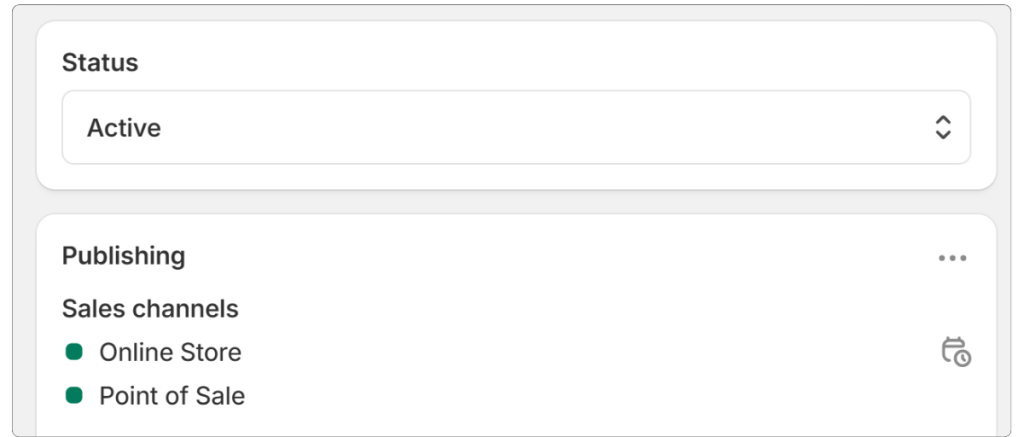
If a product isn’t marked active or isn’t available on the online store, Fynq won’t show it either, because Shopify itself is hiding it.
Give It a Moment (Fynq Syncs in Real Time)
Fynq runs automatic product syncing in the background. In most cases, changes appear in your store within a few minutes.
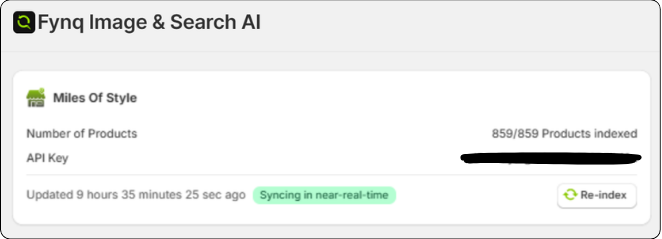
But if you just added or updated something, give it a little time to reflect. Especially if you manage a large catalog, background sync may take a short moment to catch up.
Are You Hitting Your Plan’s Product Limit?
One of the most common reasons new products don’t show up: you’ve crossed your current plan’s product limit.
Here’s how it works:
- Each Fynq plan supports a set number of products (Check out this article to know more: Which Fynq Plan Is Right for You? A Clear Breakdown of Features and Pricing Tiers
- If your Shopify store contains more products than your plan allows, the extra items (typically the most recently added ones) won’t be synced.
For example:
If you’re on Basic250 and now have 300 products, only the first 250 are synced with Fynq. The remaining 50 are ignored until you upgrade.
To check and fix this:
- Go to Fynq Image & Search AI → Plans and Pricing
- You’ll see your current plan and how many products it supports
- If needed, upgrade to the suggested plan to sync all your products
Need help with upgrades?
You can go through this Pricing guide:
Which Fynq Plan You Should Get? – Breakdown of Features & Pricing Tiers
What About Product Labels? Here’s Why They Might Not Appear
You’ve tagged a product with something like label_bestseller or label_new and expected to see it on product cards, but it’s missing.
Let’s fix that.
1. The Tag Exists, But the Label Rule Isn’t Created Yet
Adding a tag in Shopify is just the first step. Fynq won’t show a label unless you tell it how to display that tag.
Here’s how to create the label rule:
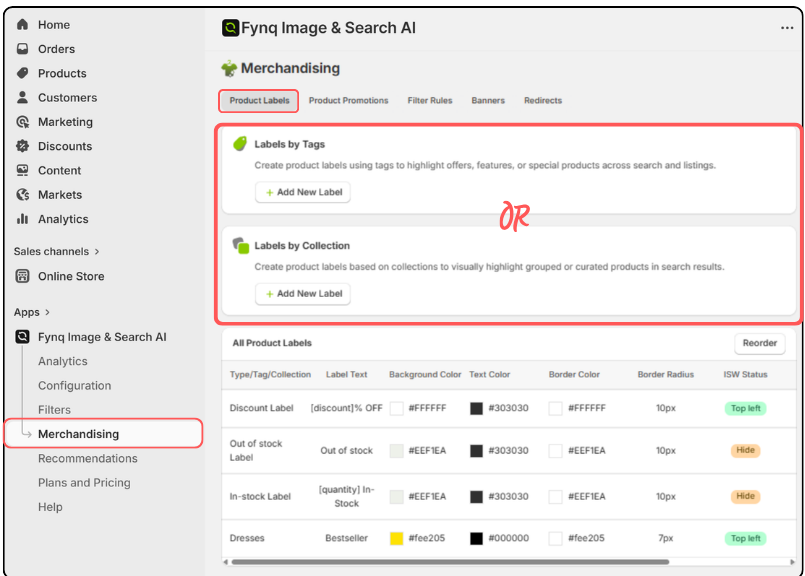
- Go to Fynq Image & Search AI > Merchandising > Product Labels
- Choose Labels by Tags
- Click + Add New Label
- Set the tag (e.g., label_bestseller)
- Choose the label’s style, color, and where it should appear
- Click Save
Now Fynq knows to display a visual label based on that tag.
2. The Tag in Shopify and the Tag in Fynq Don’t Match
Labels are sensitive to exact naming. If you’re using bestseller in Shopify but entered label_bestseller in Fynq (or vice versa), the system won’t connect them.
Solution is: Double-check your spelling, spaces, and underscores. The tags must match exactly. No extra spaces, no different casing.
3. The Label Is Created, But the Position Is Hidden
You may have set up everything correctly, but forgot to assign a visible position for the label. For instance, check the following (where the last two labels have been set hidden on Instant Search Widget (ISW) and Search Results Page (SRP):
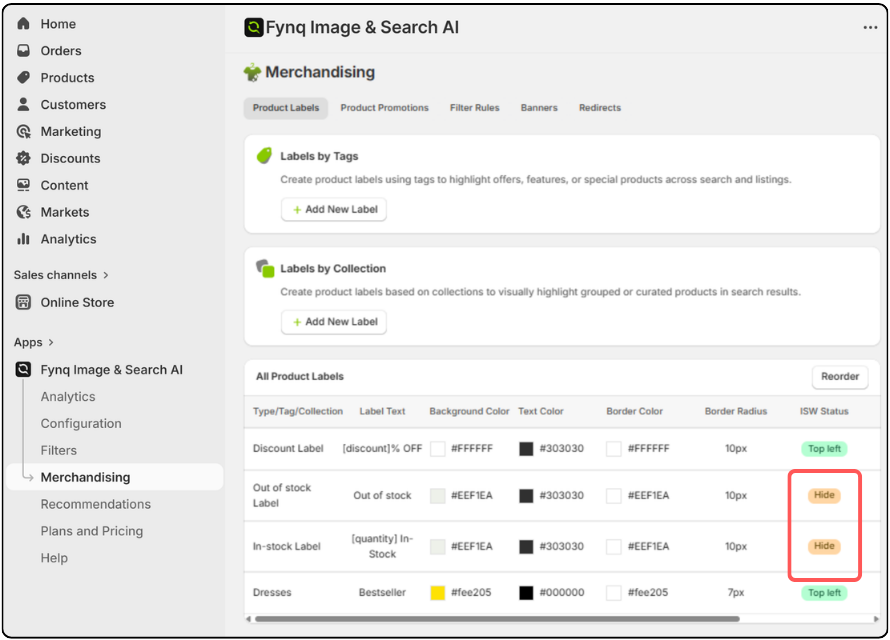
While creating or editing the label, make sure:
- You’ve selected a visible position like top-left or bottom-right
- You haven’t left both Instant Search and Search Result Page positions set to Hidden
Choose a position, click Save again, and your label should start showing.
Also Check: Display and Visibility Settings
Even if your product is synced and active, certain display settings may be hiding it from view.
Go to:
Fynq Image & Search AI > Configuration > Search Result Page/ Instant Search Widget tab
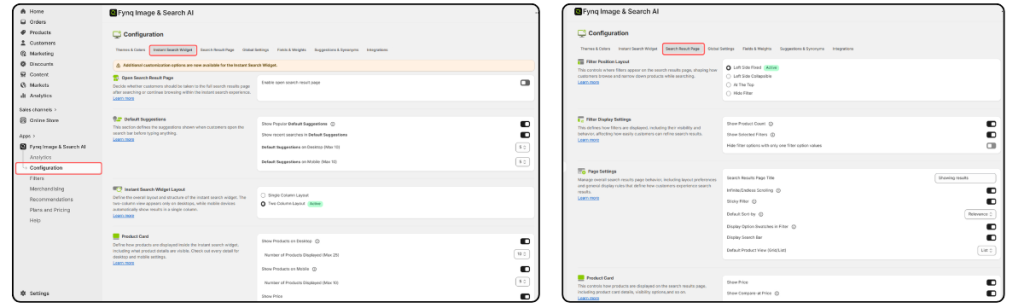
Check:
- Product visibility settings (make sure product cards are enabled)
- Label display settings (ensure label groups are set to show)
- Zero-price visibility (products with no price might be hidden)
NB:
If your store has shifted to the FREE plan after trial expiry, Fynq will only sync your first 100 products and limit search to 1000 queries per month. Any additional products will not appear unless you upgrade.
Still Not Showing? You Can Ask for a Manual Resync
While Fynq syncs automatically, you can always request a manual sync if something seems off.
- Go to Fynq Image & Search AI → Help Page
- Enter your email, name, and a short message explaining what’s missing
- Click Send Message
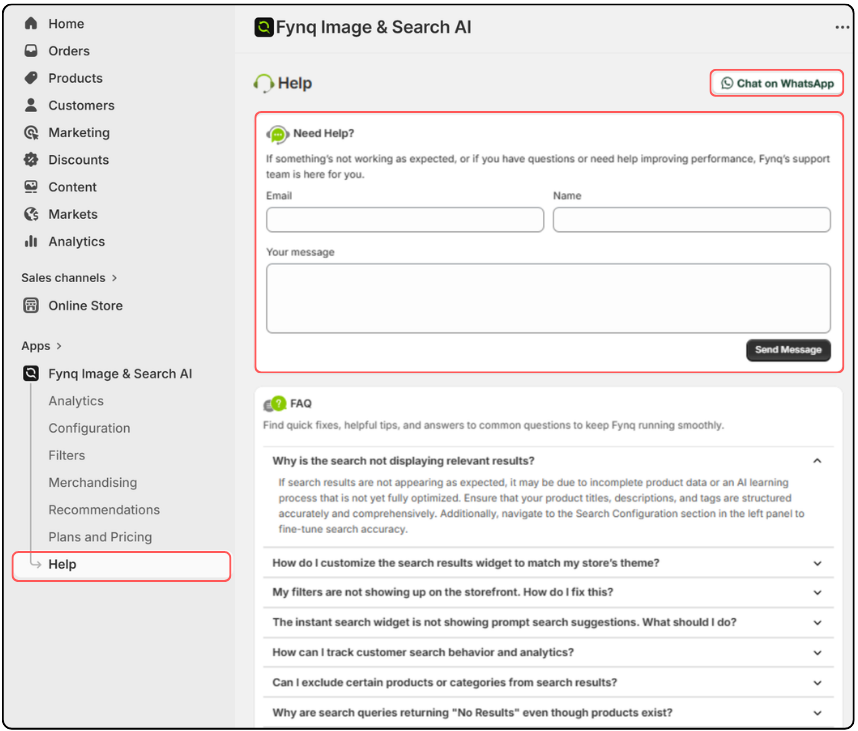
Or use the Chat on WhatsApp button in the top-right corner of the Help page for faster assistance.
Final Thoughts
Products and labels not showing up is usually a result of one of the following: your product isn’t active or published, your plan doesn’t support your total product count, or a small configuration step was missed.
The good is: these are all easy to fix once you know where to look.
Fynq is built to stay in sync with Shopify in real time, but it needs your products to be ready, visible, and within your plan limits. Follow these tips, check your setup, and your storefront will catch up in no time.
Still stuck? Reach out through the Help page (in the Fynq app Admin) or our Support Page, and we’ll get things sorted for you right away.
