 Fynq
Fynq Glossary of Terms – Used in Fynq Image & Search AI
New to Fynq?
If you’re just starting off the Fynq journey, a heartfelt welcome to you and the best wishes to your eCommerce store.
You’re likely to see some terms and buttons that are new or unfamiliar. That’s okay. Fynq gives you lots of control over how your customers search for products. That’s why we, here, introduce some new features along the way.
This glossary is here to help you learn the key words and phrases used inside the Fynq, the Shopify search and discovery app. Whether you’re creating filters, editing search settings, or adding recommendations, this guide will help you know what you’re doing without feeling lost.
Let’s break it down in plain language.
Search and Navigation Terms
Instant Search Widget (ISW)
This is the little pop-up search box that appears when someone starts typing in your store’s search bar. It shows products and suggestions instantly without needing to press “Enter” or go to another page.
Read more about the Instant Search Widget or its function, click here.
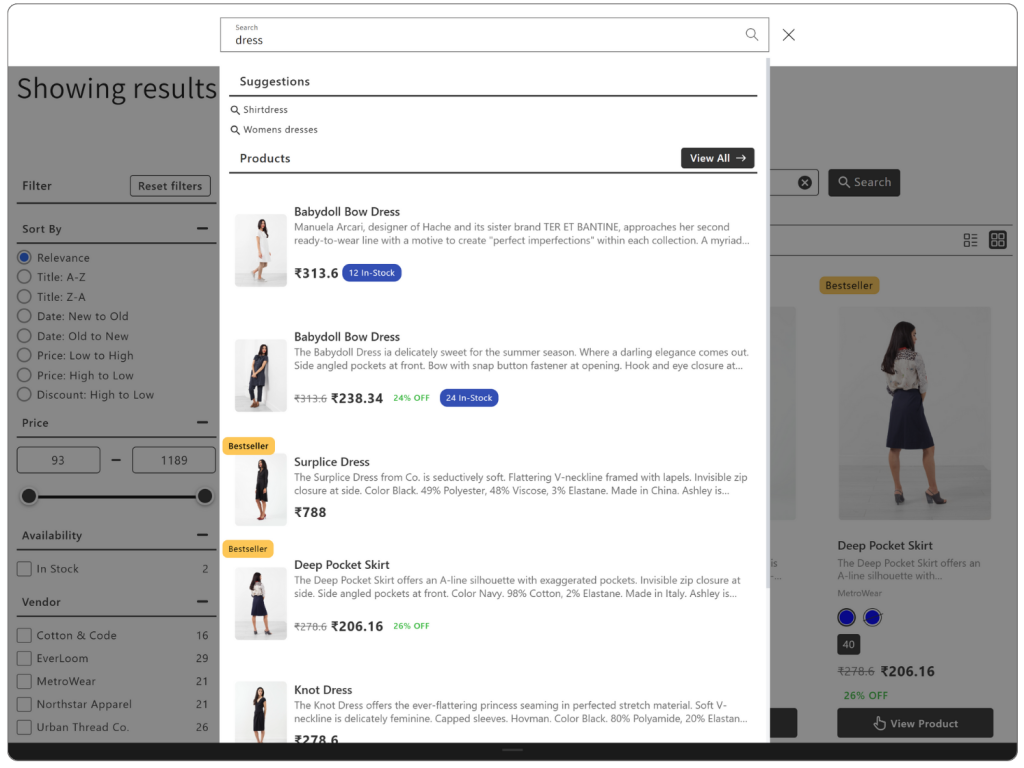
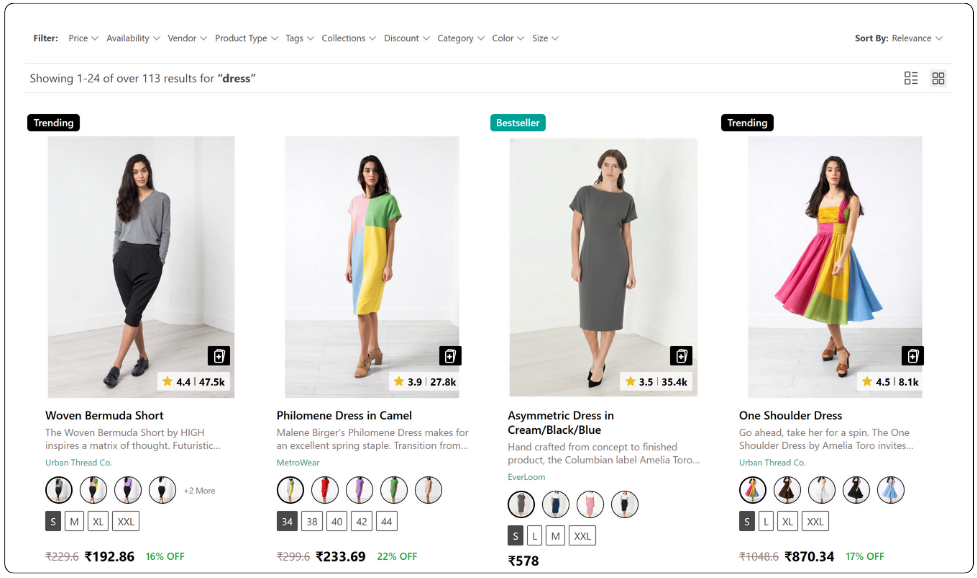
Search Result Page (SRP)
This is the full page where all the search results are shown after a customer hits “Enter.” You can change how this page looks in Fynq.
To know more about the Search Results Page or its function, click here.
Semantic Search
A smart type of search that understands the meaning behind what people type. For example, if someone searches for a “blouse” but your products are titled and described as “top,” Fynq can still show it.
Search Fields
These are the parts of your product that Fynq can search through, like the title, tags, SKU, description, and more. You can choose which fields are most important.
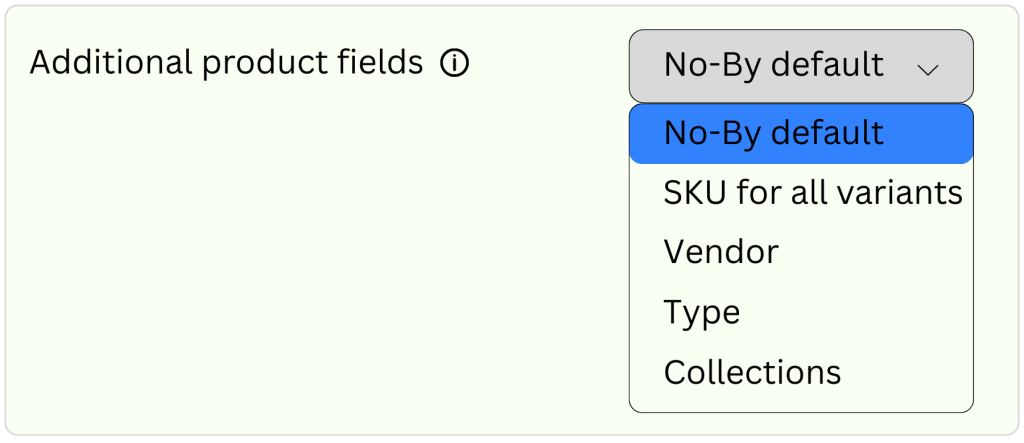
Additional Product Field
Sometimes, you might have extra information about a product, like fabric type or brand name, saved in something called a metafield. Fynq lets you search through those, too.
SKU
This is a unique code (like a product ID) you or your supplier uses to keep track of inventory. Customers might search using SKUs, so Fynq can include them in results.
Search Suggestions
These are quick ideas that pop up under the search bar to help guide customers while they’re typing, like “summer dresses” or “on sale now.”
Synonyms
Words that mean the same thing. If your customer searches “sneakers” but you’ve used the word “trainers” in your store, Fynq can connect the two, so nothing gets missed.
Filters and Product Discovery Terms
Filter Table
This is the full list of product filters you create in Fynq, like color, size, material, and brand, to help shoppers narrow down products.
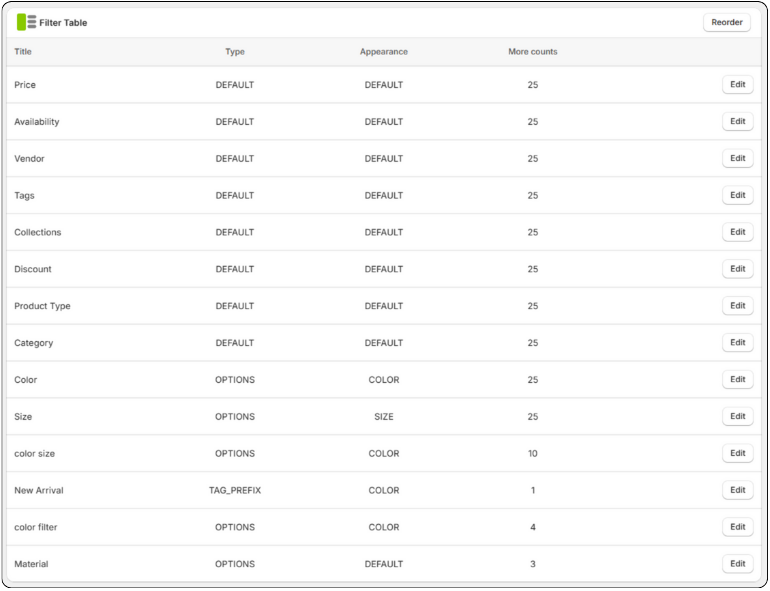
To know more about the Filter list or its function, click here.
Tag-Based Filters
These filters use product tags from Shopify, like “cotton” or “vegan.” You can turn any tag into a filter option.
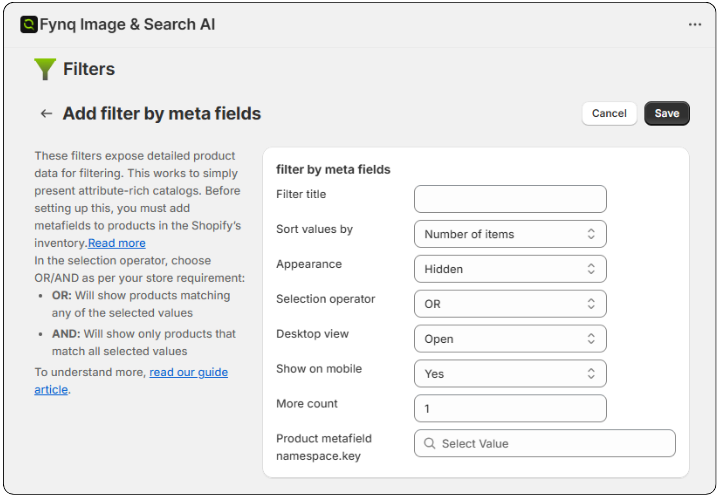
Metafields
Extra bits of product info you create in Shopify, like “neckline type” or “warranty period.” Fynq can turn these into filters, too.
To know more about Metafields or its function, click here.
Color Families
You can group similar colors together. For example, ‘gray’, ‘grey’, ‘lightgray’, ‘dimgray’, ‘darkgray’, ‘slategrey’, ‘lightslategray’, ‘darkslategray’, ‘silver’, ‘gainsboro’ can all be grouped under “Gray” to make the filter easier to use.
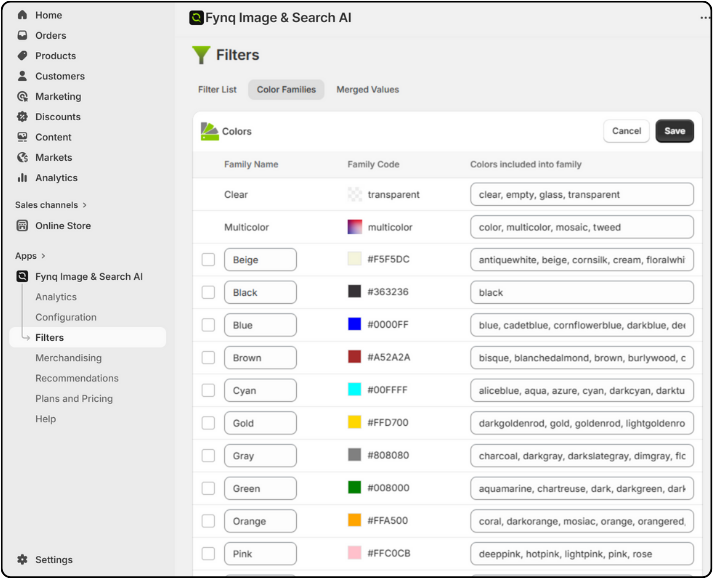
To know more about Color Families or their function, click here.
Merged Values
This means combining different filter names into one. For example, if you want to show all the shorter dresses just with a click, you can create a single option like “Shorter Sizes” under which you can choose the most relevant existing options like ‘Small’, ‘X-Small’, ‘XSmall’, ‘25’, ‘27’, ‘28’, ‘29’, ‘30’ and so on. It’s exclusively for your customers’ convenience.
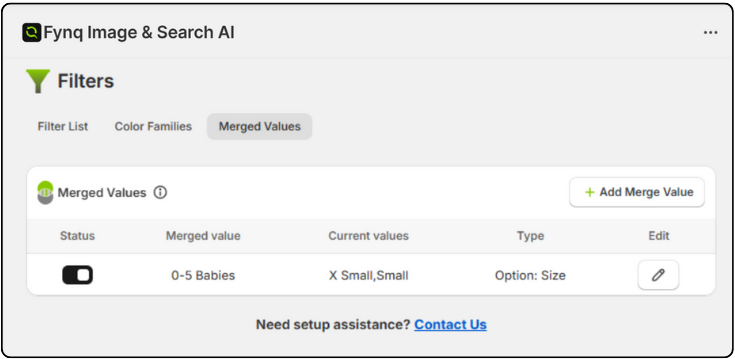
To know more about Merged Values or its function, click here.
Collection-Specific Filters
These filters only show up on certain product collections. For example, “Screen Size” might only appear in your TV collection, not your clothing collection.
Suppose you have a clothing store in Shopify and you have added a collection named “Cotton Collection”. When a visitor opens this collection, the page automatically opens up a filter section applicable to the products in that collection.
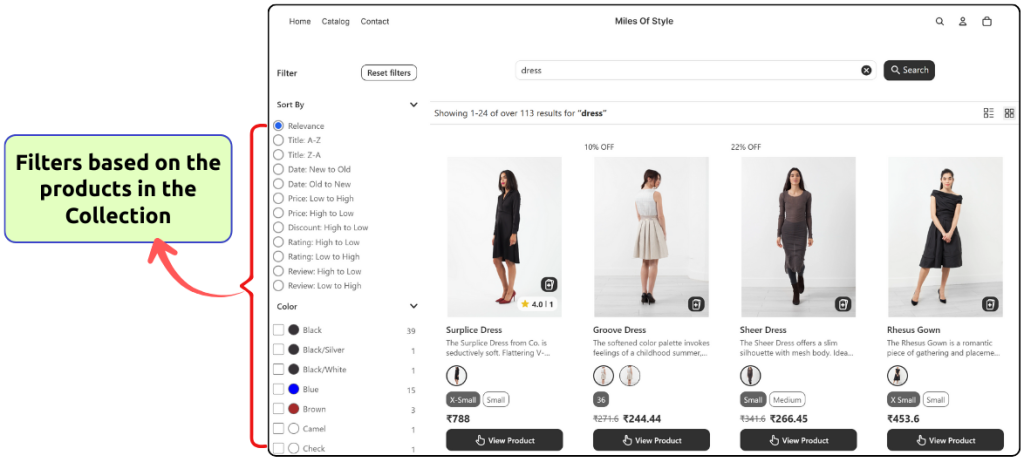
To know more about Filters on the collection page or their function, click here.
Labels and Recommendations
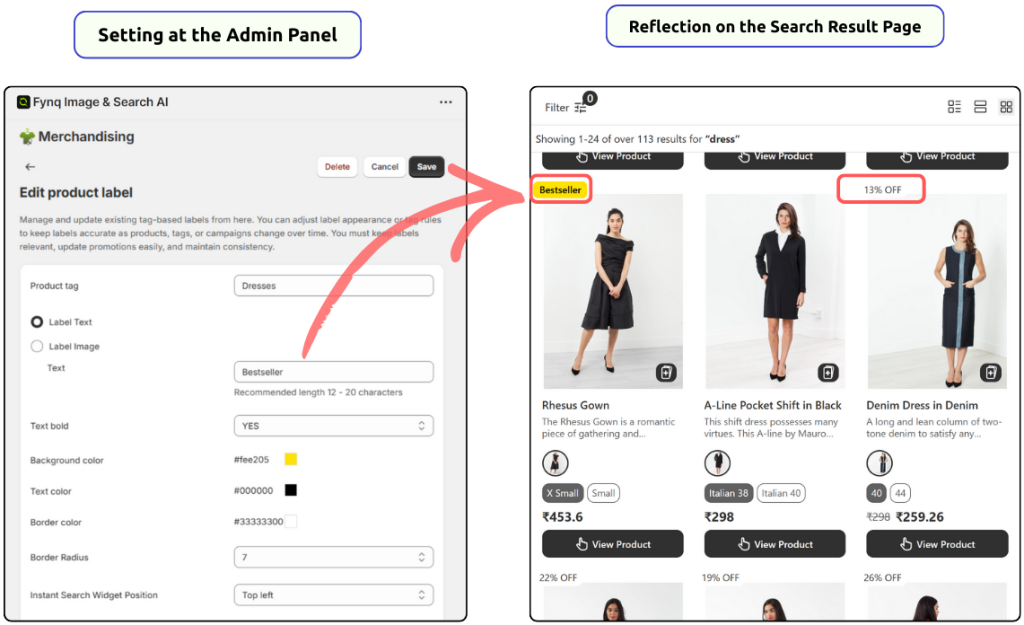
Product Labels
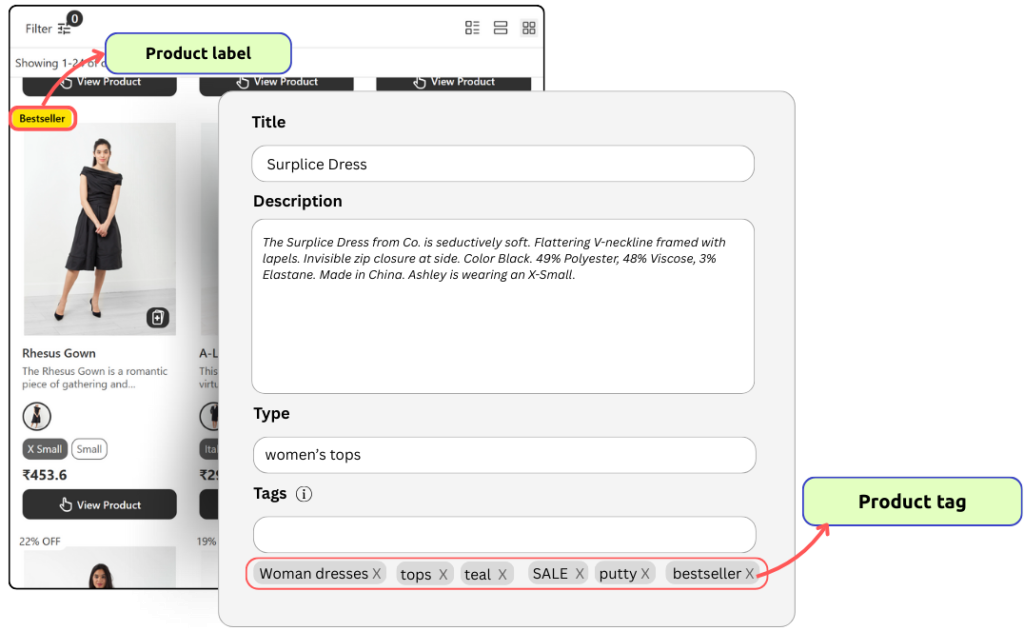
These are small visual tags on your product images like “New Season,” “Back in Stock,” or “Bestseller.” They help shoppers notice important things. Suppose you can add “Bestseller” label to the products you want, and those tags will be shown in the Instant search widget and the Search Result page (provided you select in settings).
To know more about Product Labels or their function, click here.
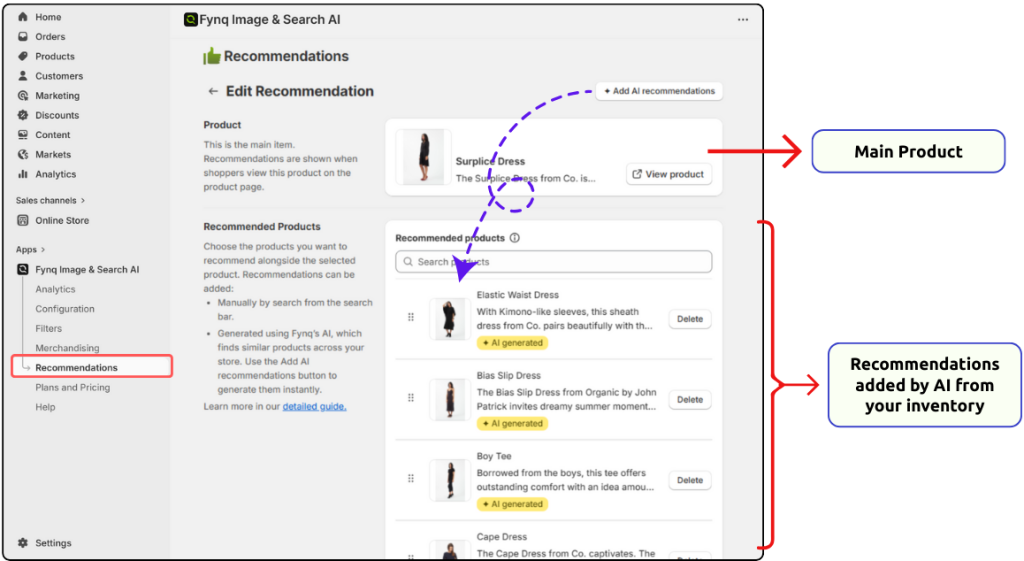
Recommendations
These are product suggestions shown when a customer/viewer shows interest in a product. Fynq uses its own AI model to show customers based on what they’re searching or clicking on. You can use them to show related or trending, or profitable products. Just a click can add dozens of suggestions.
To know more about Product Recommendations or its function, click here.
Customization and Display Terms
Zero Price Action
What your store shows when nothing is found in a search. Fynq lets you add helpful messages or even show other products to keep the customer browsing.
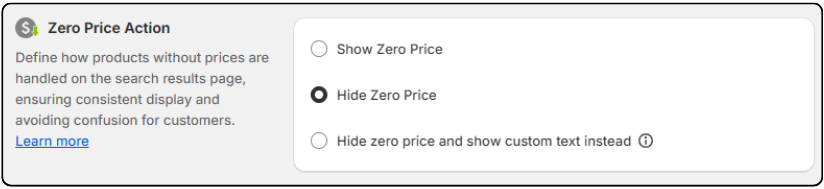
To know more about Zero Price Action or its function, click here.
Similar Terms That Sound the Same (But aren’t)
Label vs Tag
- A Tag is a hidden keyword used inside Shopify to help organize products. It’s exclusively for merchants.
- A Label is a visible badge (like “Limited Edition” or “Bestseller”) shown to customers on the storefront.
Filter vs Sort
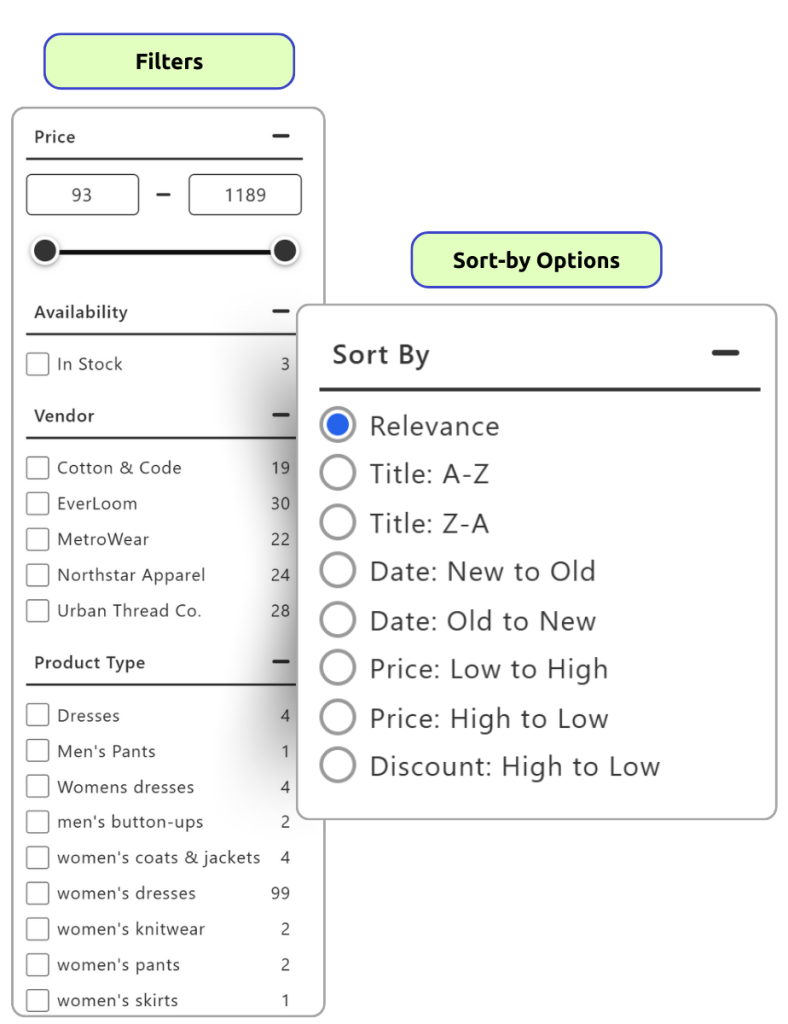
- Filters help customers narrow down choices (like size, price, vendor, discount, and so on).
- Sort changes the order of products (like showing the newest first or lowest price first). It works in presenting the products to the visitors. Fynq allows Default Sort-by options to appear in the Filter section.
Suggestion vs Recommendation
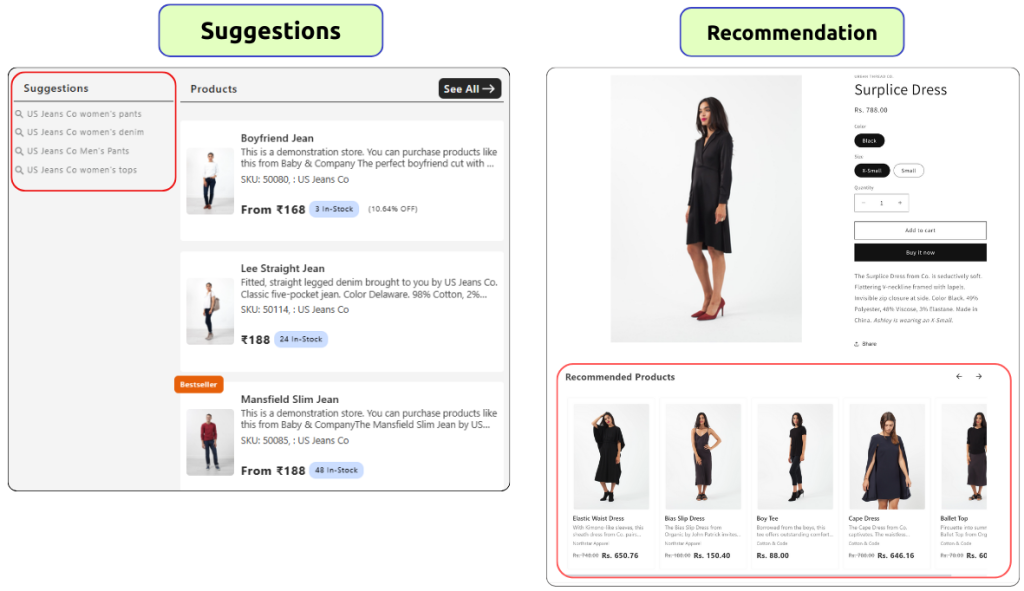
- A Suggestion helps a customer type their search (appears under the search bar).
- A Recommendation shows a full product you might want to buy.
Final Note
You don’t have to memorize all these terms; just come back to this glossary anytime something inside the app feels unclear. The more you get familiar with how Fynq works, the more confident you’ll be in creating a smooth, helpful shopping experience for your customers.
You’re building a great store. Let the Fynq AI search & discovery Shopify app help your shoppers discover it.
