 Fynq
Fynq How Filter Rules Enable Advanced Search Merchandising in Fynq
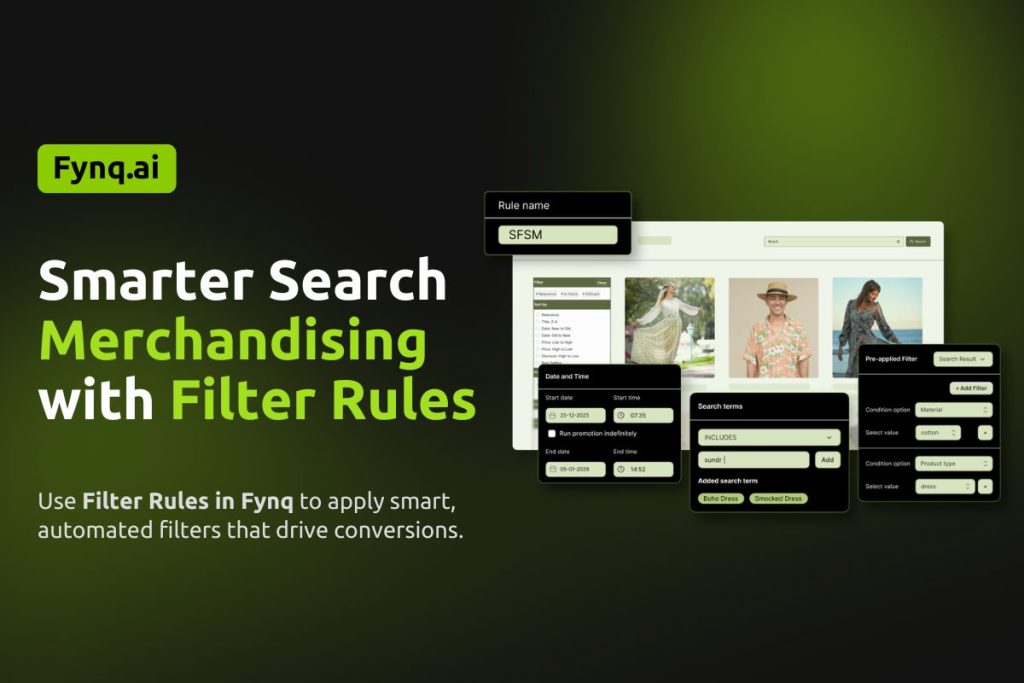
Filter rules-based Merchandising is available only for stores on the Standard2K plan or above. The only merchandising strategy available to stores with Free and Basic (all three tiers) is Product Labels.
What are Filter Rules?
Filter Rules allow you to control search results by applying predefined filters automatically. Instead of promoting specific products, you guide search results using product attributes such as color, tag, brand, or any other filter value available in your store.
This strategy is useful when you want search to remain flexible but still aligned with your business goals. Shoppers see a cleaner, more relevant product range without realizing filters are already applied for them.
When Filter Rules Make the Biggest Impact
Filter Rules work best when shoppers are open to options but need direction. Large catalogs often overwhelm users, especially when search results include many unrelated products.
By narrowing results intelligently, you help shoppers focus faster, explore confidently, and convert more easily.
Filter Rules are commonly used to:
- Prioritize specific product segments
- Push seasonal or thematic products
- Move certain inventory faster without manual selection
Where to Find the Merchandising Filter Rules in Fynq App?
The Merchandising section in the Fynq app is where you manage all search-based promotions and controls. Each merchandising strategy has its own dedicated tab, making it easy to set up and manage independently.
To access Merchandising in the Fynq app:
- Open the Fynq app
- Go to Merchandising from the left side menu
- Now, come to the tab: Filter Rules
- Click +Add Filter Rules button
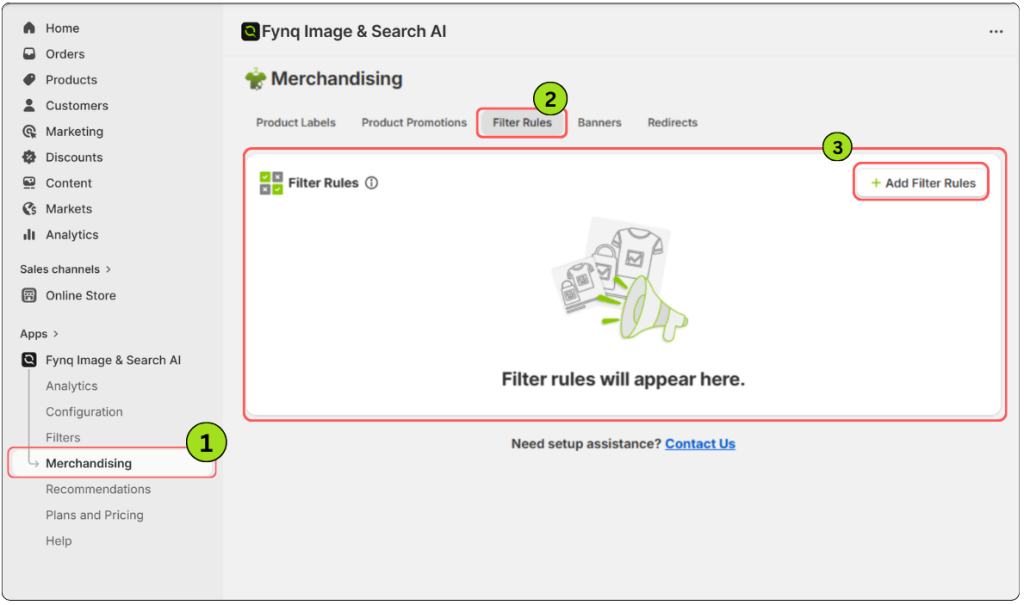
This tab helps you apply pre-defined filters to search results without selecting individual products.
Before You Start
Each Filter Rule:
- Runs based on UTC date and time
- Supports ANY, EXACT, and INCLUDES search term logic
- Allows up to 20 pre-applied filters
- Has a maximum limit of 20 active filter-rule promotions
These rules apply independently, so plan naming and conditions carefully.
Step-by-Step: How to Set Up a Filter Rule
Step 1: Add a Rule Name
Enter a clear Rule name. This is for internal reference and helps you manage multiple filter rules over time, especially when running seasonal or recurring campaigns.
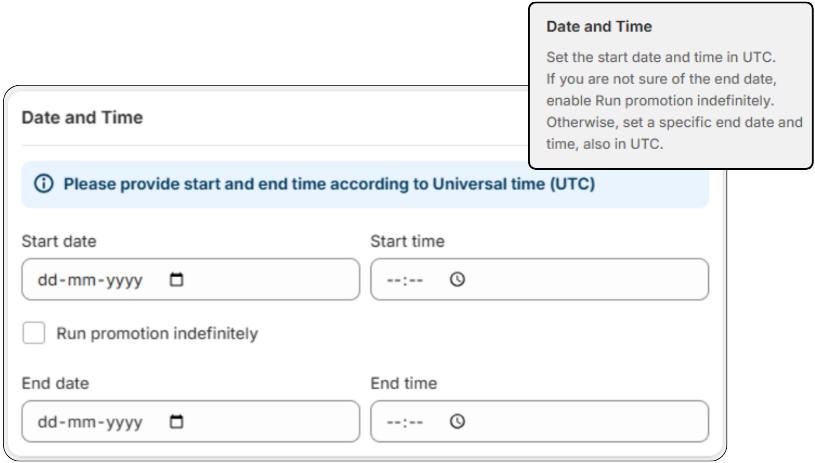
Step 2: Set the Rule Schedule
Set the start date and time in UTC.
If you are unsure about the end date, enable Run promotion indefinitely.
Otherwise, set a specific end date and time, also in UTC.
This ensures your filter rules activate and stop exactly when intended.
Step 3: Define Search Terms
Choose how the rule should respond to shopper searches:
- ANY
Applies the filter rule to all search terms. - EXACT
Applies only when the shopper searches for the exact term.
Example: “Christmas dress” will trigger the rule, but “red Christmas dress” will not. - INCLUDES
Applies when the search term contains your keyword.
Example: Searching “red Christmas kurta” triggers a rule set for “Christmas”.
This step decides how broad or focused your rule will be.
Step 4: Add Pre-Applied Filters
Now define how search results should be filtered.
First, select the condition option, which is the filter heading, such as Color, Brand, or Tag.
Then choose the filter value available under that condition.
You can add:
- One or more pre-applied filters
- Up to 20 filters in a single rule
These filters are applied automatically when the rule conditions are met.
Note: Filter values can be managed from the Filter Table section.
Refer to How to Manage filter list for more details.
Step 5: Save the Rule
Once all details are added, save the rule. It will run automatically based on the schedule and search conditions you defined.
Practical Use Case of Filter Rules in Merchandising
Suppose you run a fashion store with old and new inventory mixed together. During peak season, you want to sell the earlier stock first without manually pushing individual products.
You create a Filter Rule using a tag applied to older inventory. When shoppers search for relevant terms, search results automatically prioritize those products. Shoppers still see variety, but your business goal is quietly achieved.
Seasonal Usage: Turn Festive Searches into Conversions
Consider the Christmas season. Shoppers search for terms like “Christmas dress” or “festive outfit.” You know red products perform better during this time.
Instead of promoting individual items, you create a Filter Rule with Color > Red against those search terms. Now, shoppers instantly see red shirts, kurtas, and trousers that match the festive mood.
The search experience feels thoughtful and relevant. Shoppers stay longer and convert more often.
Things to Keep in Mind
- Filter Rules influence results quietly, without obvious promotion.
- Avoid adding too many filters that overly restrict results.
- Review filter values regularly to ensure accuracy.
Learn Fynq’s other merchandising strategies:
Read More: ⏩ How to Use Product Promotions
Read More: ⏩ How to Create Search Banners
Read More: ⏩ How Redirect Rules Work
Read More: ⏩ What are Product Labels
