 Fynq
Fynq How to Set Up Product Recommendations in Fynq
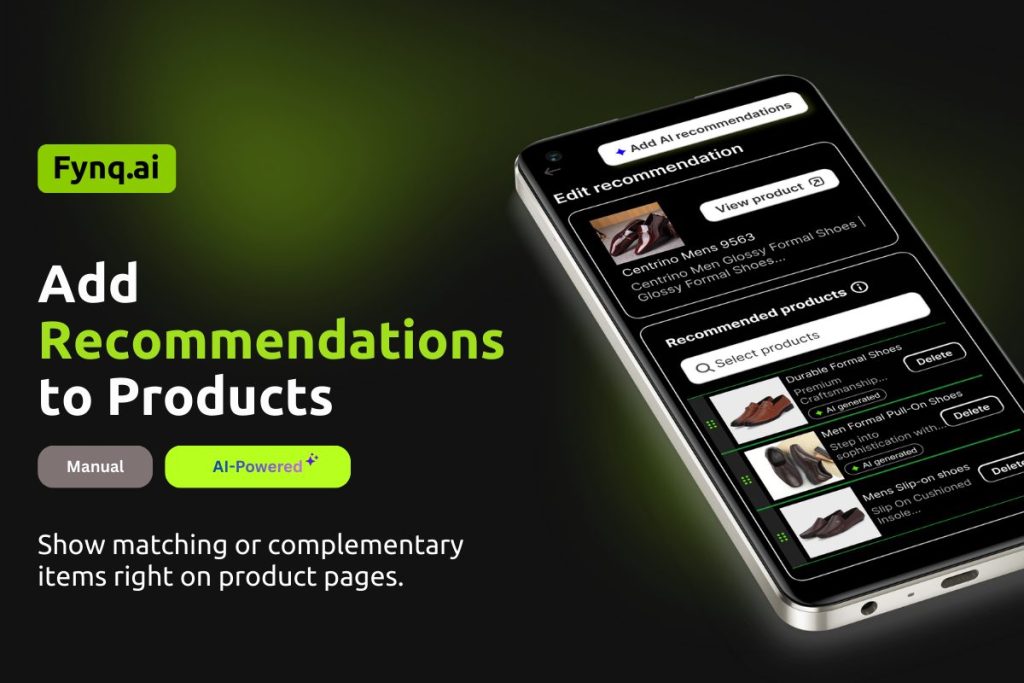
Looking to increase your sales by showing shoppers more of what they’ll love? With Fynq’s product recommendation feature, you can do just that, by suggesting related items right on your product pages. In this guide, you’ll learn how to turn on this feature, how it works, and where your customers will see those recommendations on your storefront.
What Product Recommendations Do in Fynq
Let’s start with the basics. In Fynq, product recommendations help you display a row of related products at the bottom of each product page. These suggestions are meant to keep the shopper engaged, offer upsells, and gently guide them toward adding more items to their cart.
Say someone’s checking out a backpack. You could recommend a matching laptop sleeve or a similar backpack in another color. That’s the kind of cross-sell that drives more revenue and keeps your store looking smart.
Where to Find Product Recommendations in Fynq
To enable and manage your product recommendations:
- Open the Fynq Image & Search AI app
- From the left-hand menu, go to Recommendations.
- Then, you’ll land on a section: Product Recommendation.
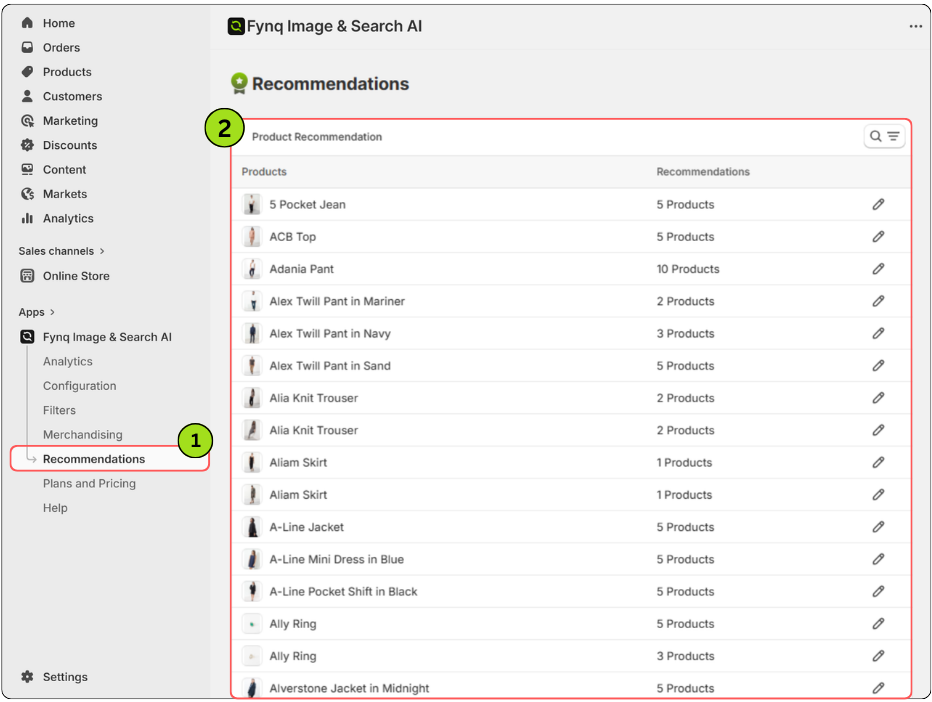
This is where you’ll set up which products will be recommended for each product in your store.
How to Add Product Recommendations (Manual & AI Options)
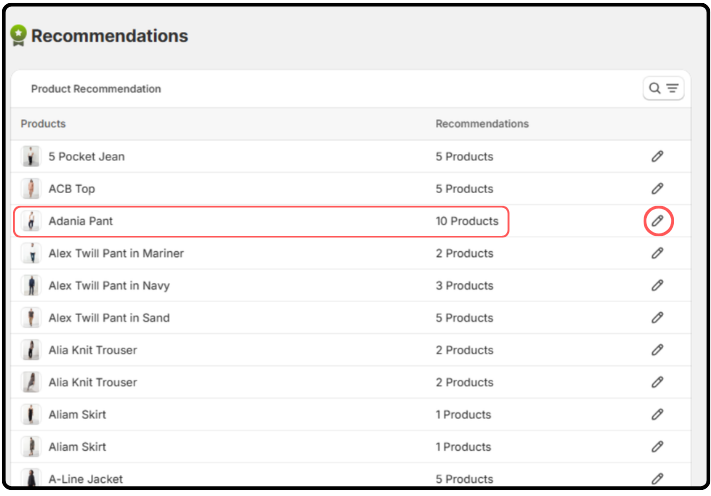
Once you’re inside the Product Recommendation section, you’ll see a list of all your store’s products.
Step-by-Step Instructions:
- Choose a product and click on the pen button (located on the right side) to assign recommendations to.
- Come to the section called Recommended Products.
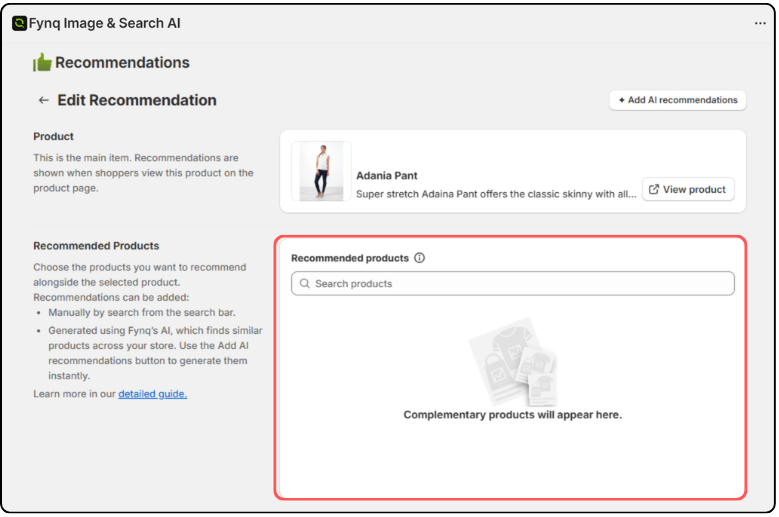
- You have two ways to add suggestions:
Option 1: Manual Search
(a) Type product names in the search bar to find and add them.
(b) Best when you have specific items in mind.
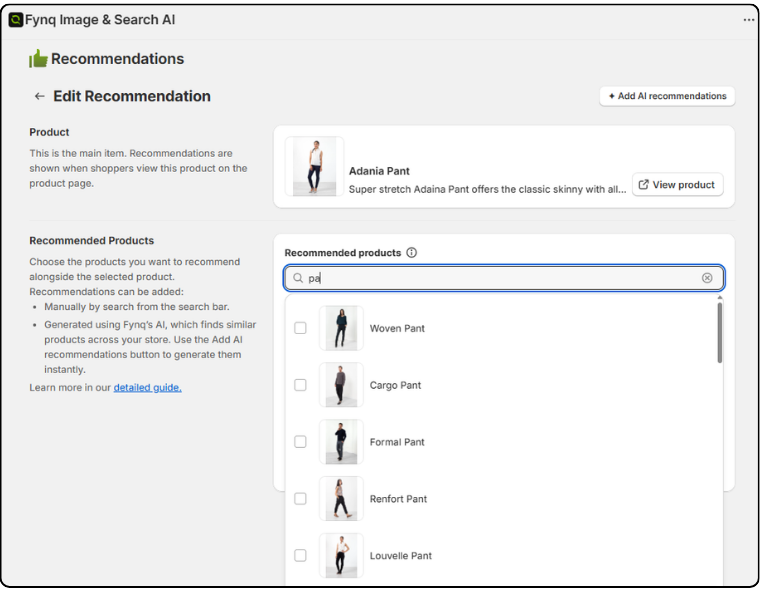
Option 2: Use AI Recommendation Button
(a) Click Add AI Recommendation on the top-right corner.
(b) This instantly adds 5 smart suggestions for the product based on relevancy.
(c) Want more? Click it again to add 5 more. No limit on how many times you can click.
(d) Don’t want some of the added items? Just click the delete icon next to any product to remove it.
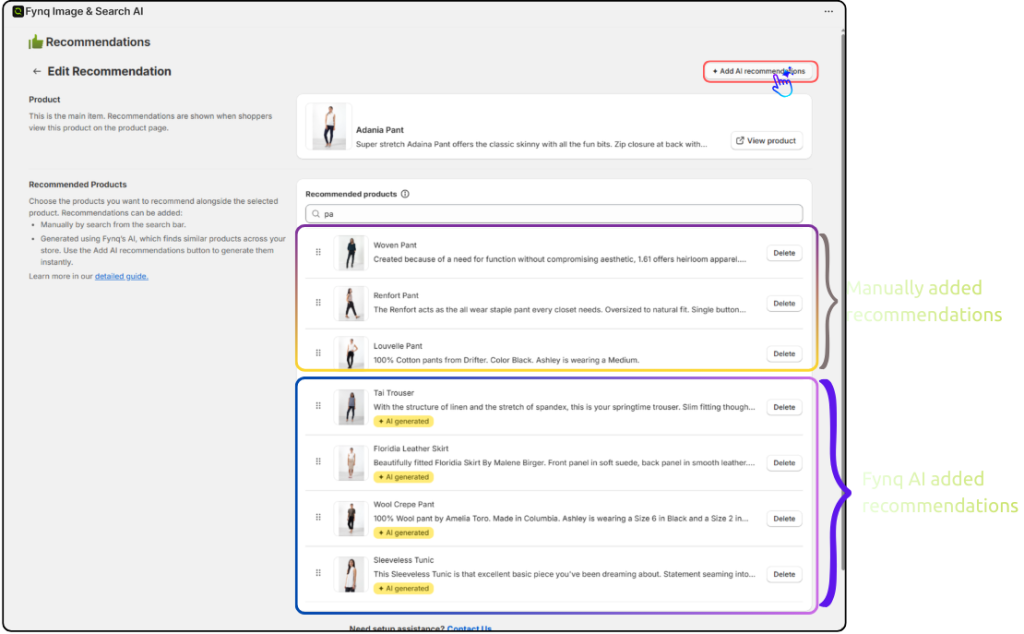
- Once you’re done choosing products, click ‘Save’ from the top bar to finalize.
This makes your product page ready to show these recommendations to visitors in real time.
Where Will These Recommendations Show on Your Storefront?
Your selected or AI-added product recommendations will be visible:
- When a shopper lands on a product page (after clicking from the search results or instant widget).
- They’ll scroll past the product details and images.
- At the bottom of the page, a clean horizontal layout will show the recommended items.
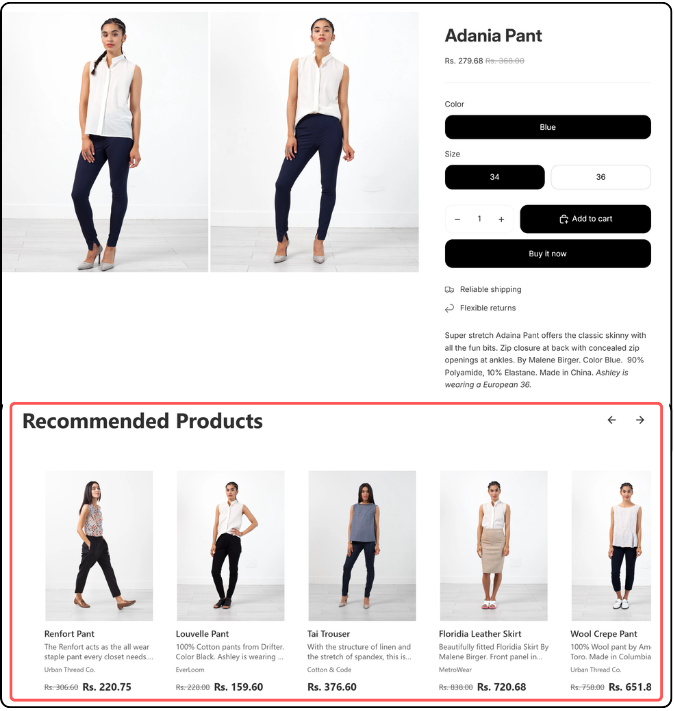
These suggestions aim to grab attention at the right time, just when the shopper is interested but might need a nudge. It’s a gentle way to upsell without disrupting the experience.
This method has been shown to increase conversions by offering buyers more options that feel personalized and relevant.
Important Note
Activate the Product Recommendation App Block First
Your recommendations will only appear if the Product Recommendation App Block is active on your product page.
Here’s how to check:
- From the Fynq Image & Search AI app, scroll down on the homepage.
- Look for the section called Product Recommendation App Block.
- See if it shows as Active.
- If not, click the Button in that section to activate it.
If you want a more detailed walkthrough, see the help article:
How to enable app embed blocks (Required Step!)
Wrap-Up
That’s all you need to enable and manage product recommendations in Fynq AI.
By adding smart, contextual suggestions at the right place on your product pages, you help customers discover more, and buy more. Whether you go manual or use the one-click AI tool, this feature can help boost your store’s performance with just a few steps.
Ready to try it?
Head to Fynq App > Recommendations and start optimizing your product pages now.
