 Fynq
Fynq How To Add & Manage Default Suggestions in Fynq?
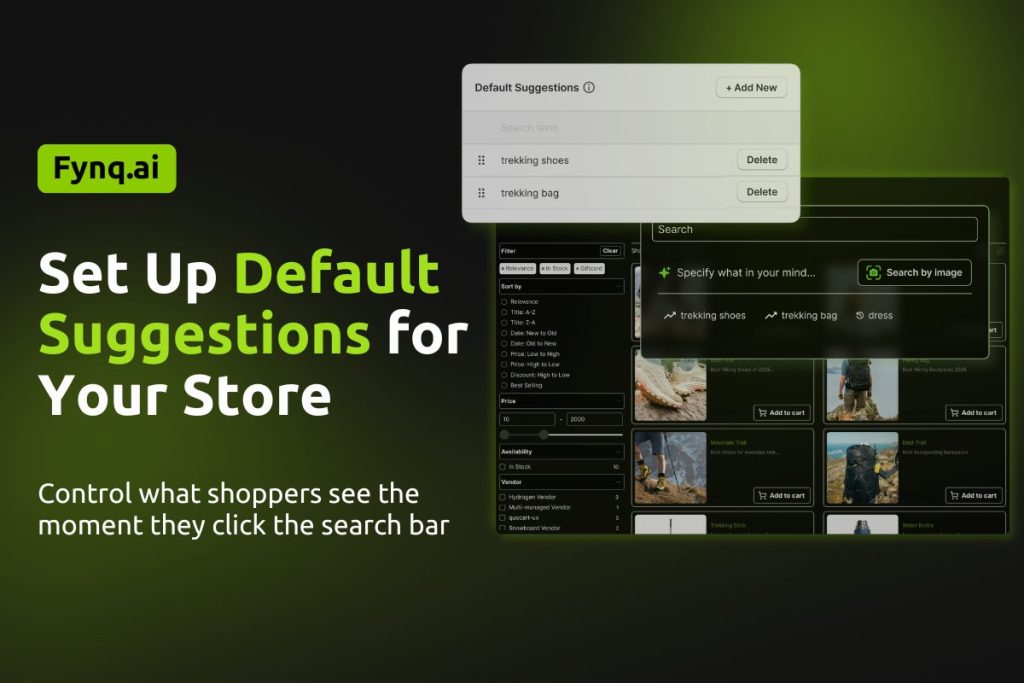
The moment a shopper clicks on your store’s search bar, you have the chance to guide them, even before they type a word. This is where default search suggestions come in. These are preset terms that appear right after someone taps the search bar, giving them instant ideas on what to explore.
If you set these up well, you help shoppers discover trending products, seasonal collections, or top categories, all in a few seconds.
What’s the Difference Between Default & Search Suggestions?
Default suggestions appear on click (before typing).
Search suggestions appear while typing, powered by Fynq’s semantic engine.
Both improve navigation, but default suggestions give you, the merchant, more control over what people see first.
Where to Find the Default Suggestions Settings
To manage your list of default suggestions:
- Open the Fynq Image & Search AI app
- Go to the Configuration section
- Click on Suggestions & Synonyms tab
- Then come to the Default Suggestions section
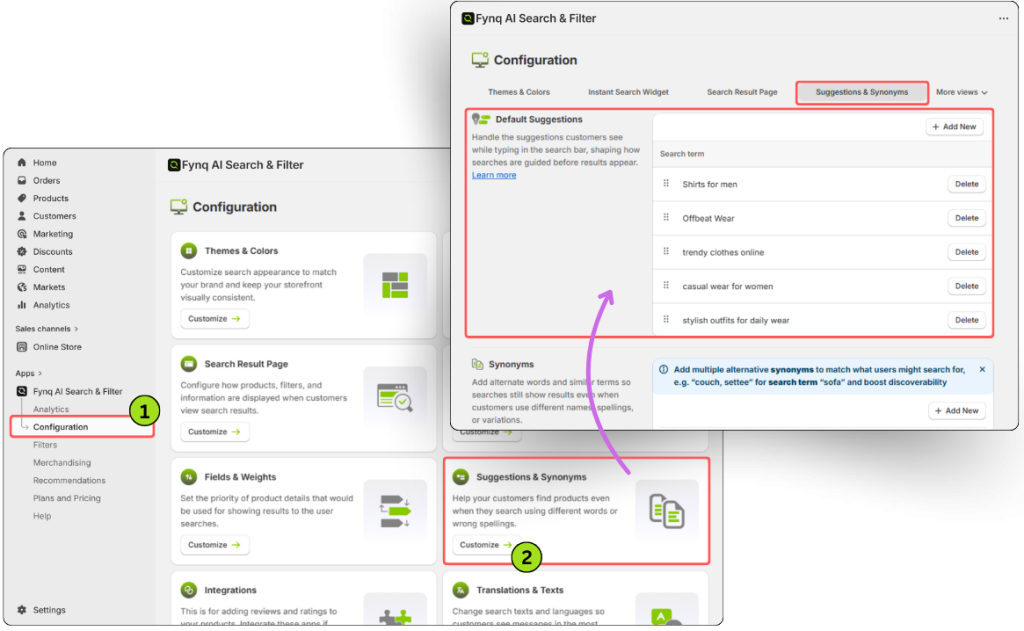
This is where you can view, add, delete, or reorder the suggestion terms your customers see first.
How to Add a New Default Search Suggestion
If you want to add smart, relevant suggestions, start by checking what your shoppers are already searching for. Here’s how:
Step 1: Collect terms from the Analytics page
- Open Fynq’s Analytics tab
- Look under Top Searches or Total Searches (Alternatively, go to the ‘All Searches’ tab)
- Note down high-performing or trending keywords.
These are the terms your visitors are most interested in, and great candidates for your default list.
Step 2: Add your new suggestion
- Return to the Default Suggestions under the Suggestions & Synonyms tab of the Configuration section
- Click the ‘Add New’ button on the top-right corner of the said section
- Enter the term you noted earlier (e.g., “formal shoes”)
- Click Save
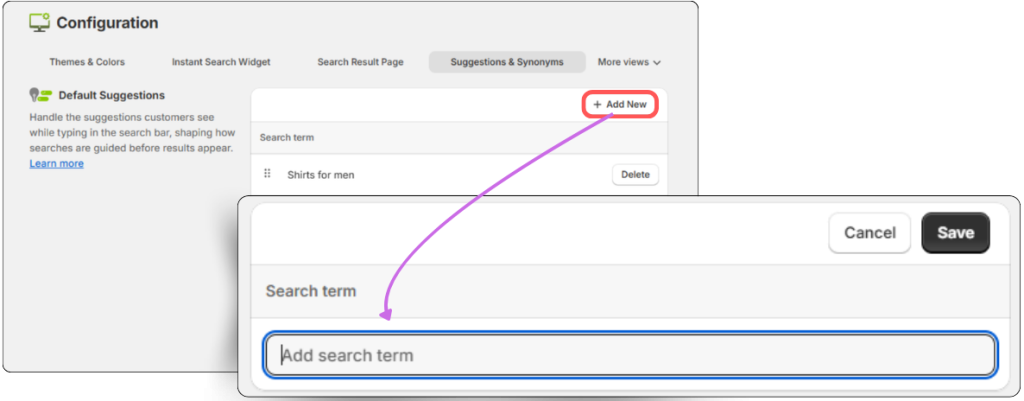
That term will now show up whenever a shopper clicks into the search bar, giving them a shortcut to products they’re already likely to want.
Managing Your Suggestions List
Delete a suggestion
If a term is outdated or no longer relevant:
- Find it in the list
- Click the Delete icon on the far-right side
- The item will be removed immediately.
Note: You cannot edit a suggestion once it’s been added. If you want to change it, simply delete and add a new term.
Reorder your suggestions
To reflect current trends or highlight specific categories:
- Click and drag the handle icon (the six-dot icon – just before each suggestion)
- Move it up or down based on priority
- Fynq automatically saves your new order
This is a great way to adjust based on seasonality, like showing “Winter Coats” at the top during December, or “Backpacks” before school season.
Wrap-up
Default suggestions help you shape the first few seconds of your customer’s search experience. With just a few clicks, you can guide visitors toward popular products, boost seasonal visibility, and support your most important categories, even before they type.
Start with your top-performing search terms, adjust often, and let Fynq turn simple clicks into confident shopping paths.
