 Fynq
Fynq How to Enable Search Suggestions in the Instant Search Widget
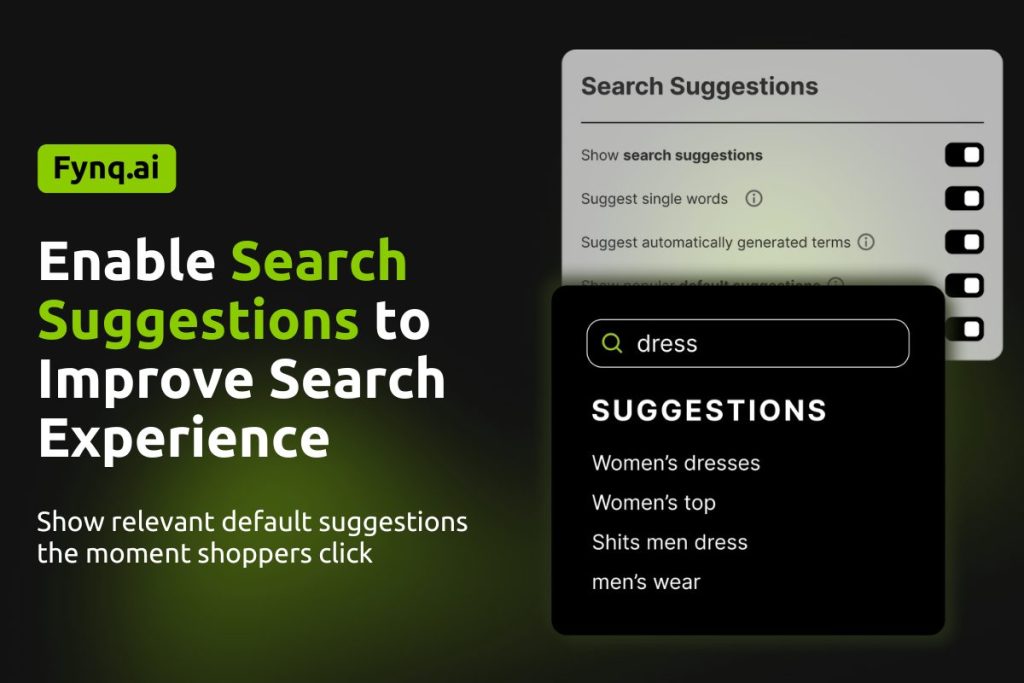
When a customer clicks into your store’s search bar, the conversion probability starts at that moment. The faster they find what they’re looking for, the more likely they are to stay, browse, and buy.
So, as a merchant, you’re to help your shoppers find what they need. Working hours after hours would go in vain, if you take your shopper’s behaviors for granted. That’s why you need to give most relevant search suggestions to guide them. As they type, smart, helpful phrases pop up, based on what your store has in that segment, what’s trending, or even what they personally searched for before.
In Fynq Image & Search AI, you can fully control how these suggestions appear in your Instant Search Widget, both on desktop and mobile. Let’s walk through the setup.
Confused between Search Suggestions & Default Suggestions?
| Search Suggestions | Default Suggestions |
| Search Suggestions appear while typing, based on real-time intent and product signals. | Default Suggestions appear on click, based on popular and recent searches, and shown together as a mixed list. |
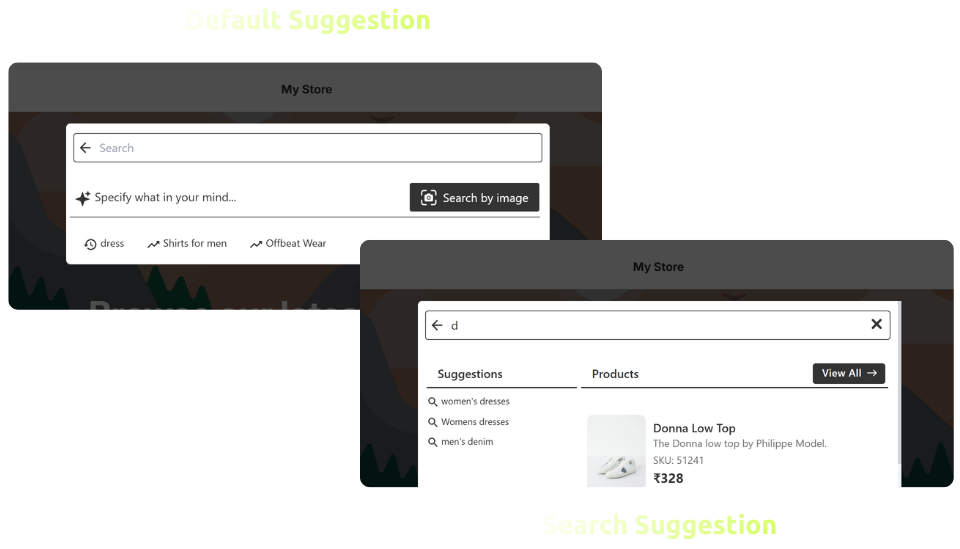
Where To Manage Search Suggestions in Fynq
To set up and customize your search suggestions:
- Open the Fynq Image & Search AI app
- Go to Configuration
- Click on the Instant Search Widget tab
- Here you will find the section called Search Suggestion
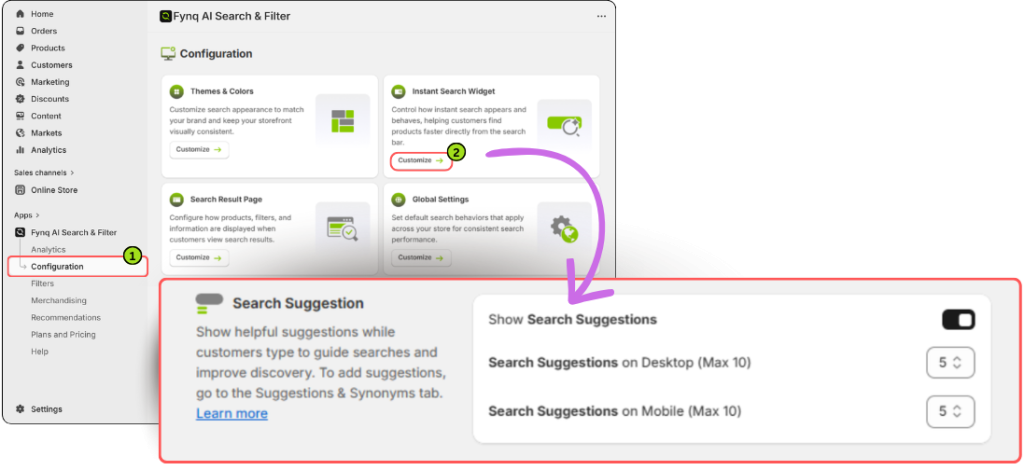
This section includes all the toggles and dropdowns to manage Search Suggestions that are shown as users type.
Please note: Default Suggestions are shown when users simply click into the search bar. Here, the recent searches (that vary to shoppers) will appear along with the keywords you added in the default suggestion (Configuration> Suggestions & Synonyms)
Let’s walk through how each setting works. This is where you’ll find all the toggle switches and quantity settings to adjust suggestions across devices.
1. Show Search Suggestions
This toggle turns ON the dynamic search suggestions that appear as users type into the search bar. These suggestions are powered by Fynq’s smart algorithms, including:
- Product search patterns
- Search-intent tracking
- Semantic analysis
These aren’t just auto-complete guesses. They’re designed to predict what the shopper might mean and offer helpful phrases before they finish typing.
When this is ON, suggestions appear in real time alongside product results.
You can also choose how many suggestions to show:
- Search Suggestions on Desktop: Pick a number between 1 and 10
- Search Suggestions on Mobile: Pick a number between 1 and 10
Tip: For desktop, showing 9 to 10 suggestions is usually a good range. It gives variety without feeling cluttered. On mobile, 4 to 6 suggestions work best. Avoid showing the full 10 on smaller screens; it can overwhelm shoppers.
Please Note:
When you choose to show search suggestions to your shoppers, it’s advisable to switch to Two Column Layout for the Instant Search Widget. It will show suggestions in one column and relevant products in another column. Although search suggestions will of course be shown in a single column layout (but with a not-so-user-friendly appearance).
Go to Configuration Tab> Themes & Colors > Scroll down to ‘Instant Search Widget Layout‘ > Select ‘Two Column Layout‘.
Wrap-up
Smart search suggestions are more than just a feature. Whether they’re typing or just clicking into the bar, Fynq helps guide them with relevant, intelligent hints that reduce friction and boost discovery. Fynq makes it easy to turn this on, customize the behavior, and make the experience smoother across desktop and mobile.
Try different combinations, test how they look, and let your shoppers enjoy a faster, smarter way to search.
