 Fynq
Fynq How To Use Synonyms to Fix Weak Search Queries in Fynq?
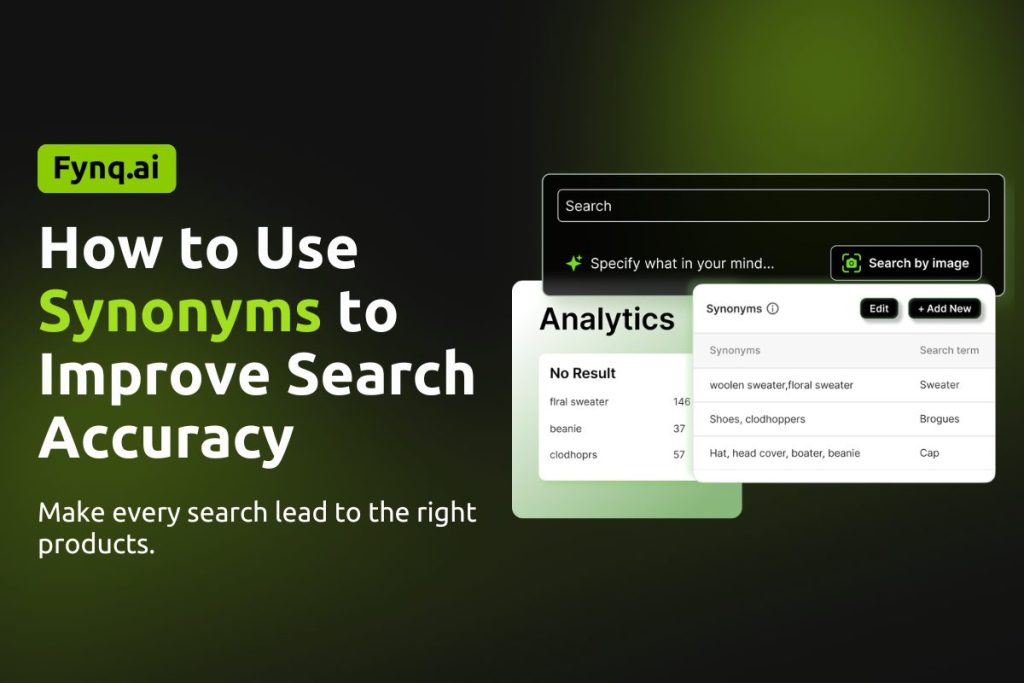
Not all shoppers search using the same words you’ve used to tag or describe your products. One person might search for “pants,” while another types “trousers.” Someone might search “backpack” when your product is labeled as “rucksack.” If your search engine only looks for exact words, those shoppers may never find what they’re actually looking for.
Though Fynq’s Semantic search AI is powered by showing the most relevant results, this section is for more efficiency of the store and the merchants.
That’s where synonyms come in. Fynq lets you connect alternative words to your actual product data, so customers still land on relevant results, even if their language is a little different from yours.
What Are Synonyms in Fynq & Why Are They Important?
Synonyms are custom word connections you create between the actual search terms in your store and the alternative words shoppers may use. They ensure that someone searching for a casual or uncommon word can still reach the correct product, without triggering a No Results Found message.
These connections don’t rely on grammar. They work best when you tell Fynq, “When someone types this, show them results for that.”
Where To Find & Manage Synonyms in Fynq
To set this up:
- Open the Fynq Image & Search AI app
- Go to the Configuration section
- Click on the Suggestions & Synonyms tab
- Now come to Synonyms below
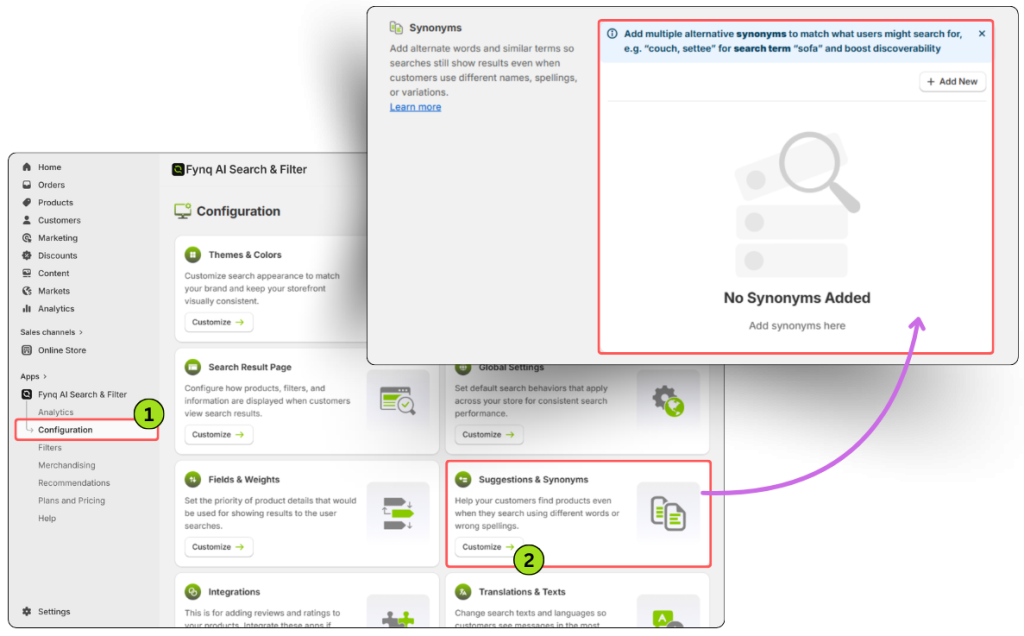
You’ll now see a clean section where you can add, edit, and manage all your custom synonym rules.
How to Add New Synonyms
By default, no synonyms are added. You’ll need to create them yourself based on how your customers are searching.
Here’s how to do it:
- Click the “Add New” button at the top-right of the Synonyms section
- In the Search Term column, type the standard term that your product data uses (e.g., t-shirt)
- In the Synonyms column, enter the alternative words your shoppers might use (e.g., tee, tshirt). You can enter multiple values, separated by commas
- Click Save.
NOTE:
To keep your store search aligned with real customer behavior, regularly check the Analytics > Searches without Results section. Collect non-standard terms from there and link them to the standard terms used in your product titles. This ensures your store stays relevant and helpful for how shoppers actually search.
Your synonym rule is now active. Any time a customer searches for “tee” or “tshirt,” Fynq will understand they mean “t-shirt” and pull results accordingly.
How to Edit Synonym Rules
If you need to update any existing synonyms:
- Click the Edit button just above the synonym list (it’s beside the “Add New” button)
- You can now modify, delete, or reorganize the current rules
- Don’t forget to Save when done.
NOTE:
While synonyms usually work both ways in language, Fynq’s synonym setup is one-directional. The Search Term should always be the actual term used in your product fields.
The synonyms only help catch alternate words that don’t exist in your product catalog.
Use Case: Why Synonyms Setup Matters
Let’s say your product catalog uses the word pant, and you add pajama as a synonym.
Now, when a customer types “pajama”, Fynq knows to pull results for “pant”, because that’s the search term you linked it to. But the reverse won’t work the same way.
If a customer searches “pant,” Fynq will show highly relevant results plus additional ones using its built-in semantic search logic.
If a customer searches “pajama,” the engine only looks for the exact linked synonym match. It won’t use fuzzy logic or auto-expand that term, because in this setup, you told Fynq to treat “pajama” as a fallback, not a core term.
So the main goal of adding synonyms is not to create linguistic flexibility. It’s to make sure customers don’t hit a dead end when they use non-standard or brand-specific terms in search.
Wrap-up
Synonyms help you recover missed searches and gently guide your customers toward the right results. You don’t need to overthink it, just listen to how people search, and add the terms they use.
Review your Analytics tab for unusual or “no results” search terms. Then come back to the Synonyms section, connect them to your standard product language, and let Fynq do the rest.
