 Fynq
Fynq What Each Analytics Tab Means: All Search, 0 Results, Products Viewed, Products Added to Carts
Understanding how your customers interact with your store’s search can uncover valuable opportunities to improve conversions. Fynq.ai’s Analytics page breaks down search performance into simple tabs, helping you see what’s working, and what’s not. This article explains what each of these tabs means and how you can use them to grow your business.
Table of Content
All Searches
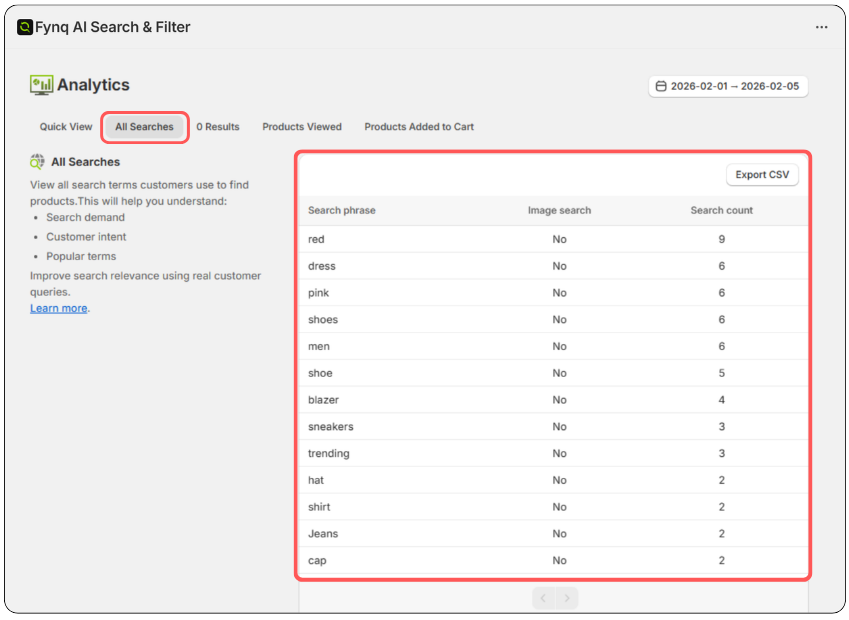
The All Searches tab lists every search query made by visitors in your store. This gives you a complete view of what customers are actively looking for.
Why it matters:
It shows you trending keywords, high-demand products, and even new terms you may not have anticipated. For example, if users search for “travel pouches” and you don’t offer them, you might consider adding them to your catalog.
How to use it:
Review common search terms regularly. Are people finding what they’re searching for? Are there frequent searches for items you don’t currently sell? This tab helps you align your inventory and marketing with actual customer interest.
Learn how to track popular products through search behavior. Read here.
0 Results (Zero Result Searches)
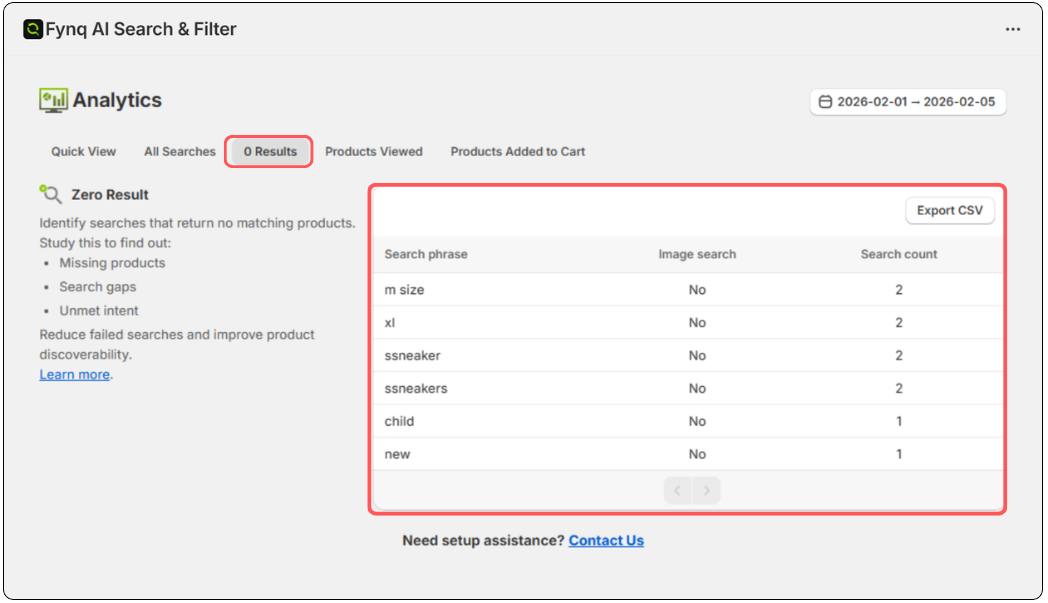
This tab displays all the searches that returned no matching products. These are known as zero-result searches, and they signal a disconnect between what users want and what your store shows.
Why it matters:
These missed searches can lead to lost sales. Often, the issue is simple, a misspelled word, a different product name, or missing tags.
How to use it:
Identify and fix common zero-result terms. You can add synonyms, update product tags, or create redirects so future customers get relevant results. For example, if users search for “joggers” but your products are tagged “track pants,” updating tags or synonyms will solve the problem.
Learn how to interpret “0-Result Searches” and act on them. Read here.
Products Viewed
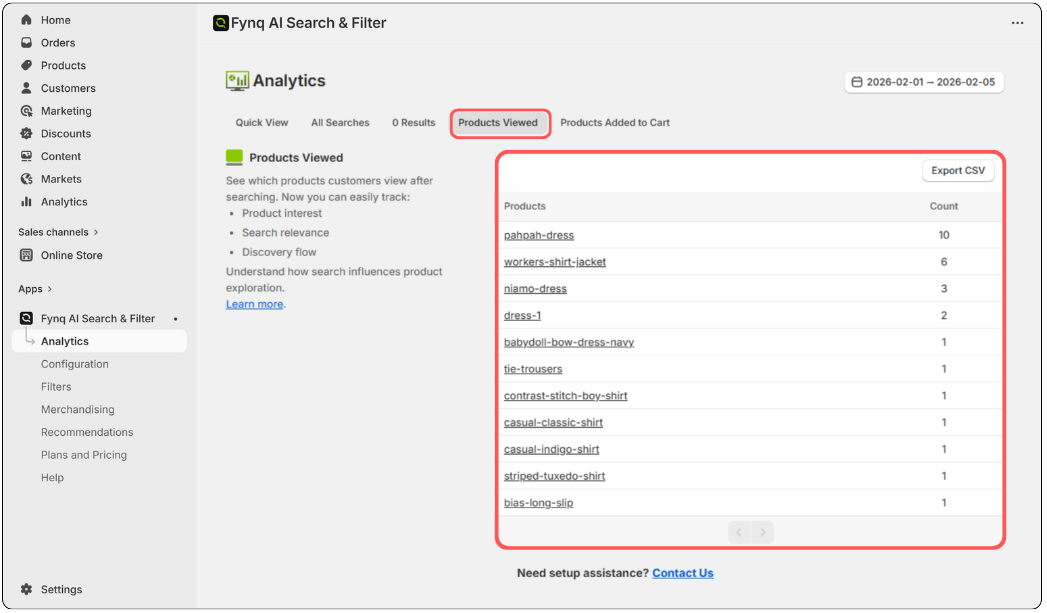
The Products Viewed tab shows which items customers click on after performing a search. This tells you which products successfully captured attention.
Why it matters:
A product being viewed frequently means it’s relevant and appealing to users. This can be a sign to feature it more prominently in search results or promotions.
How to use it:
Track which products are consistently viewed. Are they your bestsellers? Are the images and titles optimized? Use this insight to prioritize these items and improve visibility for similar products.
Products Added to Cart
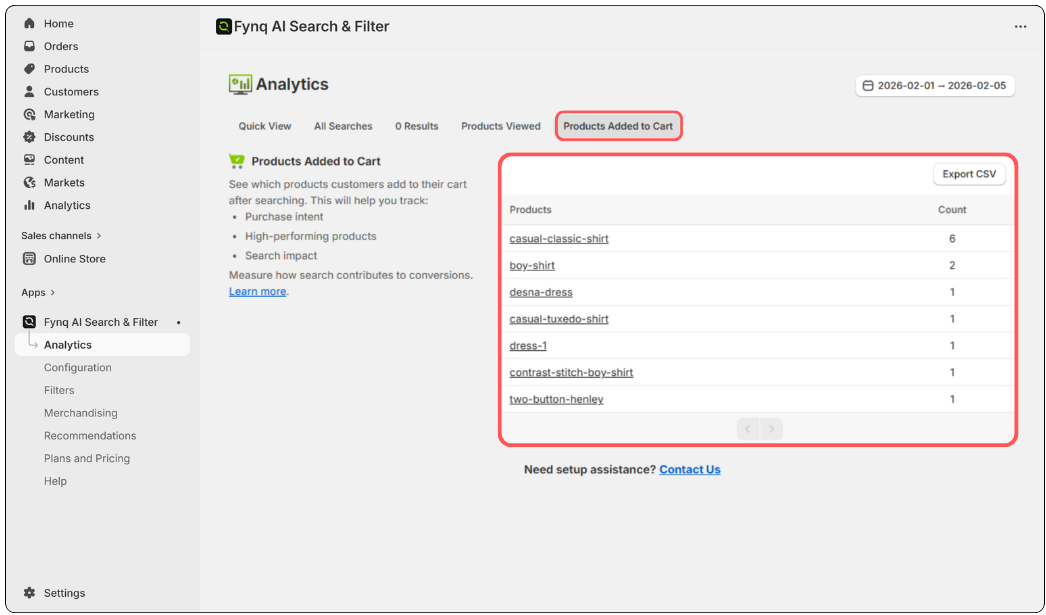
This tab highlights the products that customers added to their cart directly from a search. It’s one of the strongest indicators that search is driving purchase intent.
Why it matters:
These are high-converting products that successfully matched the shopper’s intent. Understanding which products lead to cart additions can help guide promotions, recommendations, and product placements.
How to use it:
Review which items are being added to the cart through search. Consider boosting them in rankings or bundling them with related products to increase order value.
Before you leave this page…
The tabs in your Analytics Dashboard aren’t just data; they’re insights waiting to be put to work. Whether someone couldn’t find what they were looking for, or ended up adding it straight to their cart, Fynq is here to help you make sense of it all, and act on it.
You may require downloading or exporting this data for scaling purposes. You can complete this task by going through this article: How to Export Data from Analytics Page
Even small tweaks based on what you learn here can lead to better searches, happier customers, and more sales. So, check in here regularly, it’s one of the easiest ways to keep improving your store experience.
