 Fynq
Fynq How Fynq Processes Product Data?
When you install Fynq on your Shopify store, it doesn’t just sit there waiting for you to add things manually. The moment it starts indexing, Fynq begins doing something very important in the background, it reads, organizes, and structures your product data. Then only it becomes possible to power smart search, filters, labels, recommendations, and so on.
As an active Fynq app user, if you’re wondering, “How does Fynq know which products to show, how to filter them, or what to suggest?” , this article is for you.
We’re going to explain, in the simplest way possible, what Fynq does behind the scenes, and how you can make sure your data is working well with it.
Table of Content
- What Kind of Product Data Does Fynq Read?
- How Fynq Pulls the Data: The Sync Process
- How Fynq Processes the Data for Each Feature
- What If Your Data Is Incomplete or Messy?
What Kind of Product Data Does Fynq Read?
Fynq connects directly with the Shopify products that come under the product section. That means it can access everything that’s already inside your store, including:
- Products
- Product titles
- Descriptions
- Variants (size, color, etc.)
- Product tags
- SKUs
- Product options
- Vendor and product type
- Inventory status
- Prices and compare-at-prices
- Collections
- Metafields (custom product information you’ve added)
- Your store’s online theme
- Publications of products on sales channels
- Locales
- Shopify Markets settings
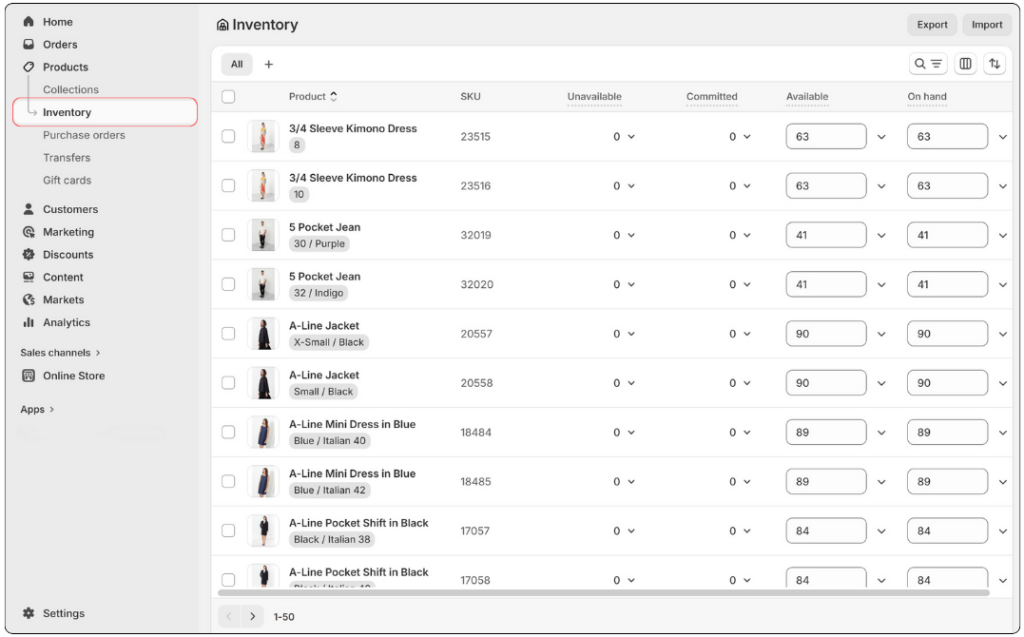
If it’s stored in Shopify, Fynq can use it, either for search, filtering, labels, or product logic.
Please note: Fynq DOESN’T export your product information outside your admin panel.
How Fynq Pulls the Data: The Sync Process
Once you install the app, Fynq Image & Search AI automatically starts its initial sync. During this time, it reads your store’s full inventory and builds an internal index (kind of like a searchable library).
This index powers:
- Search results (based on the fields and weights you choose)
- Filters (based on options, tags, metafields, etc.)
- Product recommendations (based on what people view and interact with)
- Labels (based on product rules you set)
Important to Know:
- The sync happens automatically, and you can trigger it manually anytime.
- Fynq is designed to update in near real-time, so when you change a product, Fynq sees it.
- The last sync update will appear at the top of the Fynq app’s home dashboard.
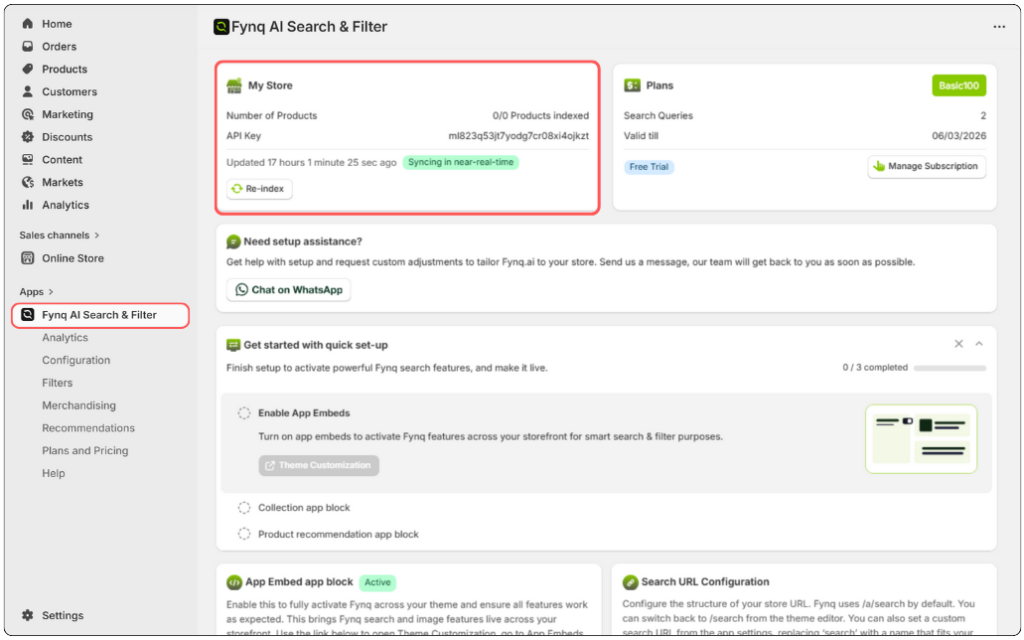
To run a manual sync:
Go to Fynq Image & Search AI > Dashboard > First section stating the Syncing in near-real-time > Re-index
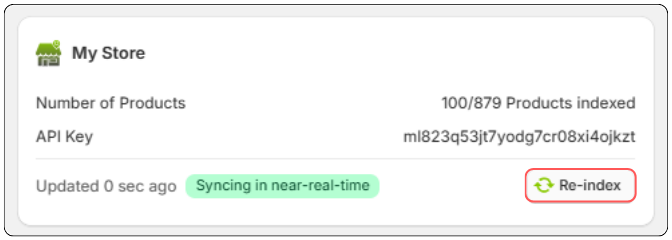
Tip: Manually re-index your store whenever you make updates to collections, market-specific fields, or import products, especially when those updates affect multiple items at once, not just a single one.
How Fynq Processes the Data for Each Feature
1. For Search:
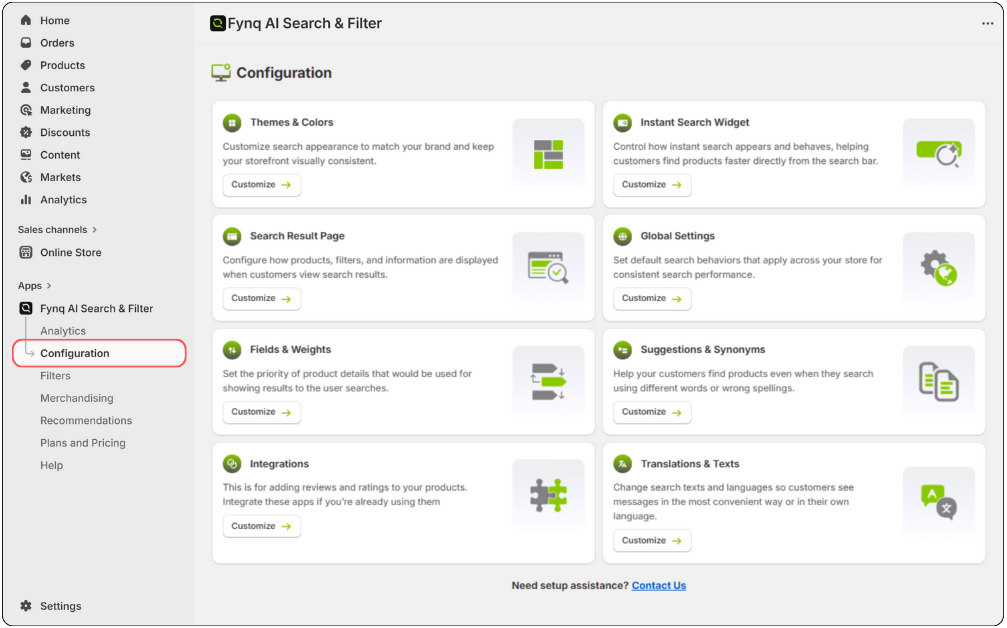
Fynq has a smart search index using fields like title, tags, description, SKU, and more. You can access these and control which fields are searchable and set weights to prioritize what matters most (like product titles over descriptions).
Manage this under: Configuration > Fields & Weights
2. For Filters:
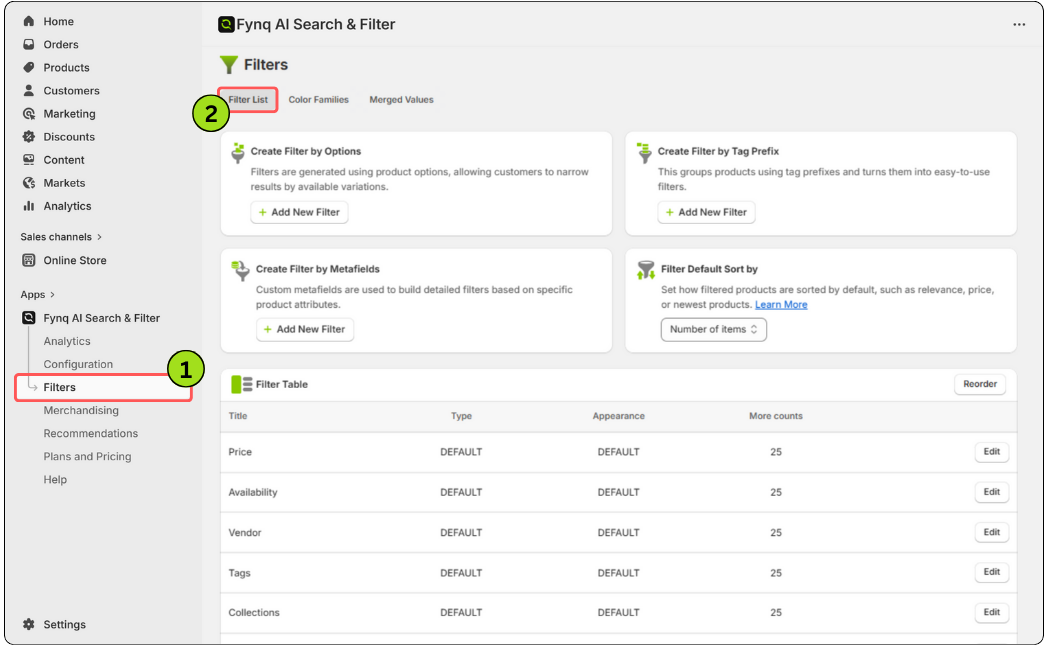
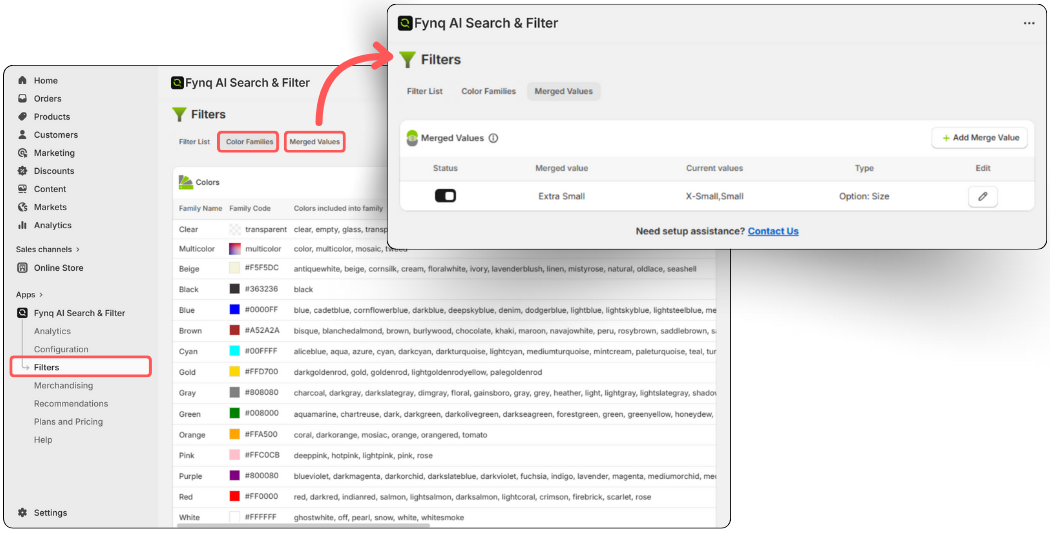
Fynq turns your tags, product options, and even metafields into dynamic filters. It also lets you merge similar values (like “gray” and “grey”) and group things visually, like using color swatches for color filters.
Go to: Filters > Filter List
Go to: Filters > Color Families / Merged Values
3. For Product Labels:
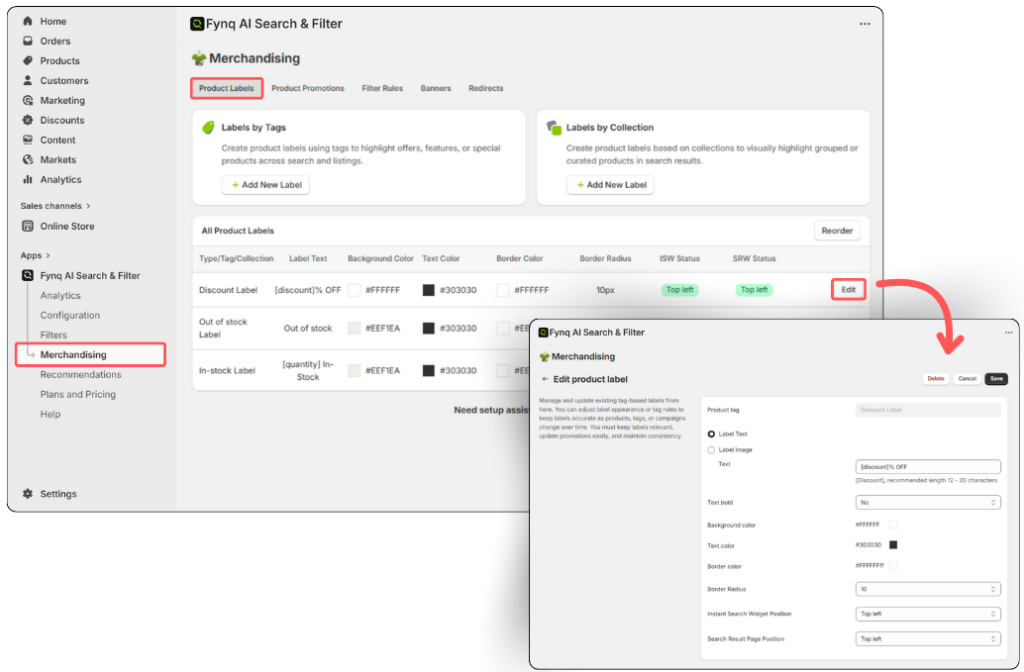
Fynq checks your products for specific tags or collection rules, and displays visual labels like “New,” “Low Stock,” or “Back in Stock” based on those conditions.
Set these under: Merchandising > Product Labels
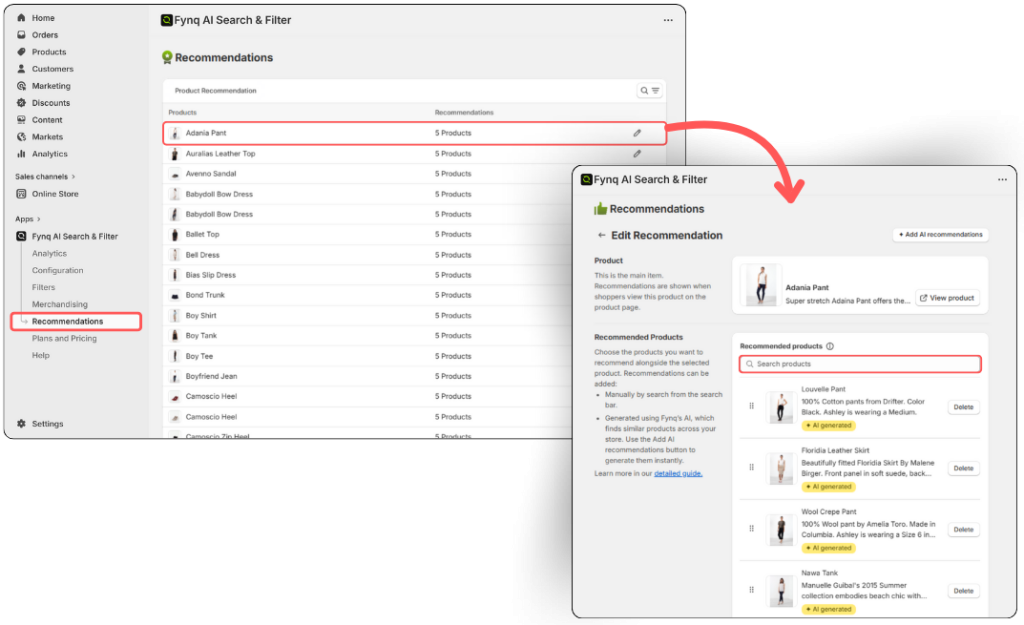
4. For Recommendations:
Fynq uses its own AI model to show related or suggested products when your customer clicks on a product card to view more details. These recommendations may work for upselling your products for more clicks and conversions. You have to enable this for the products you want to add recommendations.
Manage this in: Recommendations > Choose a product > Edit Recommendations
What If Your Data Is Incomplete or Messy?
Fynq can only use what’s already inside Shopify. If your products are missing tags, inconsistent naming, or don’t have metafields, the app might still work, but not as smartly.
Here’s what you can do to get better results:
- Use clear and consistent product titles and tags
- Add meaningful product options (like color, size)
- Clean up duplicate or outdated tags
- If possible, use metafields for structured attributes like fabric type or screen size
These small efforts go a long way in helping Fynq return the most accurate, relevant results and filters for your shoppers.
Final Thoughts: What Happens in the Background Powers Everything in the Front
Fynq might feel like magic when your customers start seeing instant results and smart suggestions, but it’s all powered by how it reads and structures your product data.
When your product catalog is clean and organized, Fynq does the rest:
- It syncs your products
- Indexes the right fields
- Powers meaningful filters (for products and collections)
- Adds labels where needed
- And makes real-time recommendations (when enabled AI recommendations)
All of this happens automatically, but when you understand how it works, you can take it even more seriously.
So before you dive into customizing search behavior or styling filters, take a moment to review how your product data is structured. The better the data, the better Fynq performs.
