 Fynq
Fynq How to Assign Weight to Different Searchable Product Fields in Fynq?
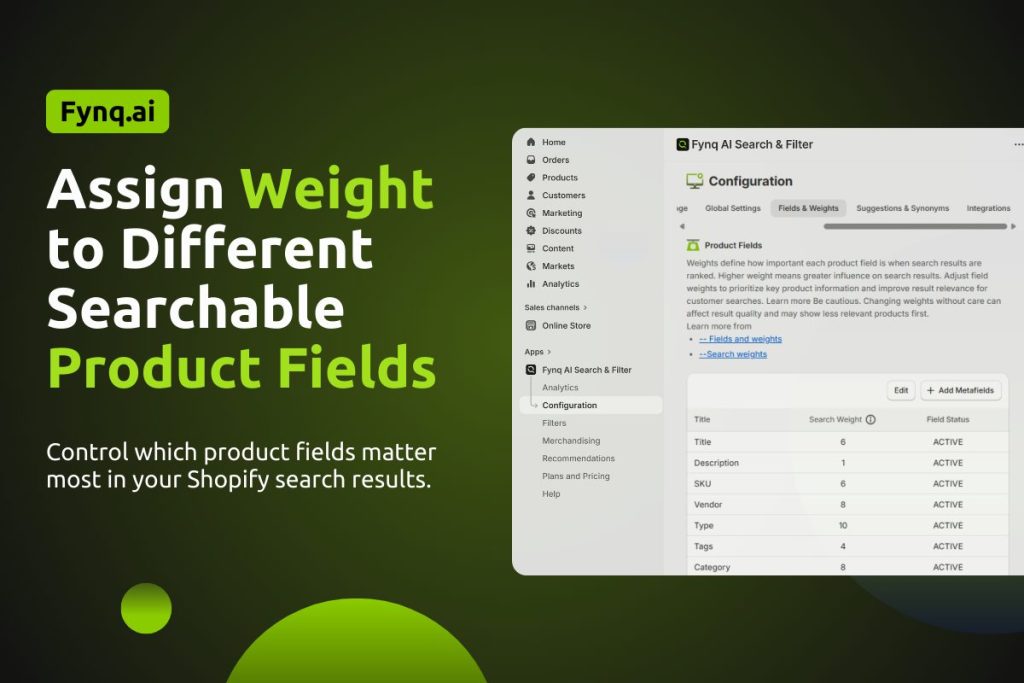
When a customer types something into your store’s search bar, how does Fynq know what to show first? Is it based on the product title, tags, or maybe something hidden in the description?
Fynq gives you full control over that decision through something called search weights. You can decide which product fields matter more in search, and which ones matter less. This helps your customers see the most relevant results at the top, based on how your store is structured.
Table of Contents:
- What Are Searchable Fields in Fynq?
- Where to Find the Fields & Weights Settings
- Understanding Fynq’s Default Fields & Weights
- How to Edit the Default Weights
- How to Add New Searchable Fields
Let’s start with the basics first.
What Are Searchable Fields in Fynq?
Searchable fields are different parts of a product’s information that Fynq can read and use to match search queries. These fields help Fynq understand which products might be relevant to what the customer is typing.
Think of a real-life situation. When someone searches “leather bag,” should your store prioritize the product title or the product tags? Maybe both, but maybe one more than the other. That’s exactly what search weights help you control.
These fields reflect your store’s structure, and the more accurate the field priorities, the better your customers’ search experience becomes.
Where to Find the Fields & Weights Settings
To assign or adjust search weights:
- Open the Fynq Image & Search AI app
- Go to the Configuration section
- Click on the Fields & Weights tab
- Under this, you’ll land on the Product Fields
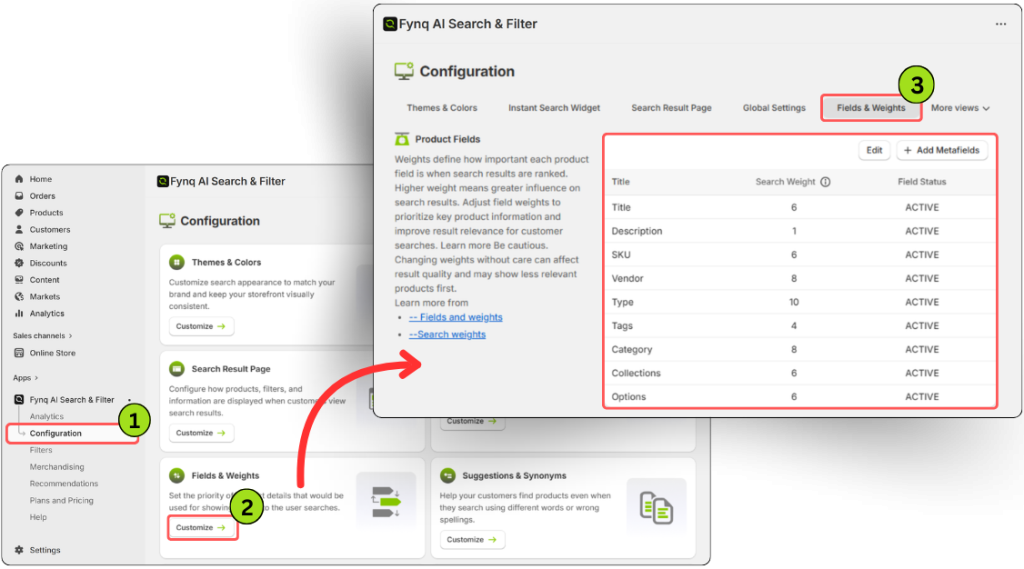
This is where you’ll find all existing product fields and the weights assigned to them.
Understanding Fynq’s Default Fields & Weights
Fynq comes with a set of default searchable fields, each assigned a standard weight value. These include:
| Field Name | Search Weight | Field Status |
| Title | 10 | ACTIVE |
| Description | 8 | ACTIVE |
| SKU | 5 | ACTIVE |
| Vendor | 8 | ACTIVE |
| Type | 10 | ACTIVE |
| Tags | 4 | ACTIVE |
| Category | 8 | ACTIVE |
| Collections | 8 | ACTIVE |
| Options | 6 | ACTIVE |
You’ll also see whether each field is currently ACTIVE or INACTIVE in the system.
Quick Tip:
A higher weight means the field carries more importance in search ranking.
For example, if the Title has a weight of 10 and Tags have a weight of 6, Fynq will prioritize matches from the title more strongly.
How to Edit the Default Weights
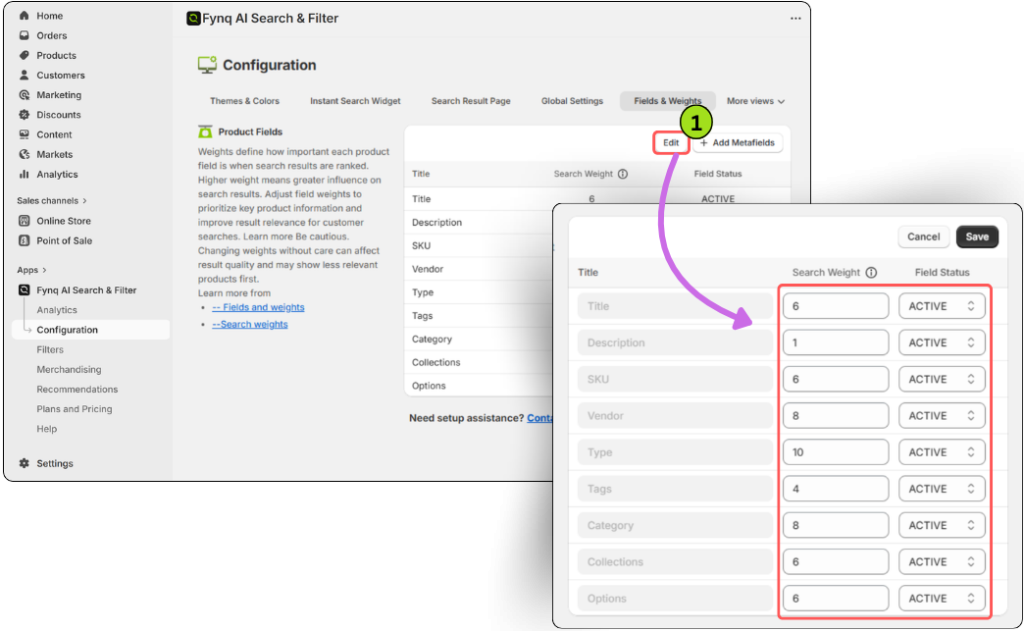
To adjust weights or activate/deactivate a field:
- Click the Edit button at the top of the product fields table
- Adjust the Search Weight (any number from 0 to 10) for the fields you want to modify
- Change the Status to ACTIVE or INACTIVE
- Field names cannot be changed. Only their behavior can be.
- Click Save once you’re done
Tip:
Setting a field’s weight to 0 makes it non-impactful but setting it as INACTIVE ensures it’s ignored completely during search. Use INACTIVE if you want to temporarily remove a field from search matching.
How to Add New Searchable Fields
You can also add new fields, especially if you’re using metafields to store custom product data.
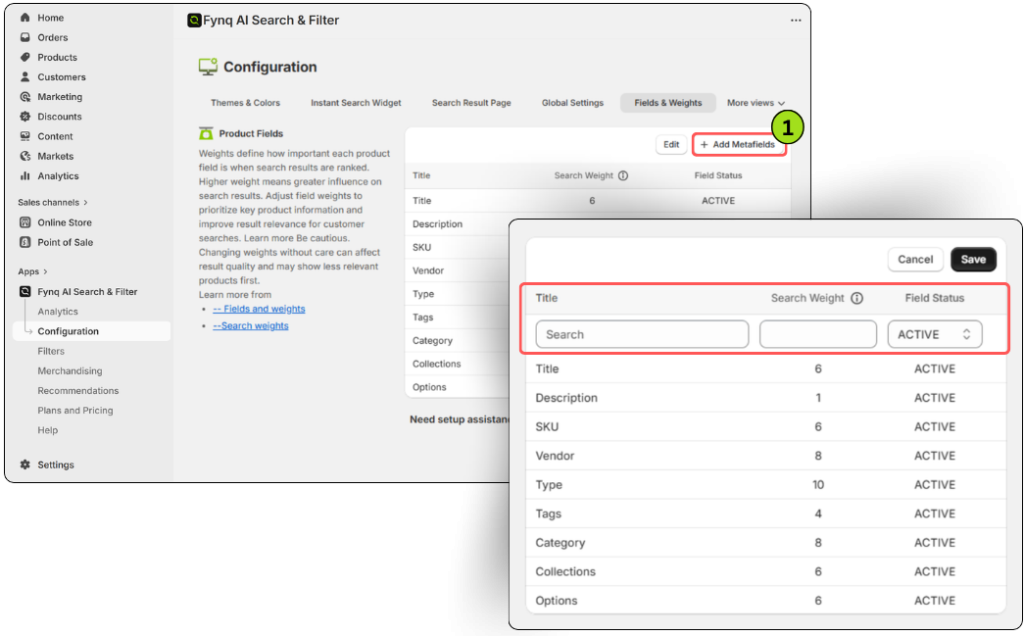
Here’s how:
- Click the Add Metafields button at the top right of the Product Fields table
- Select the Field Name from the dropdown menu. You cannot type it; Fynq automatically pulls available field names from your store’s metafields.
Note:
If you don’t see your desired field name, go to Shopify Admin > Settings> Custom data> Metafield definitions> Products, and add it as a metafield first. Fynq will then fetch it from your Shopify setup. Follow Shopify’s guide here.
- Enter the Search Weight (anything from 0 to 10)
- Choose the Status: Leave it as ACTIVE if you want it live immediately, or select INACTIVE if you want to turn it on later
- Click Save at the top right.
Wrap-up
Search weights may sound technical, but they’re really about teaching your store how to think like your customers. You decide which fields matter most in search, and Fynq follows your lead.
Start with the default setup, then adjust based on what you see customers searching for. And as your store grows or changes, revisit this section to make sure your search stays sharp and relevant.
