 Fynq
Fynq How do you set up the Collection App Block in Fynq?
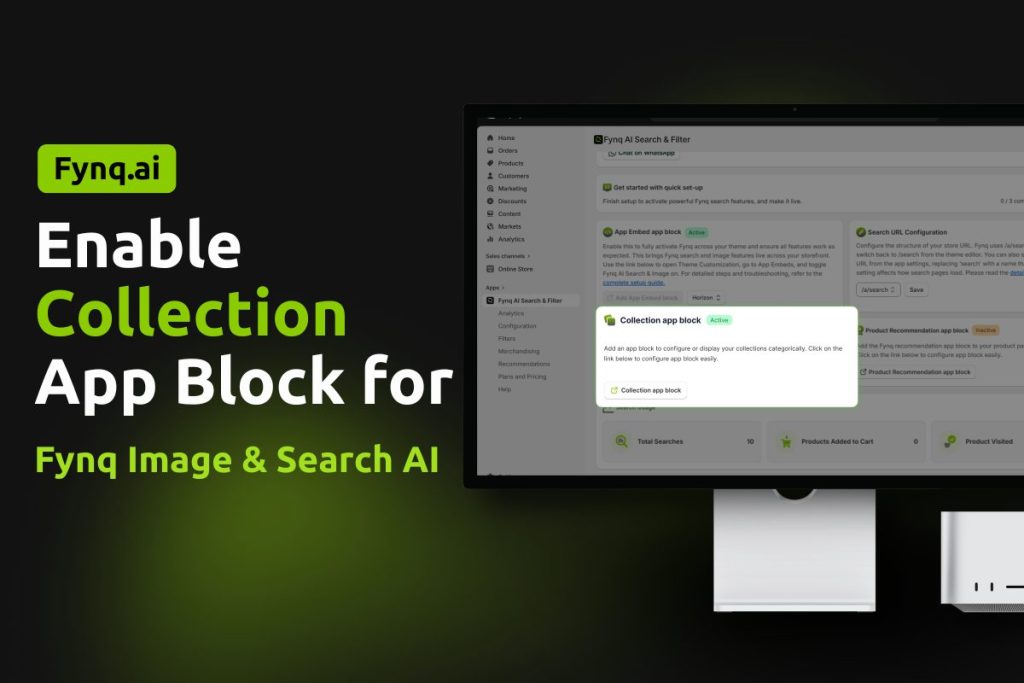
After installing Fynq, one of the key steps is enabling the Collection App Block. This step can feel technical for many store owners, but once it is done correctly, Fynq starts working beyond search pages.
This article explains the setup in a clear and simple way so you can complete it without confusion.
Why do you need the Collection App Block?
The Collection App Block allows Fynq to work on collection pages in addition to search result pages. Without this block, Fynq features remain limited to search only.
Once enabled, you can also place Fynq powered collection sections on other pages such as the homepage using the theme editor.
Before you begin
Before setting up the Collection App Block, make sure the App Embed is enabled.
The App Embed, Product Recommendation App Block, and Collection App Block together activate Fynq on your store.
If the App Embed is not enabled, the Collection App Block will not work properly.
Table of Contents
- Step by step guide to set up the Collection App Block
- What changes after enabling the Collection App Block?
- Conclusion
Step by step guide to set up the Collection App Block
Follow each step carefully. Do not skip the final save action.
Step 1: Open the Fynq app
- Go to Fynq Image & Search AI from your Shopify admin.
- Scroll down to find Collection App Block.
- You will see it marked as Inactive in a reddish yellow color.
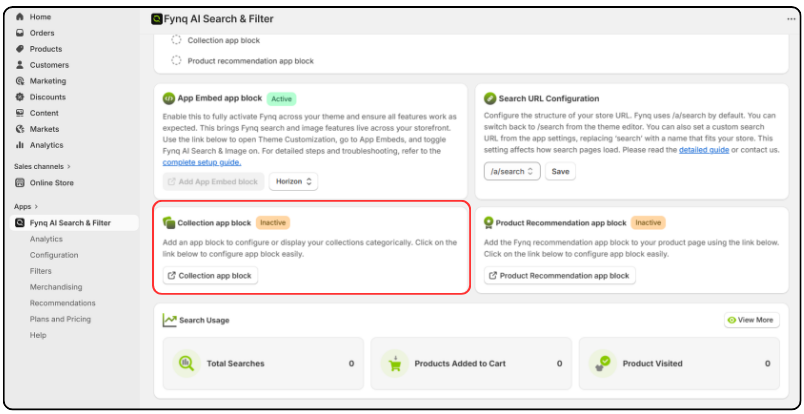
This indicates that the block is not yet added to your theme.
Step 2: Click on Collection App Block
- Click the Collection App Block button.
- A new tab will open automatically.
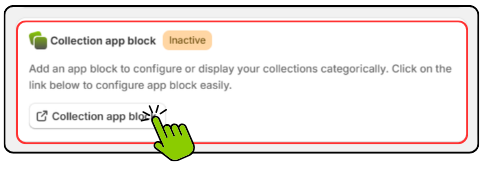
No manual action is needed at this stage.
Step 3: Confirm the system message
You will see a popup message that says:
“Fynq Collections Page added.
Drag the ‘Apps’ section up or down to move it to the position you want.
When ready, save your changes.”
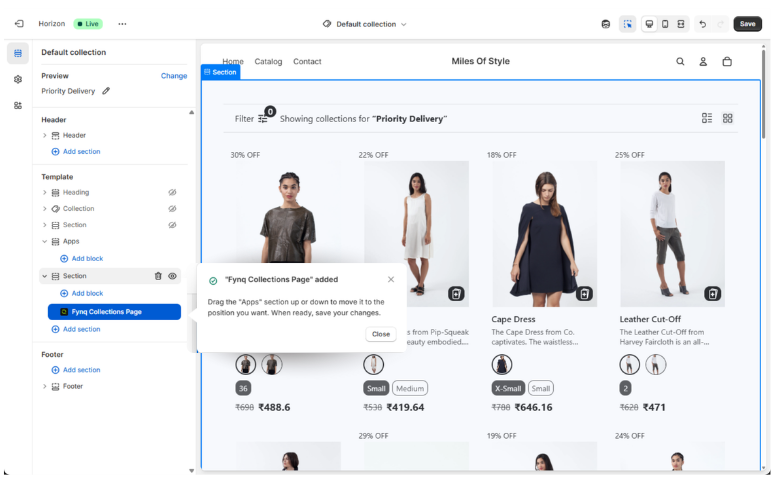
This confirms the block has been added successfully. Click Close on the popup.
Step 4: Save the changes
- Go to the top right corner of the page.
- Click Save.
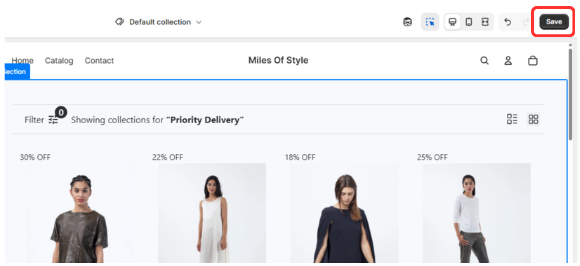
This step is mandatory. If you do not save, the setup will not be applied.
Step 5: Refresh the Fynq app
- Go back to the previous tab where Fynq Image & Search AI is open.
- Refresh the page.
You will now see an Action option next to the Collection App Block section. This confirms that the setup is complete.
What changes after enabling the Collection App Block?
After the block is enabled:
- Fynq becomes active on all collection pages.
- Search and discovery work consistently across your store.
- You can arrange collection app blocks with Fynq features on your homepage.
No additional setup is required for activation.
Conclusion and next steps
Once the Collection App Block is active, you can further fine tune how it behaves from the Configuration section in the left menu of the Fynq app. This is where you can control and adjust Fynq features based on your store needs.
If you have not completed the following required steps yet, we strongly recommend reading these articles next:
Configuring your Search Page URL to Fynq
How to enable app embed blocks
Completing these steps ensures that Fynq works smoothly across your entire storefront.
