 Fynq
Fynq How to Customize Field Names in the Instant Search Widget
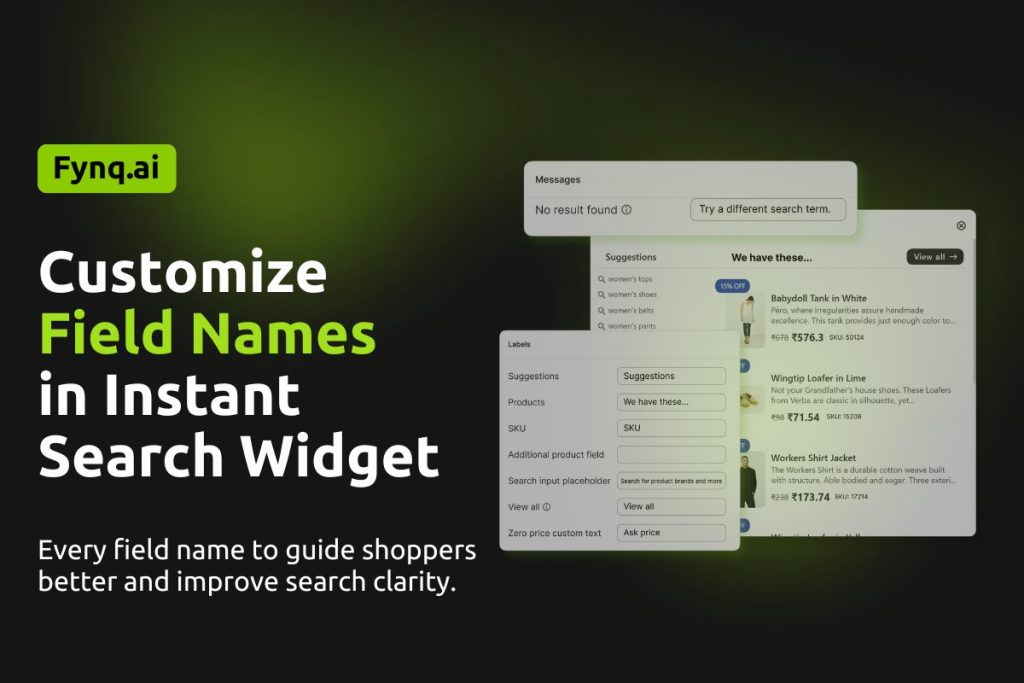
If you’ve ever wanted your search dropdown to feel more aligned with your brand or product language, this is the place to start. In Fynq’s Instant Search Widget, every field name, from “Suggestions” to “View All”, can be customized. Why does that matter? Because the words your shoppers see first can shape how fast they find what they’re looking for.
In this guide, we’ll walk you through how to change those field names. You don’t need to know code or mess with templates, just a few simple edits inside the app. Let’s get into it.
If you want to customize the field names in the Search Result Page,
Our guide would help you:
How to Customize Field Names in the Search Result Page?
Where to Customize Instant Search Widget Field Names
To begin customizing the field names that appear in the Instant Search Widget:
Go to:
Fynq Image & Search AI → Configuration section → Translations & Texts tab → Instant Search Widget → Field Name
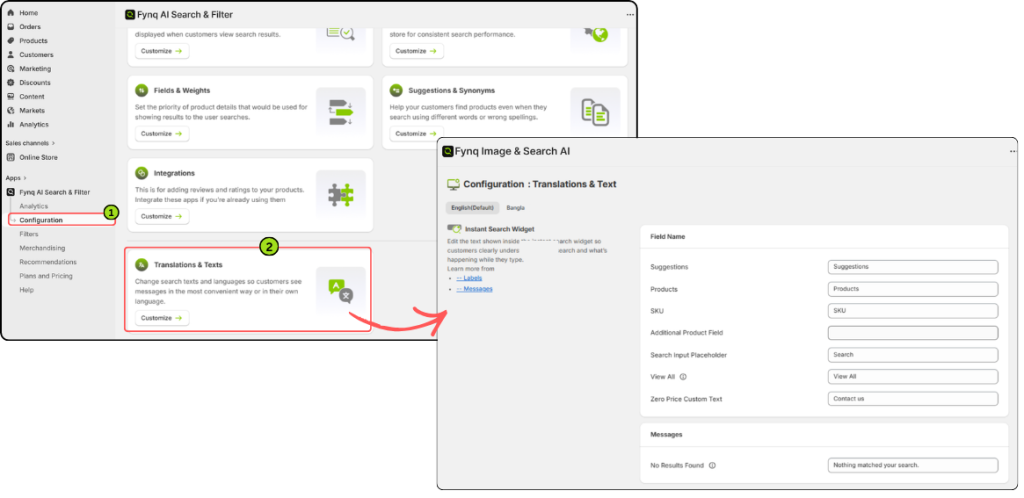
Here, you’ll see editable boxes for 7 field names. Fynq provides default text, but you can replace it anytime to better suit your audience or language preferences.
Important:
Make sure all these fields in this section are enabled from Configuration → Instant Search Widget tab.
If a field is disabled there, your text changes in this section won’t appear on the storefront. Know more in the articles: Instant Search Widget Settings Guides
Editable Fields You Can Customize
Each of these fields plays a role in shaping your store’s search experience. Here’s what they do and how you can use them wisely:
1. Suggestions
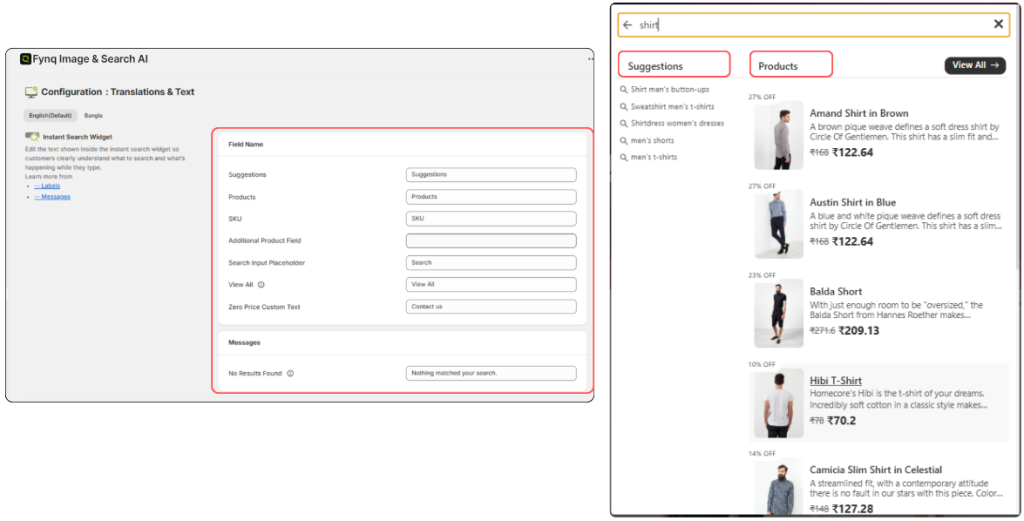
This is the heading that appears when smart search suggestions show up under the search bar. You can change this to something like “Popular Searches” or “Suggested Terms” to better guide users.
2. Products
Used as a field when the widget displays matching products. You might rename it “Items” or “Results” or anything else your shoppers will understand instantly.
3. SKU
If your shoppers often search using SKU codes, you can customize this field. For example, call it “Product Code” or “Item No.” depending on what’s more familiar to your customers.
4. Additional Product Field
This one is optional and not filled in by default. When enabled, it shows extra info like Vendor, Product Type, or Collection next to each search result.
You must first enable this from:
Configuration → Instant Search Widget tab → Product Card → Additional Product Field (Note: The Open Search Result Page should be disabled)
Then, return to the Translations & Texts section and enter your preferred field (like “Brand” or “Collection”).
NB:
The ‘Additional Product Field’ is empty by default. You must enable it in Configuration → Instant Search Widget tab → Product Card → Additional Product Field. Then choose what to show, like vendor, type, or SKU, and name it here accordingly.
Know more in the article: How to Set Product Display Behavior in the Instant Search Widget
5. Search Input Placeholder
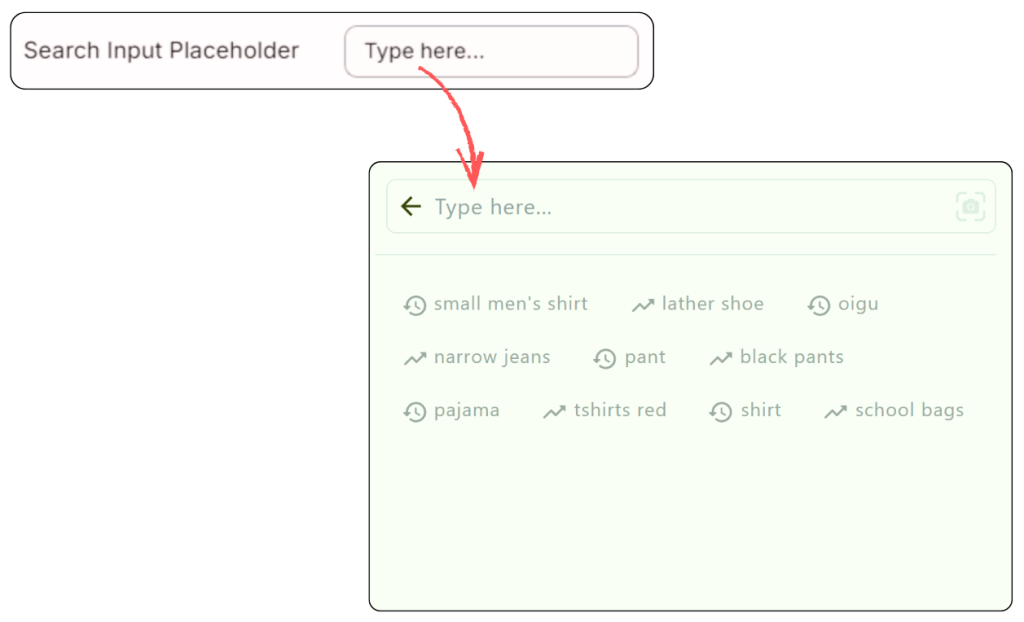
This is the faint text inside the search bar before someone types. You can replace “Search products” with something warmer or more specific, like “What are you looking for?” or “Try ‘black boots’.”
6. View All
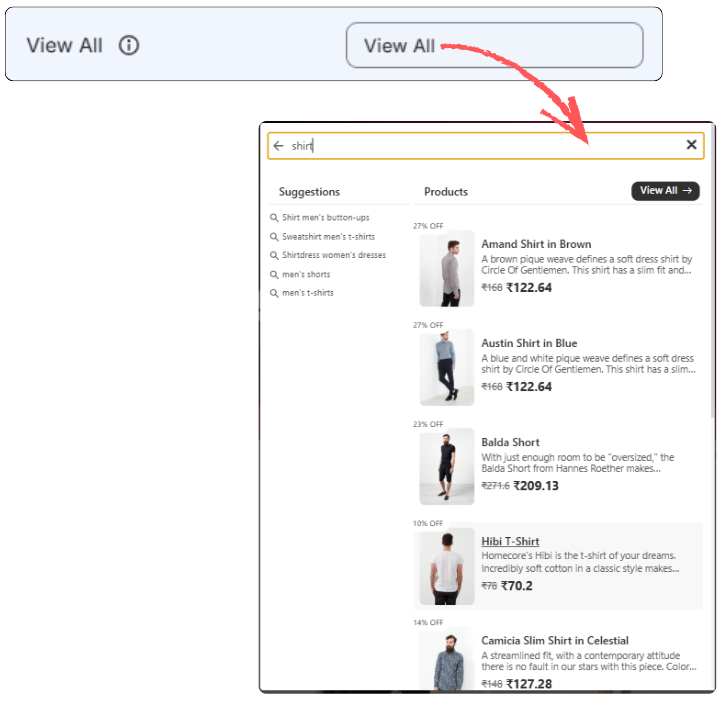
Appears at the bottom of the search widget if there are more results. You might rename this “See More Results” or “Browse All” (whatever fits your tone).
7. Zero Price Custom Text
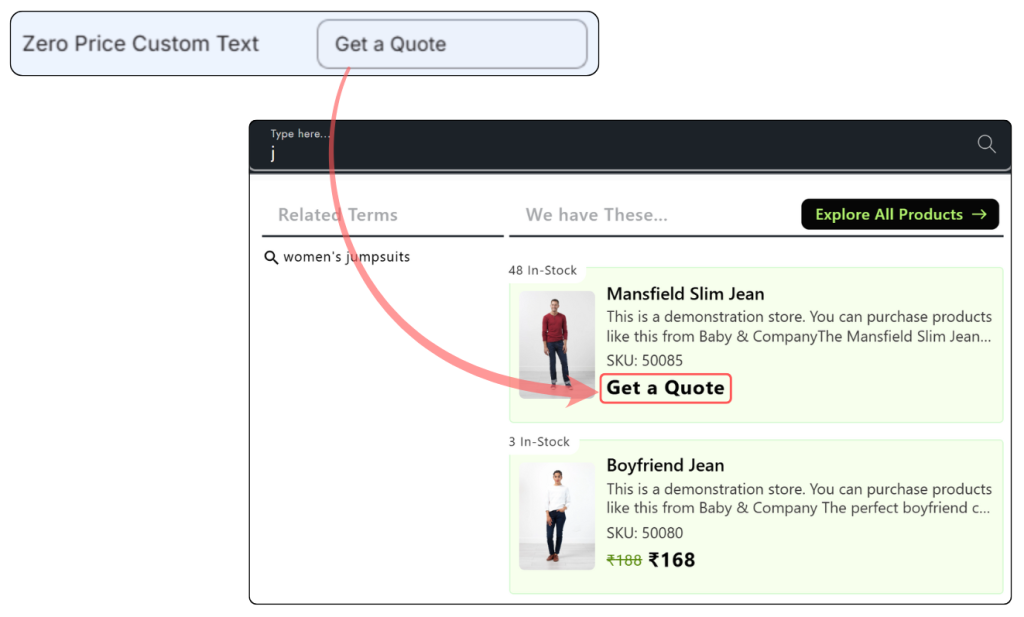
Used for products that have no price (like free samples or out-of-stock items). Add a clear message like “Price on Request” or “Coming Soon”.
NB:
To manage how zero-priced products show up in the Instant Search Widget, follow this guide: How to Handle Zero-Priced Products in the Instant Search Widget?
Final Thoughts
Renaming your Instant Search Widget’s field names might seem like a small change, but it adds polish and consistency to your storefront, whether you’re localizing language, adjusting tone, or guiding users better; every word counts.
Take a few minutes to personalize the field names. You’ll make your search experience smoother and more intuitive for every shopper who types in that box.
