 Fynq
Fynq How to Apply Color Palettes to the Instant Search Widget?
Your Instant Search Widget (ISW) is one of the first touchpoints your shoppers interact with. That means its design plays a vital role in how smooth, professional, and on-brand your store feels. That’s why Fynq goes beyond in providing generic looks. You can fully style the widget to reflect your brand’s personality.
From bold, high-contrast layouts to soft, minimalist palettes, Fynq gives you full aesthetic freedom with easy-to-use visual tools. You don’t need coding knowledge or design skills.
NB: If you’ve already selected a compatible theme for both the Instant Search Widget and Search Result Page, you don’t have to style colors separately, unless you want extra customization.
Table of Contents:
- How to Customize Instant Search Widget Colors
- Widget Colors
- Product Card
- “View All” or “Search” Button
- “Search by Image” Button
How to Customize Instant Search Widget Colors
To style the Instant Search Widget, go to your Fynq Image & Search AI admin panel > Configuration > Themes & Colors > Colors > Instant Search Widget Colors.
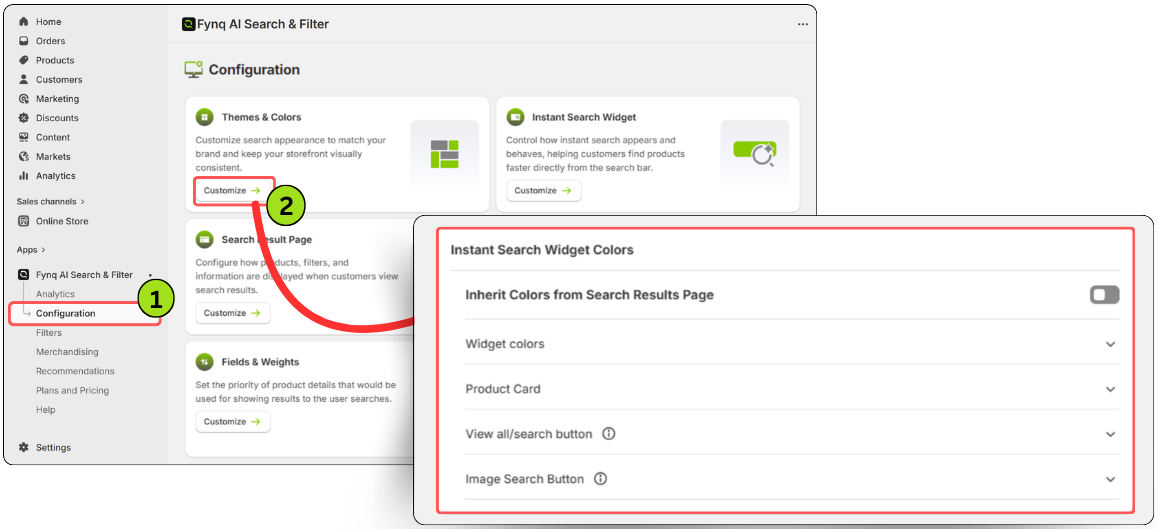
You’ll find multiple sections where you can customize every part of the widget, from background and heading colors to search buttons and product cards.
1. Widget Colors
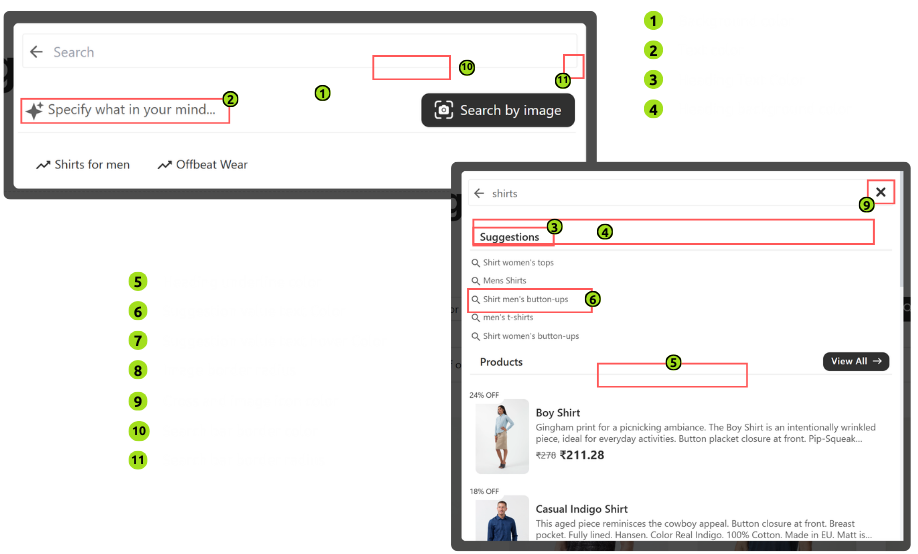
It’s in your control how the entire search area and its suggestions appear. Learn each section and apply it in your admin panel:
- Background Color – The base background of the search widget
- Text Color – General text color for suggestions and other information
- Heading Text Color – Color of section headings (like “Suggestions” or “Products”)
- Heading Background Color – Background color behind headings
- Heading Underline Color – Color of the decorative underlines for section titles
- Suggestion Value Text Color – Color of the text in suggestion lists
- Suggestion Value Hover Color – Color when a user hovers on a suggestion
- Image Border Radius – Adjust how rounded suggestion images appear (The more the number, the more the corners become round.)
- Cross and Image Icon Color – Style the icons within the image search
- Search Bar Border Color – Outline color for the input field
- Search Bar Border Radius – Roundness of the search box corners (The more the number, the more the corners become round.)
2. Product Card
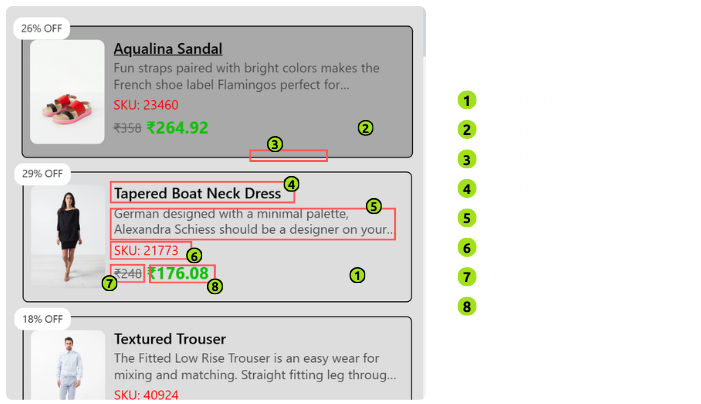
You can design how the product previews look. Learn each section and apply it in your admin panel:
- Card Background Color – Color behind each product item
- Card Hover Color – Change color when a product is hovered
- Card Border Color – Set a border around the product
- Title Text Color – Color of product titles
- Descriptions Text Color – Color of product descriptions
- SKU Color – Style SKU or ID text
- Actual Price Text Color – Strike-through price styling
- Product Prices Color – Main product price color
3. “View All” or “Search” Button
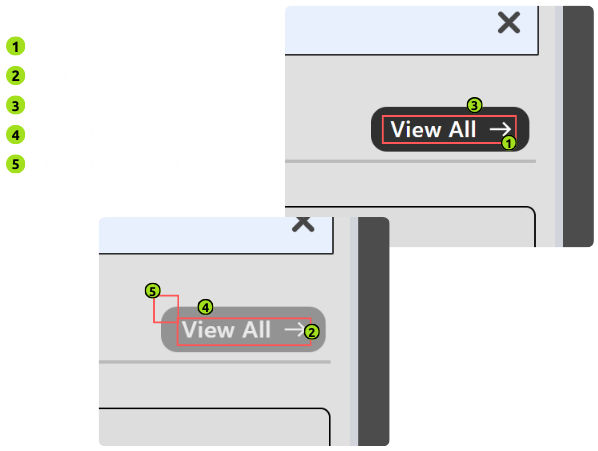
You can customize the look of the View All button at the bottom of the widget. The more the number, the more the corners become round.
- Text and Icon Color – Color of button label and icons
- Text and Icon Hover Color – Color when hovered
- Button Background Color – Main button background
- Button Background Hover Color – Background when hovered
- Button Border Radius – Roundness of the button edges (The more the number, the more the corners become round).
4. “Search by Image” Button
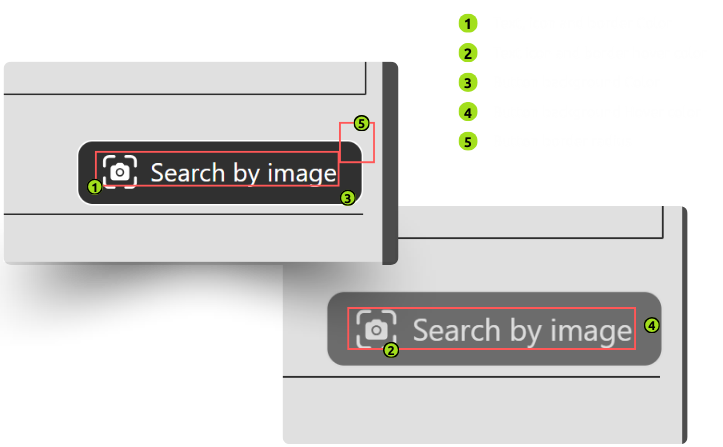
Style the image search feature for consistency.
- Text, Icon, and Border Color – Color of text and border
- Text, Icon, and Border Hover Color – Hover effects
- Button Background Color – Button background in default state
- Button Background Hover – Background when hovered
- Button Border Radius – Roundness of the button corners (The less the number, the less the corner becomes round.)
After making any changes in the color, DON’T forget to Save the setting.
Wrap-Up
With these easy-to-use styling options, your Instant Search Widget can blend seamlessly into your store design, helping customers explore products without ever leaving the search bar.
Don’t want to style it manually?
Simply turn on the toggle for “Inherit Colors from Search Result Pages” in the same settings tab, and your Instant Search Widget will automatically match the styling from your Search Result Page.
