 Fynq
Fynq Make Your Search Page Match Your Storefront Theme. Here’s How
Let’s say a customer is browsing your homepage. Everything looks clean, familiar, and well-designed. Then they search for something, and suddenly, the look of the page changes. The fonts feel different, the layout shifts, or the spacing doesn’t quite match the rest of your store.
It’s not broken, but it feels off. That small disconnection can make the experience feel less professional, and it can affect how much trust a shopper places in your ecommerce store.
That’s why in Fynq, we let you choose a search theme that matches your existing Shopify store design. Once handled the right way, it will help keep everything visually consistent — from homepage to search results.
Table of Contents:
How to choose the right theme in Fynq
Inside the app, go to:
Configuration → Themes & Colors → Themes
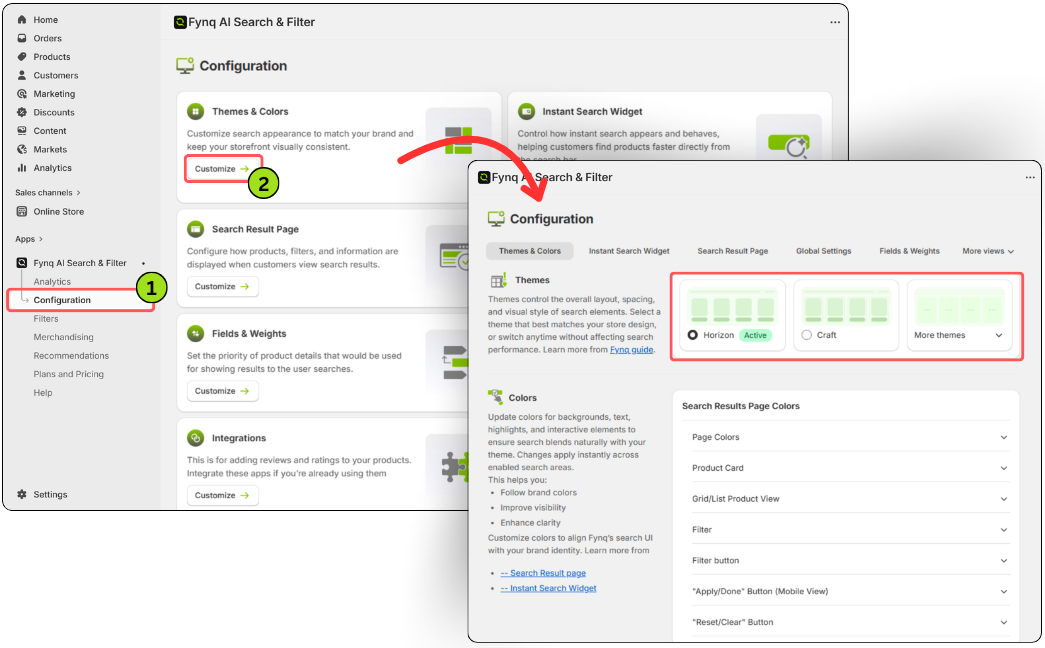
You’ll see a list of theme options here. Choose the one that aligns with common Shopify storefront themes (Go to Online Store → Themes). Suppose your store is on Dawn theme; now you’ve to choose “Compatible with Dawn” from the above list. This will make the Instant search widget, and the Search result page look like your entire store.
NB: These themes are built to match popular layout styles and structure patterns used across Shopify stores. So, once you choose a compatible theme for your instant search widget & search result page, you DON’T necessarily need to change Colors (except you need some extra modification.
After choosing a theme and making some changes in Colors, the theme gets automatically listed as a ‘Custom’ theme.
After choosing a theme and making some changes in Colors & Styles, the theme gets automatically listed as ‘Custom’ theme.
Here’s how to choose:
- First, identify the theme you’re currently using on your Shopify storefront.
- Then, select the matching or closest theme in Fynq.
For example, if your store uses a theme with wide product cards and bold titles, choose a similar layout style here.
When the theme is correctly selected:
- The Instant Search Widget will pop up with the right sizing, fonts, spacing, and product grid look.
- The Search Results Page will carry over the same visual feel as the rest of your site. There will be no weird gaps or no clashing buttons.
Once selected, Fynq will show a small ‘Active’ label next to the chosen theme, so you always know what’s live.
What if Your Theme isn’t on the List?
No worries. You can still pick the closest match and tweak small details using:
- Go to the following section, ‘Colors’, on the same page
- Pick colors for each part for the search results page and instant search widget.
- Now the new colors will be stored under the ‘custom’ theme (in Themes).
If you need some more customization in theme personalization, you can just click on the ‘Contact Us’ at the end of the page. We’ll help make it feel just right.
Read More: How to contact the Fynq support team for Query or theme-specific integration
Wrap-up
Your store’s theme is part of your brand, and your search experience should reflect that. Choosing the right theme in Fynq Image & Search AI keeps your storefront feeling smooth, professional, and trustworthy at every step.
A few minutes of setup here can save hours of debugging later, and give your shoppers a better reason to stick around and buy.
