 Fynq
Fynq How to Use Filter Display Settings in Fynq
Filters are one of the most important tools in any online store. They help shoppers quickly narrow down what they’re looking for by size, color, price, and more. But how your filters look and behave can impact whether customers use them at all.
In Fynq, you have several display settings to fine-tune how filters appear and function. These settings are designed to make your filters cleaner, more informative, and easier for customers to use.
Let’s walk through where to find these options and how to use them.
Where to Find Filter Display Settings in Fynq
All filter display controls are located in one central area.
- Open the Fynq Image & Search AI app
- Go to the Configuration tab
- Stay in the default tab called Search Result Page
- Find the section Filter Display Settings
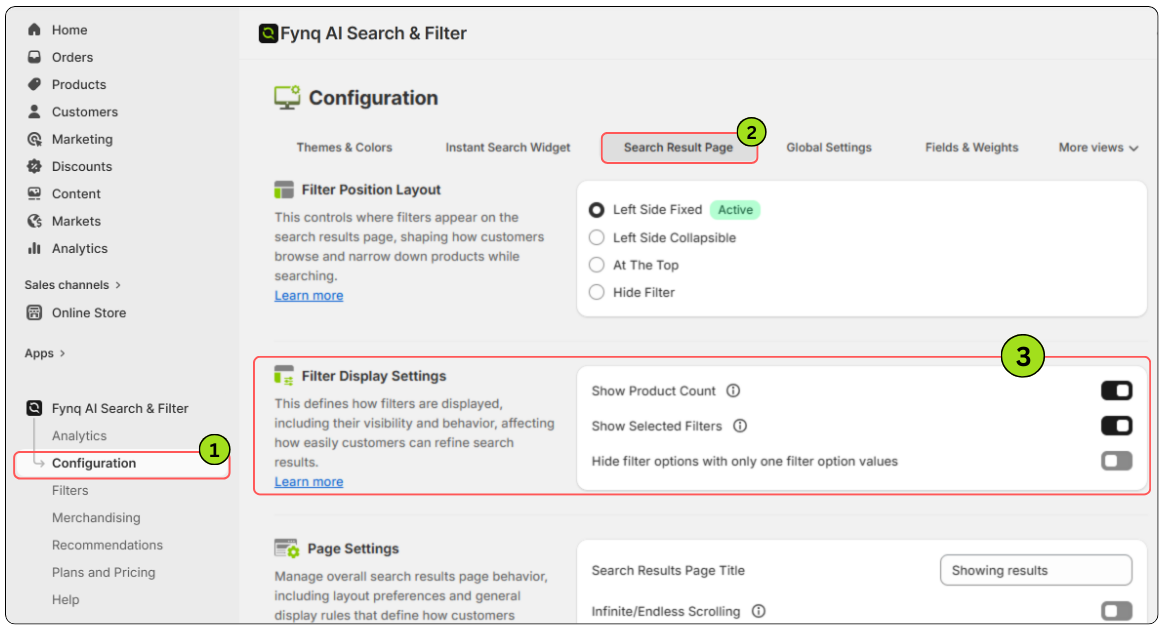
This is where you’ll see three important toggle options.
1. Show Product Count
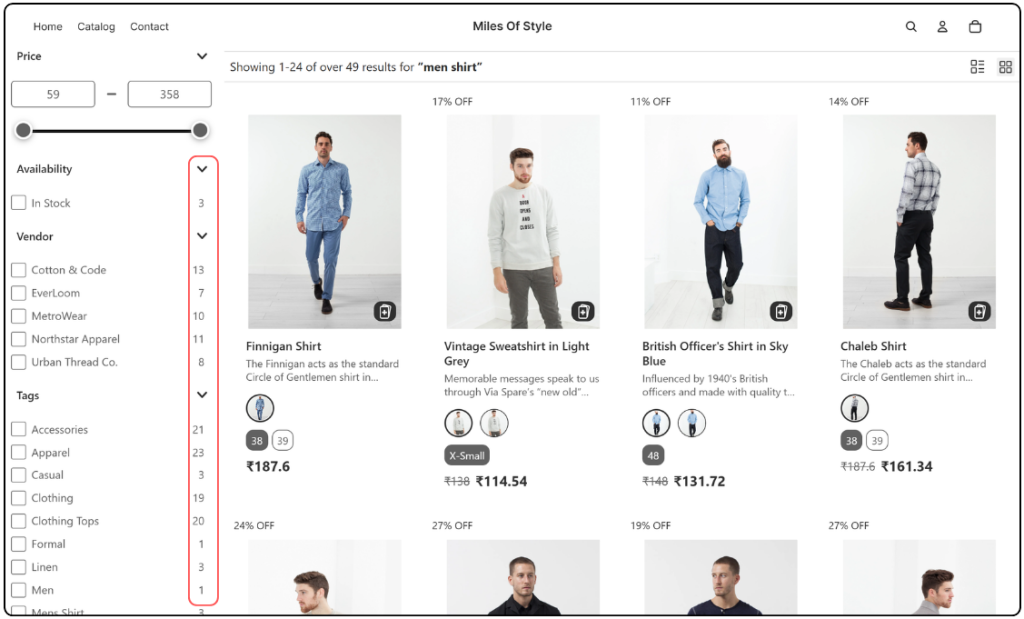
This setting adds a number next to each filter option, showing how many products fall under that option.
Why it’s useful:
Imagine a shopper is looking for red dresses. If the “Red” filter shows a count of 12, they know they’ll have options to browse. If it shows 0, they’ll skip it.
Showing the product count makes the shopping experience more transparent and helps customers make faster decisions.
How to turn it on:
- In the Filter Display Settings section, toggle on Show Product Count
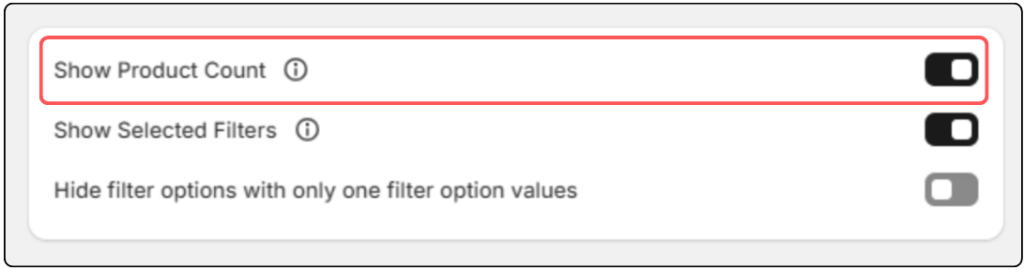
- Click Save.
2. Show Selected Filters
This toggle shows all filters a customer has applied, right above the filter column, often in the form of removable tags.
Why it’s useful:
Let’s say a customer filters by brand, size, and color. If they want to remove just one of those, it’s much easier if they can see what’s applied and remove it with a single click.
This keeps shoppers in control of their browsing and reduces frustration.
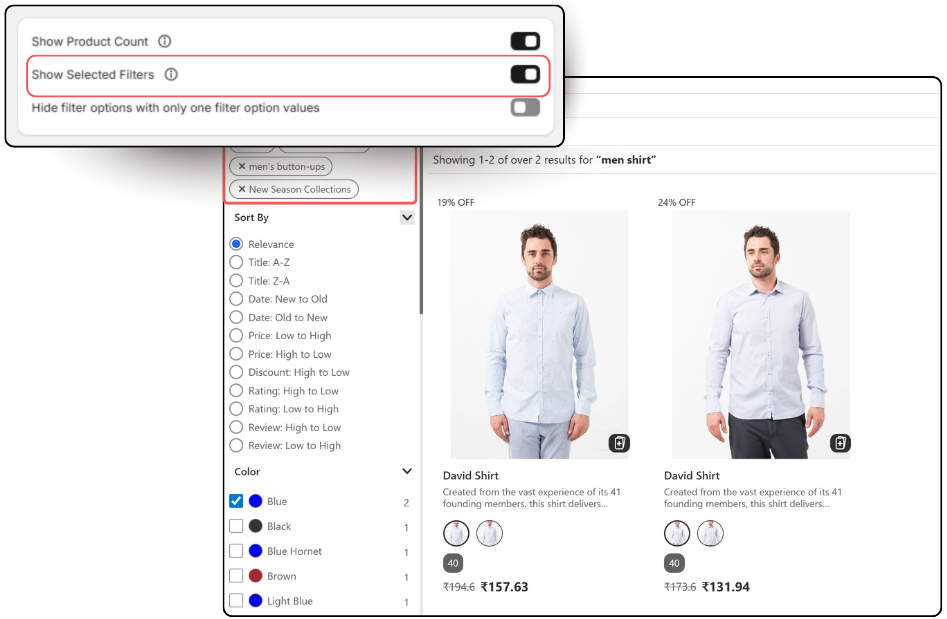
How to turn it on:
- Toggle on Show Selected Filters
- Click Save.
3. Hide Filter Options with Only One Filter Option Value
This setting hides any filter group that has only one option available.
Why it’s useful:
Say you’re browsing shirts, and the only color available is “Black.” Instead of showing a full filter group with just one checkbox, this setting hides it. That means fewer distractions and a cleaner filter list.
This is especially helpful for small or limited collections.
How to turn it on:
- Toggle on Hide filter options with only one filter option value

- Click Save
Note:
If any of these filter settings don’t seem to be working, it’s possible your filters are currently hidden. To check this, go to: Configuration → Search Result Page → Filter Position Layout. Make sure the filter layout is selected correctly and visible.
Wrap-up
Filters are only helpful if they’re easy to use and understand. With just a few quick settings in Fynq, you can make your filters smarter, cleaner, and more shopper-friendly.
Try turning these toggles on and off to see what feels best for your store layout. A better filter setup can help customers move from search to purchase with less friction.
