 Fynq
Fynq How to Customize Messages on the Search Result Page
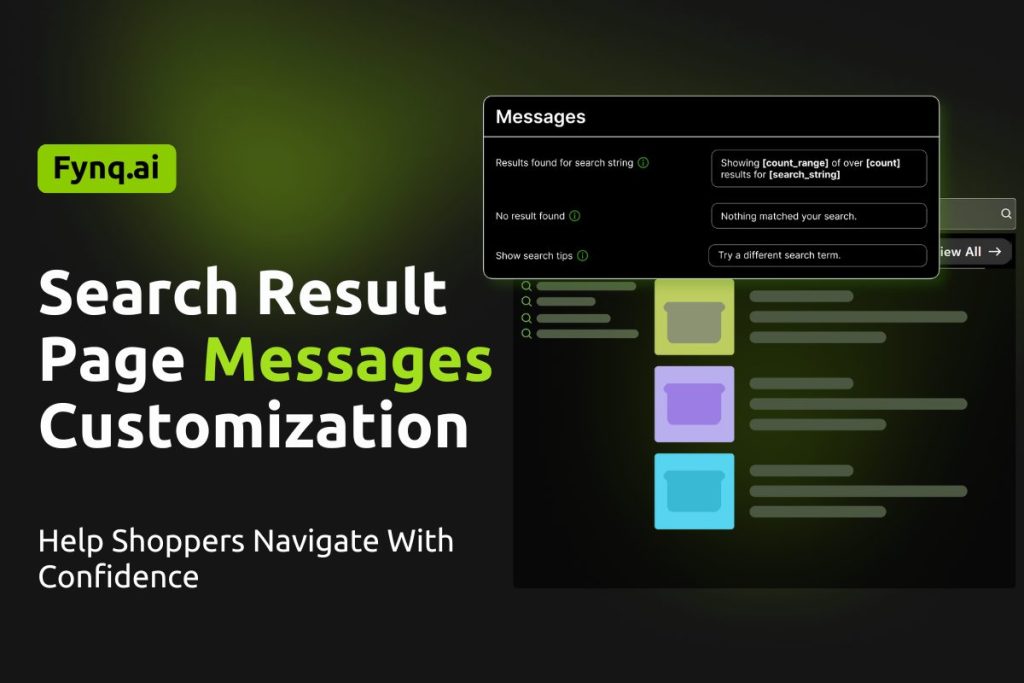
When a shopper searches your store, the goal is always to show helpful, relevant products. But in some cases (though rare), there might be no matches. That’s where custom messages come in. This guide shows you how to personalize those messages on your Search Result Page using Fynq, so your store stays helpful, even when no products are found.
These messages help set the right expectations, offer friendly guidance, and keep users from hitting a dead end.
Where to Customize These Messages
To update the “no results” and related messages for your search result page, follow this path:
Fynq Image & Search AI → Configuration > Translations & Texts > Search Result Page > Messages
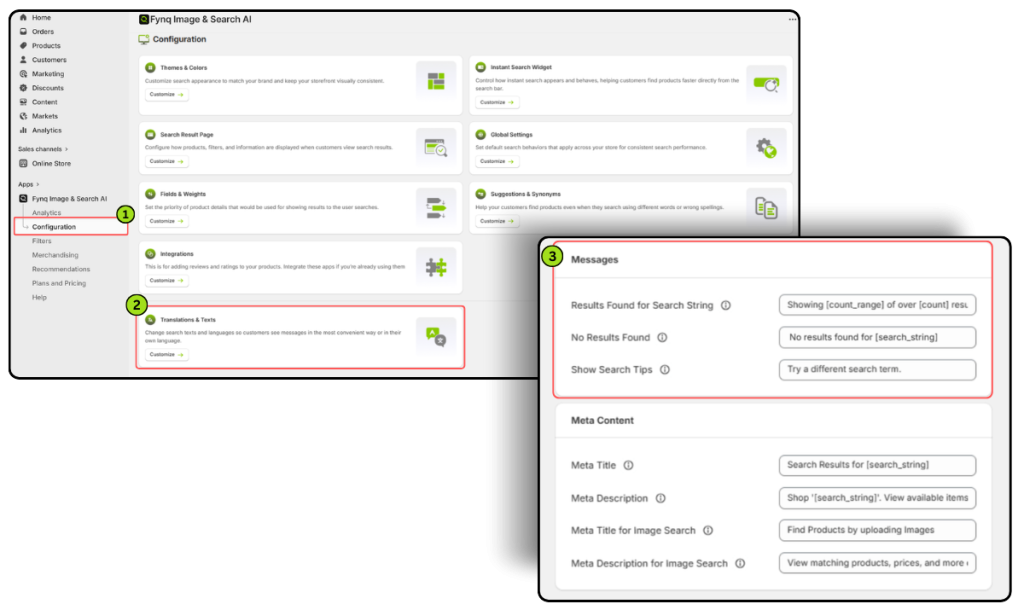
This is the section where you’ll find all the editable fields for search feedback messages.
Note: To customize messages on the Instant Search Widget, please move to the first section on that page (of the Fynq admin) or read this article: How to Customize the ‘No Results’ Message in the Instant Search Widget?
Why These Messages on SRP Are Required
These messages appear when:
- Products are successfully found from a search
- No results are found
- A shopper may need help refining their search
Even though these situations don’t happen all the time, having the right messages ready creates a smoother experience and helps your store feel more responsive and professional.
NB: It’s uncommon for shoppers to land on a “no results” page. Fynq uses AI-powered semantic search, which helps match even vague or imperfect queries to the right products. But when no match is truly found, your custom messages will still step in and guide the customer forward.
The Three Message Fields You Can Customize
Inside the Messages section, you’ll find three text boxes. Each one controls a specific part of the search result experience.
1. Results Found for Search String
This message appears at the top of the Search Result Page when products are found for a search.
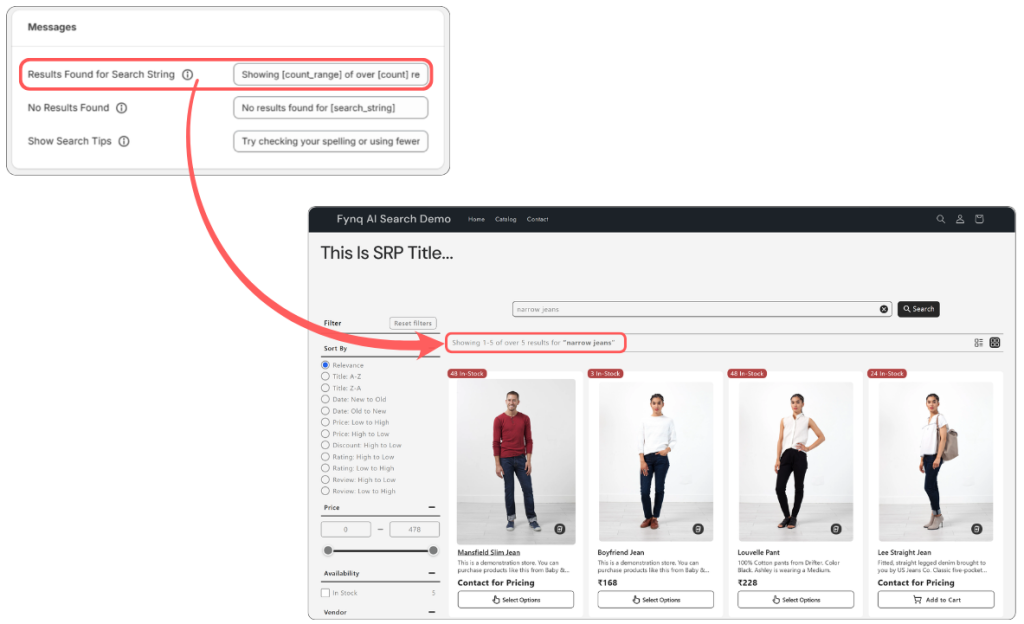
Default example:
“Results for [search_string]”
You can change it to better suit your tone, like:
“Here’s what we found for [search_string]”
or,
“Matching items for: [search_string]”
This makes the page feel more engaging and connected to the user’s input.
NB: In this section, only these variables will be applicable: [count_range], [count], [search_string]. When you put these variables with ‘[]’ and without any typographical change, that will draw live data.
2. No Results Found
This message appears when no product matches the search term.
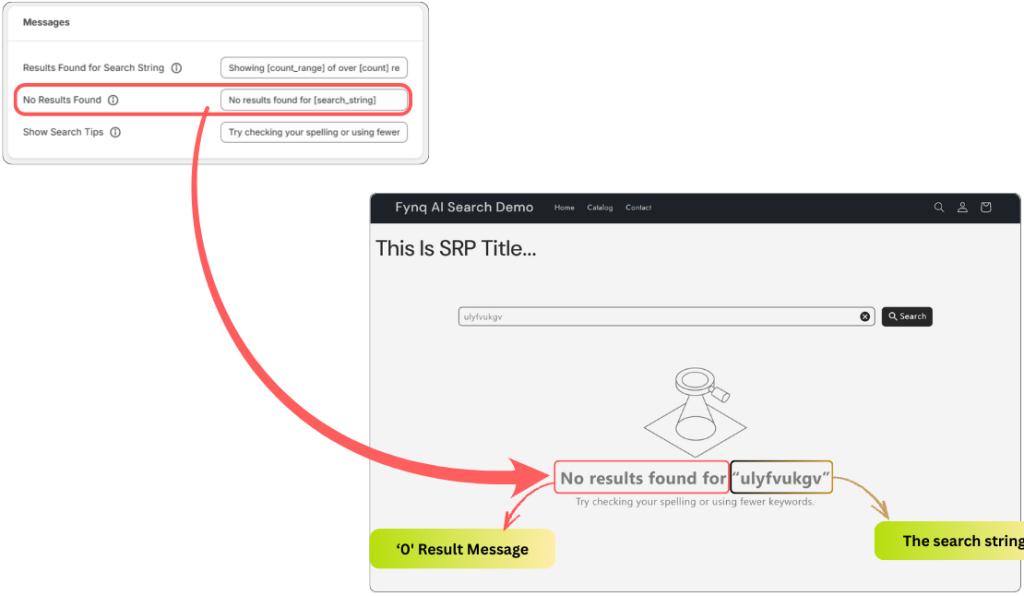
You could adjust it to sound more helpful or on-brand. Just remember, the search string will automatically appear just after the message. So you don‘t have to mention “[search_string]” in the message. It’s suggested to end the message with a subordinating conjunction like ‘for’. Please see the above image to get this.
Keep it short, friendly, and encouraging. The goal is to guide the user, not leave them stuck.
3. Show Search Tips
This message appears when a user may benefit from adjusting their search. It’s optional, but helpful.
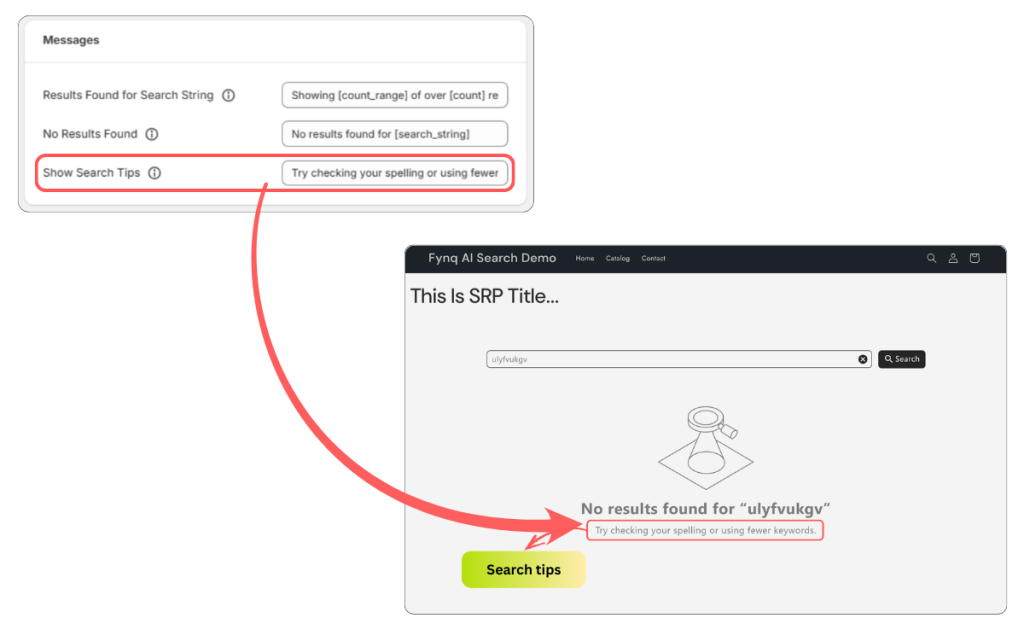
Default example:
“Try checking your spelling or using fewer keywords.”
You can update this with your own tone and style, like:
“Need help? Use general terms or shorten your search for better results.”
This message gently coaches the user without sounding too robotic.
Final Thoughts
Even with advanced search tools, sometimes users won’t find exactly what they’re looking for on the first try. That’s why customizing your Search Result Page Messages is important. It helps keep your store experience helpful and welcoming, even when no products are shown.
Take a minute to review these message fields in Fynq. Small wording changes can have a big impact on how confident and supported your shoppers feel while navigating your store.
