 Fynq
Fynq How To Create Color Filter Groups Using Color Families in Fynq?
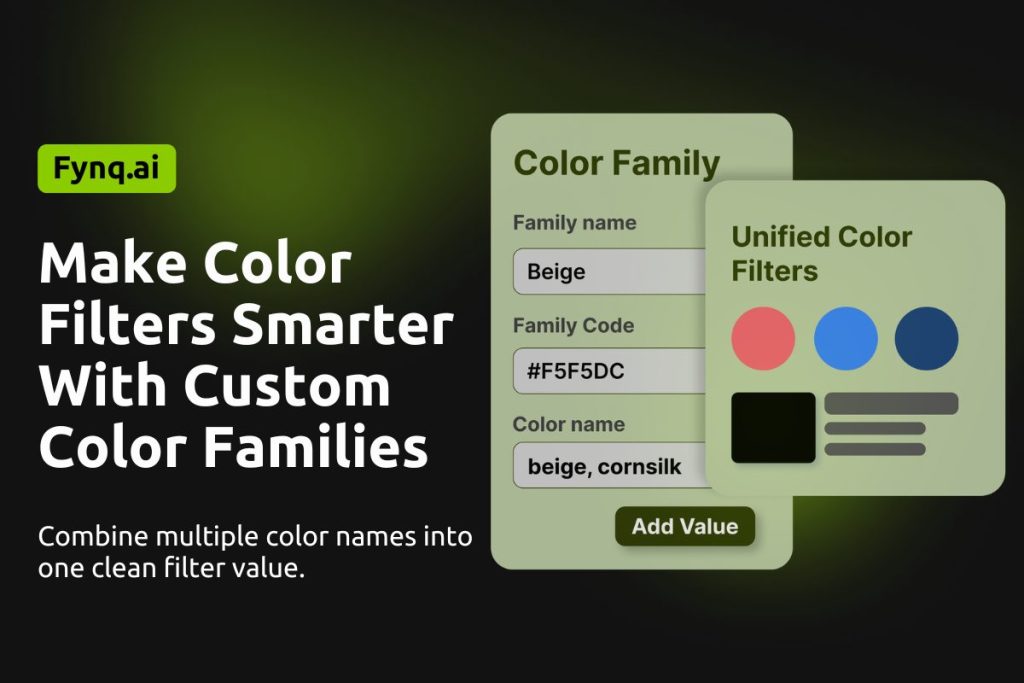
When a shopper clicks on a filter for “Blue,” they expect to see all kinds of blue: navy, sky blue, royal blue, and more. But if your product tags or options use slightly different color names, those items might not show up. That’s where color families come in.
Fynq lets you group multiple color names under one family so that your filters can behave more naturally, just like your shoppers expect.
Where to Set Up Color Families in Fynq
To manage color families:
- Open the Fynq Image & Search AI app
- Go to Filters
- Go to the tab Color Families
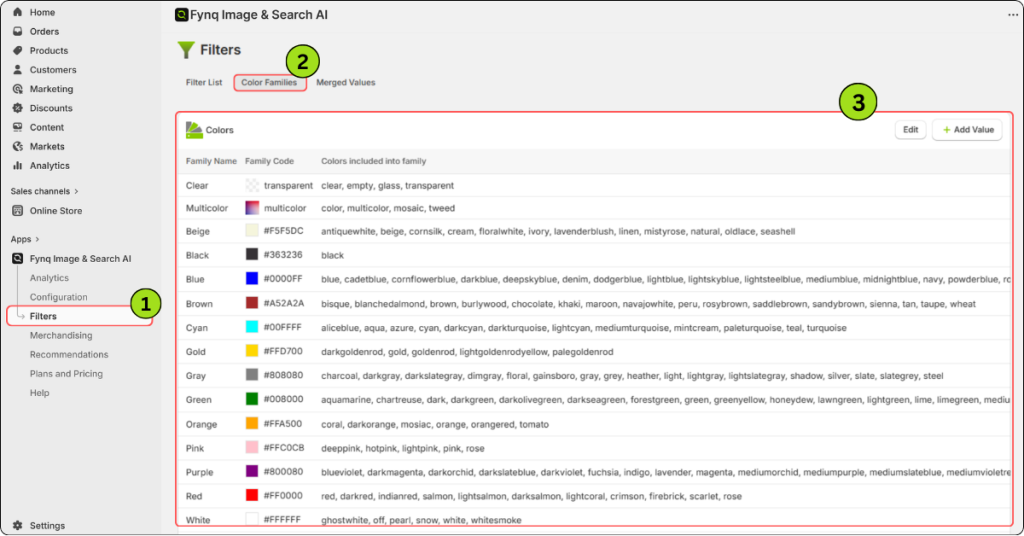
This section helps you standardize color filters by grouping multiple color values under shared families.
What Are Color Families & Why Use Them?
Color families are groups that combine similar color names under one common label.
For example, you might group “navy,” “sky blue,” and “denim” under a family called “Blue.”
Why it’s useful:
Shoppers search by basic colors, not design terms. Even if your tags or options vary, a well-structured color family ensures those products show up under the same filter.
Start with Fynq’s Built-in Color Families
Fynq already provides a list of 16 standard color families. Each one includes:
- A family name (e.g., Red)
- A family code
- A list of related color names under that family (divided by a comma)
These defaults cover the most common e-commerce needs across fashion, accessories, home, and more.
Want to Customize or Expand Color Families? Here’s How
Fynq gives you full control to edit or add your own color families.
Edit an existing color family:
- Go to the Color Families section
- Click the Edit button on the top-right of the section
- Update the name, code, or included colors
- Save your changes
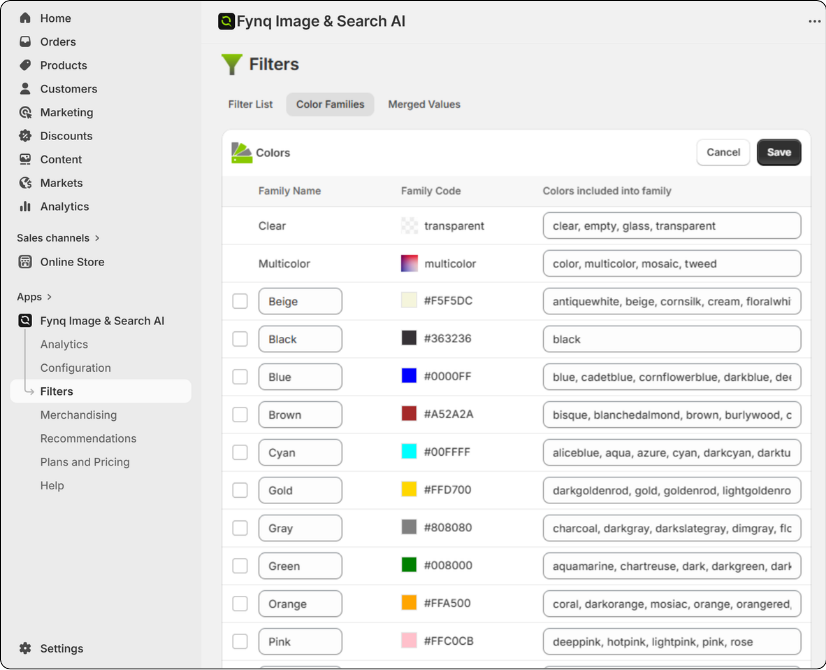
Tip: Use this if your store uses non-standard color names or local naming styles.
Add a new color family:
- Click ‘+ Add Value‘ on the extreme top-right corner
- Fill in the following fields:
- Family Name – the name of the group (e.g., “Metallics”)
- Family Code – a short, clean identifier (e.g., “#D4AF37”)
- Colors included into family – list of color names that belong in this group (e.g., “gold,” “silver,” “bronze”)
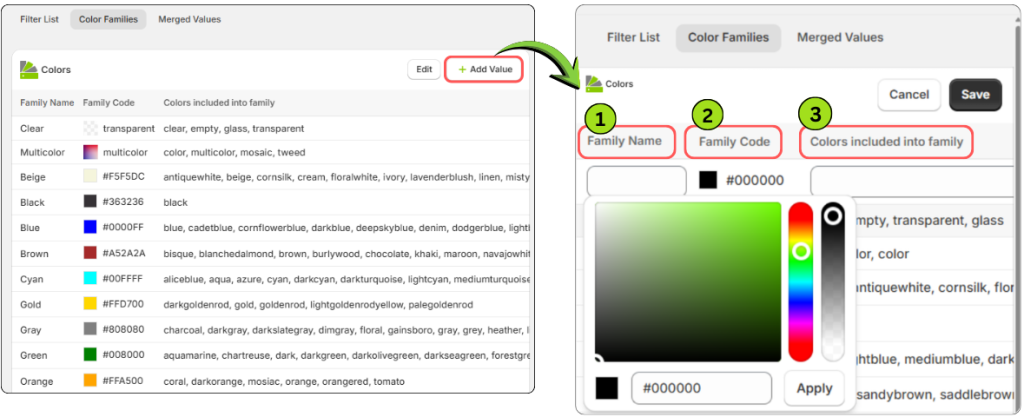
Once saved, this color family will be available in filters across your store.
Note:
The color names you enter in a family act as synonyms. So, no matter which one appears in your product tags or options, Fynq will group them under the same filter value on the storefront.
Wrap-up
Creating smart color filters doesn’t have to be complicated. With color families, you’re simply organizing how your colors behave, making it easier for shoppers to find what they want without missing products due to naming differences.
Start by reviewing the default list. If needed, edit them or add your own based on your store’s product language. Clean color filters lead to clearer choices, and clearer choices lead to faster purchases.
