 Fynq
Fynq How Do I Enable Filters on Collection Pages in Fynq?
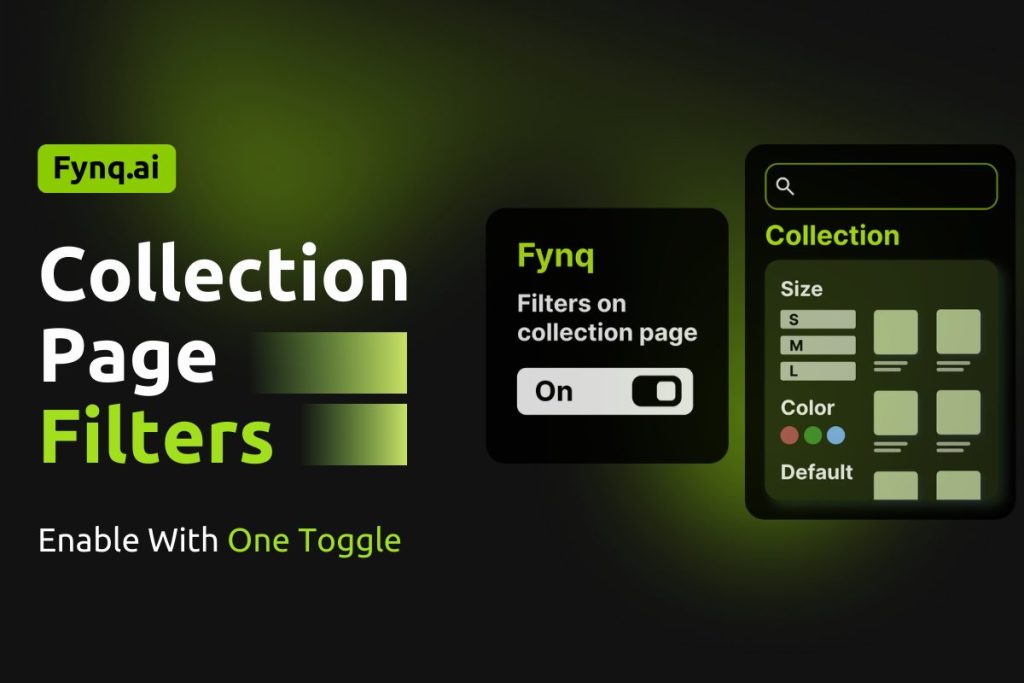
When a shopper browses a collection page like “Men’s Shoes” or “Summer Dresses,” they often want to narrow down the list. Maybe they’re looking for size 10, or only black items under $50. Without filters on collection pages, they have to scroll through everything, which can lead to frustration and drop-offs.
Fynq helps solve that by letting you display smart filters on your collection pages, just like you do on search result pages. With just one setting, you can make these filters appear and guide your shoppers to what they want faster.
Where to Enable Filters for Collection Pages
To turn this on:
- Open the Fynq Image & Search AI app
- Go to Filters
- You’ll land on the tab Filter List
- Scroll to the brief section called Filters on Collection Page
- Use the toggle button to switch the setting ON
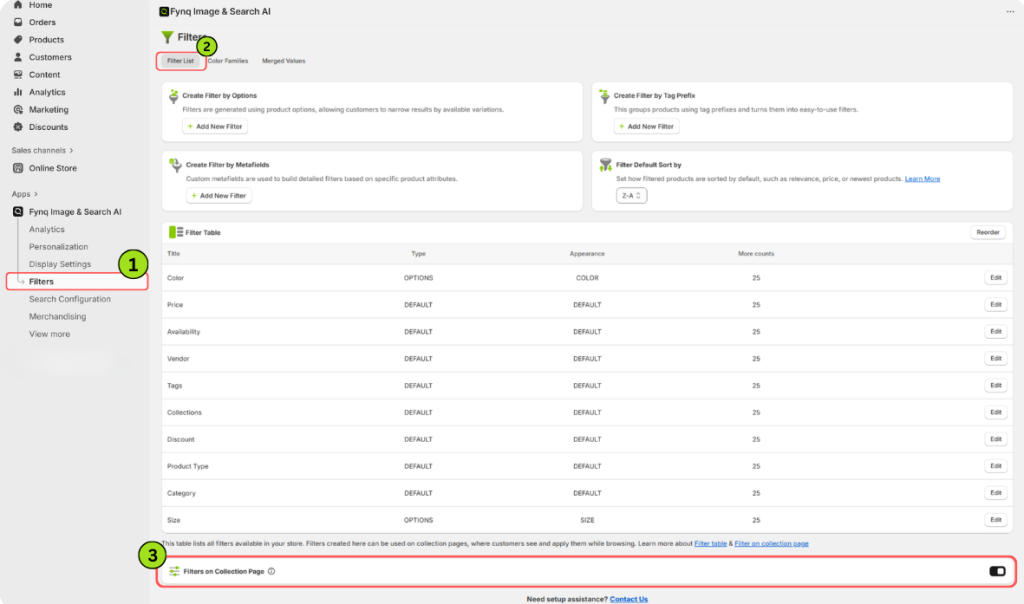
Once enabled, Fynq will automatically begin showing filters on your live collection pages.
Still Not Seeing Filters? Here’s What to Check
If you’ve enabled the toggle, but filters are still missing from your collection pages, there are a few quick checks you can do.
1. Make sure collections are added to your theme’s collection pages
Open your Shopify admin and go to your Theme Settings.
Check that your Collection template includes actual Shopify collections.
If no collections are added or linked, Fynq can’t display filters because there’s nothing to filter.
Follow Shopify’s guide on adding Collections to a page. Click here.
2. Enable the Fynq App block on collection pages
Inside the same Theme Settings, go to the Collection page layout.
Make sure the Fynq Image & Search AI App block is enabled.
Why this matters:
If the app block is turned off, the filters won’t load, even if everything else is set up correctly.
Follow our guide to enable this:
How to Enable App Embed in Shopify for Fynq
3. Choose a visible filter layout under Personalization
Go back to the Fynq app and check:
Configuration > Search Result Page > Filter Position Layout
If you’ve selected “Hide Filter,” filters will not appear anywhere, including collection pages.
What to choose instead:
Pick Left Side Fixed, Left Side Collapsible, or At The Top, which actually displays filters on the page.
Follow this article to navigate with detailed information:
How to Choose the Right Filter Layout for Better Shopping Experience
Wrap-up
Filters on collection pages help shoppers zero in on what they want without leaving the page. They make browsing easier, faster, and far more likely to convert.
With one toggle and a few theme checks, Fynq lets you bring that same smart filtering experience to your collections. Set it once, and your customers will instantly get a smoother shopping journey.
