 Fynq
Fynq How to Set Up the No-Result Page Content in Fynq
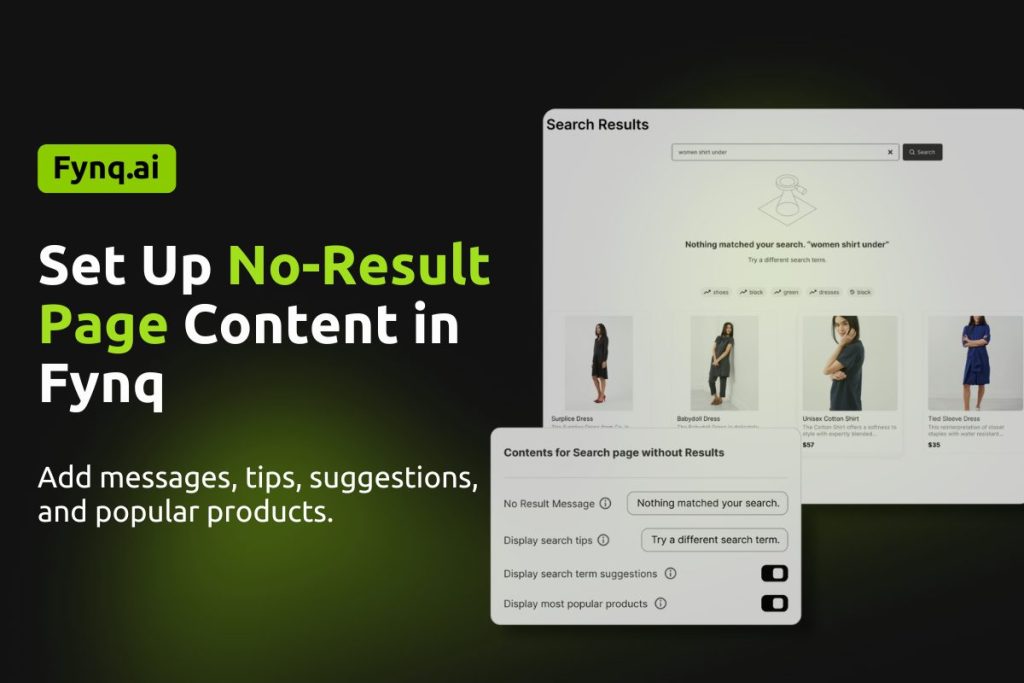
Sometimes, shoppers type something in the search bar and… nothing shows up. It’s not ideal, but it happens. Maybe the product doesn’t exist, or maybe the spelling was off. Either way, a blank page can frustrate visitors and send them away.
That’s why your No-Result Page needs a plan. In Fynq, you can turn this dead end into a useful moment by offering help, guidance, and even popular products to keep people exploring.
Let’s walk through how to make your no-result page helpful and store-friendly.
Where To Find This Setting in Fynq
To set up what your shoppers see when there are no matching search results:
- Open the Fynq Image & Search AI app
- Go to Configuration
- Click on Search Result Page
- Scroll to the section called Contents for Search Page without Results
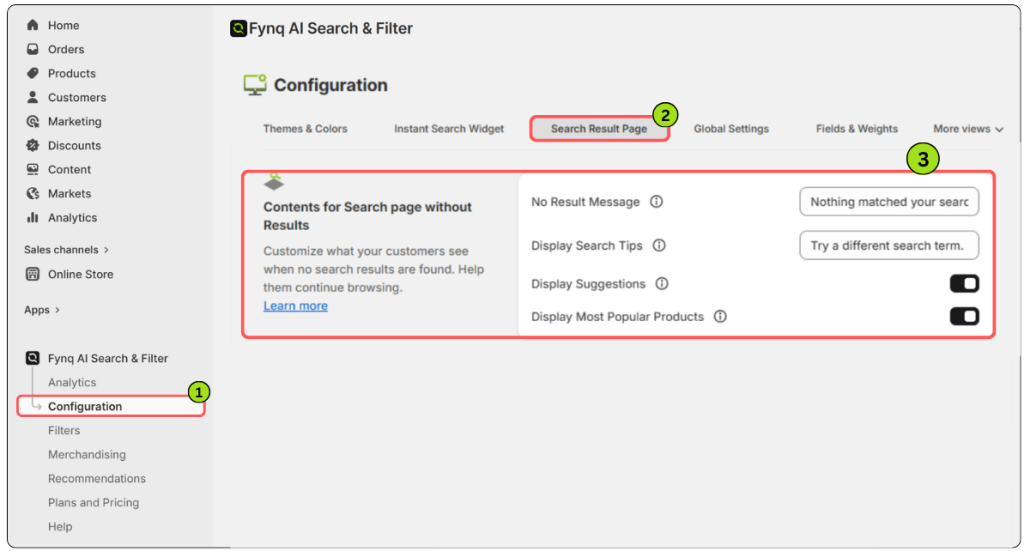
Now you’ll find four different options to help shape a better fallback experience.
Why Does a No-Result Page Show Up?
No-result pages appear when a user searches for something that doesn’t match any product in your store.
This could happen when:
- A product is misspelled (like “blujeans” instead of “blue jeans”)
- The item has been removed or is out of stock (*if Out-of-stock products are set to be hidden)
- The search term is randomly long typed or given unnecessary spaces (e.g. ugqbweciheoveeoievhno or pa ntfor boysold)
- Yours is a newer store with fewer listings
Instead of letting the page look empty, you can customize the experience to guide shoppers forward.
Note:
Fynq uses a semantic search algorithm, which means it understands user intent and shows the most closely related products even when the search term isn’t an exact match. So, it’s rare for a No-Result Page to appear, but in rare cases of a complete mismatch, it may still show up.
Let’s Walk Through the Cases
Here are only four cases given. You can check out more cases related to Content & Texts from the Translations & Text tab.
1. No Result Message
This is a simple message that shows when no products are found. Just type your message into the text box.
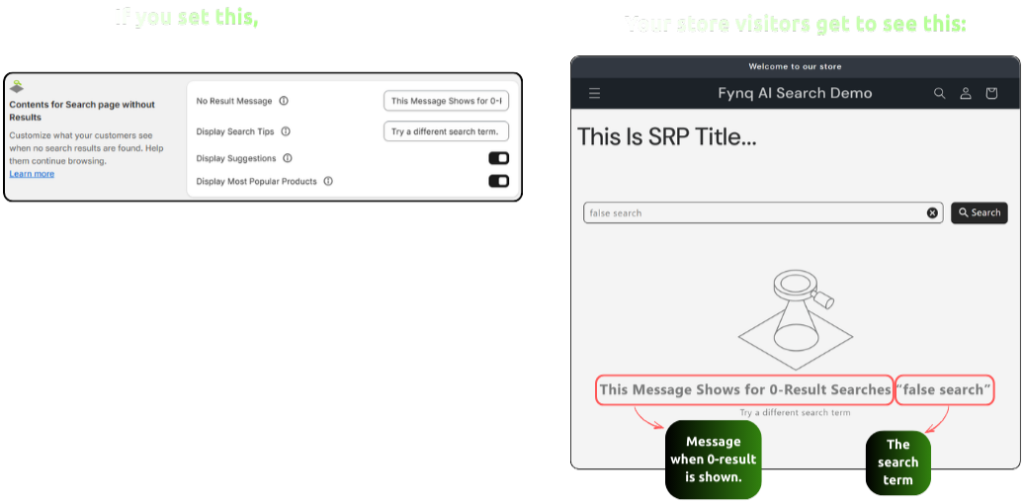
What to write:
Try something friendly and helpful, like:
“Oops! We couldn’t find anything for that search.”
Tip: Try to write content according to your shoppers’ standards.
2. Display Search Tips
This is another text box where you can give suggestions to help users improve their search.
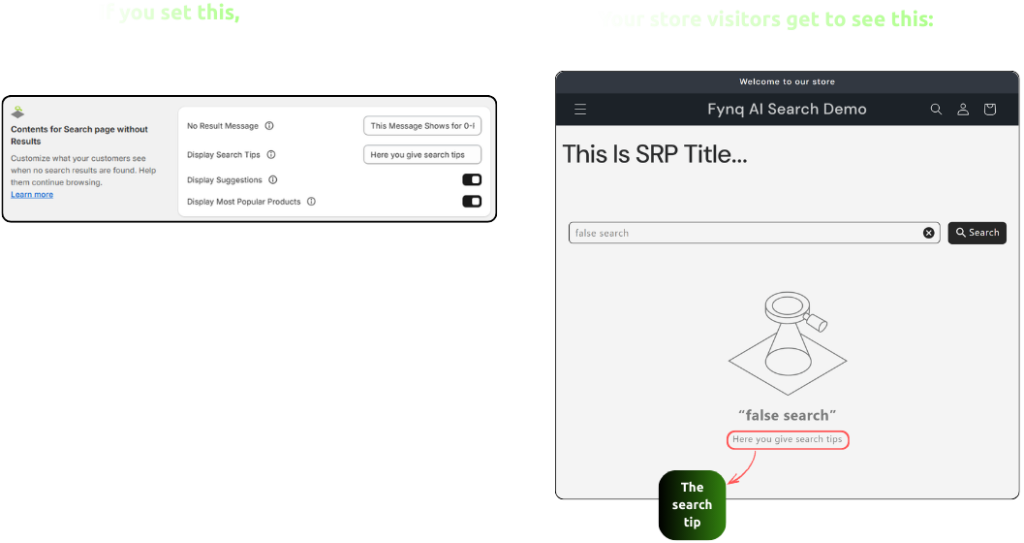
What to write:
- “Check your spelling.”
- “Try using fewer or broader terms.”
- “Explore by category instead.”
These small tips can nudge users to try again instead of giving up.
Tip: This text should match your store’s niche or probable issues suspected to be faced by your shoppers.
3. Display Suggestions (Toggle Button)
This switch lets you automatically show suggested alternative search terms if the original search returns nothing.
When to turn it ON:
Most of the time, yes. This gives your shopper a second chance to land on relevant products.
Learn about Suggestions more: Enable Default Suggestions in the Instant Search Widget
4. Display Most Popular Products (Toggle Button)
This toggle shows your best-selling or trending items right on the no-result page.
Why it helps:
It gives shoppers a reason to stay and explore, even if their search didn’t work. And it’s great for highlighting top-converting items.
When to use it:
Always helpful for newer customers or during sales campaigns.
Note:
Don’t forget to click “Save” at the top of the page after making changes. Otherwise, nothing will update.
Wrap-up
No-result pages are small moments, but they carry a lot of weight in terms of connecting with your shoppers. With Fynq, you can turn them into helpful, sales-friendly opportunities that keep shoppers engaged. Customize your message, add smart tips, and offer popular items, so even a dead end leads somewhere useful.
Ready to reduce bounce rates and make your store feel smoother? Set up your no-result page now, and let it work silently in the background for you.
