 Fynq
Fynq How to Handle Zero-Priced Products in the Instant Search Widget
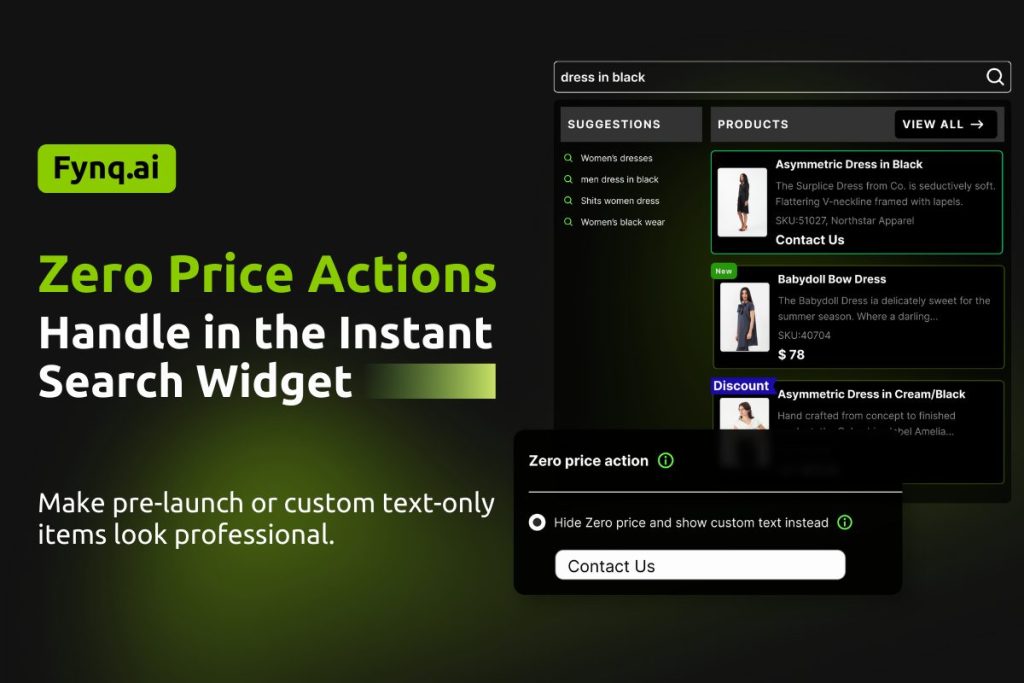
In any online store, there are times when a product’s price is set to zero, either by choice or by mistake. You might be preparing a product for launch, offering a quote-only item, or running a special promotion where the price is hidden for now.
Whatever the reason, showing a price of $0.00 in search results can confuse shoppers and reduce trust. That’s why Fynq gives you flexible controls for what to do when a product has no price.
Let’s walk through how to find and use the Zero Price Action setting inside the Instant Search Widget.
ℹ️
All the Guides in this Article are ONLY for Instant Search Widget.
For Search Result Page settings, move to the next section:
[Search Results Page Settings]
Where To Find Zero Price Action Setting in Fynq
To manage how zero-priced products appear in your Instant Search Widget:
- Open the Fynq Image & Search AI app
- Go to the Configuration tab
- Click on the Instant Search Widget section
- Scroll down, and you will find Zero Price Action
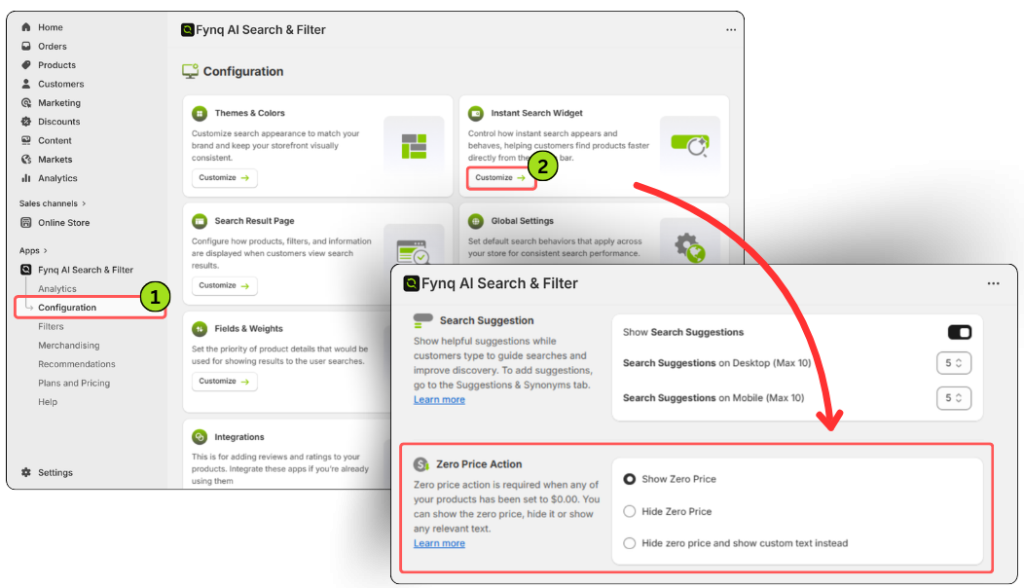
This is where you’ll see three options for how to handle products that are priced at zero.
What Does “Zero Price” Mean?
A zero-priced product is any item in your Shopify store that has been set to $0.00 as its main price. This might happen when:
- A product is in pre-launch, and pricing is not yet final
- You’re offering custom pricing on request
- You’re using a “Request a Quote” model for high-value items
- You’ve accidentally skipped entering the price
Rather than displaying this blankly to customers, Fynq helps you decide how it should appear in search.
Your 3 Options for Handling Zero-priced Products
You’ll need to select one of the following actions from the dropdown:
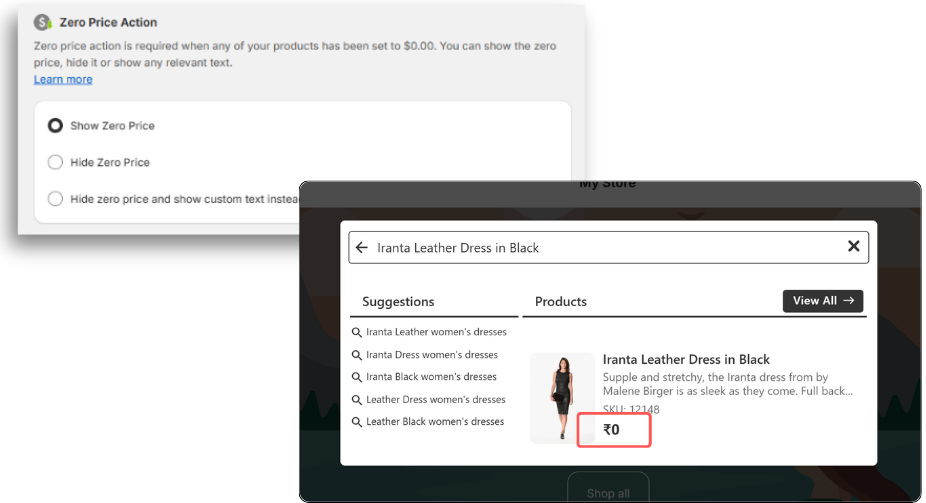
1. Show Zero Price
This will display the price as $0.00 directly in the Instant Search Widget.
Use this if:
You want to keep everything transparent, maybe because you plan to show $0.00 for free samples.
What customers will see:
A product card with a $0.00 price displayed right below the product title and image.
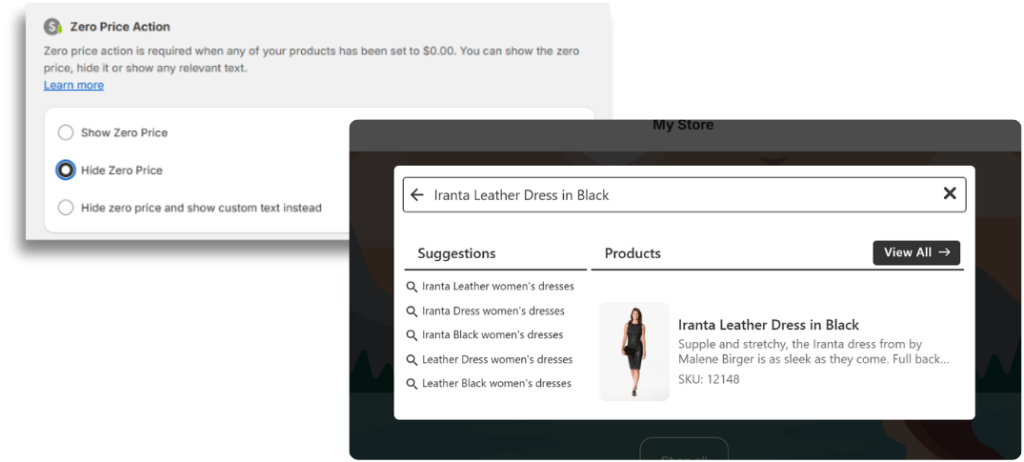
2. Hide Zero Price
This removes the price section completely from any product priced at zero.
Use this if:
You’re still working on pricing, or you don’t want to show a placeholder number. This helps avoid confusion when $0.00 doesn’t truly reflect the product’s value.
What customers will see:
The product appears as usual, but with no price displayed.
Tip: Make sure the rest of the product info is strong enough to carry interest, like labels, images, or titles.
3. Hide Zero Price and Show Custom Text Instead
This gives you the most control. You can hide the price and show your own message in its place, like “Ask for Price,” “Coming Soon,” or “Request a Quote.”
Once selected, a text box will appear. Enter the message you want customers to view.
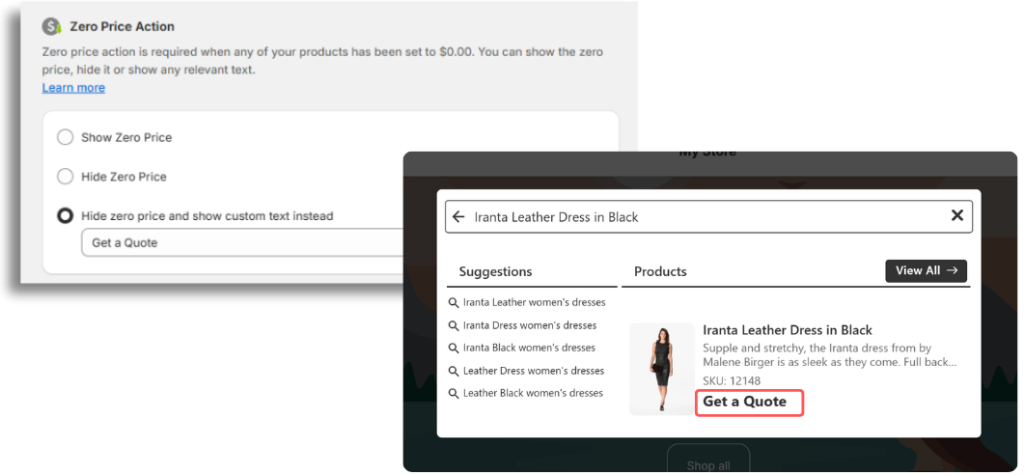
Use this if:
You want to keep the product visible but replace the zero price with something more meaningful or actionable.
What customers will see:
The product will show your chosen text in the price area, instead of $0.00.
Wrap-up
Fynq understands that an e-commerce store can have a few products with zero prices. Whether you want to show them, hide them, or replace them with your own words, you can handle all of them with Fynq.
Take a minute to choose the setting that fits your store’s needs. It helps you stay professional, avoid confusion, and make your search results feel polished, even when the price isn’t ready.
