 Fynq
Fynq How to Hide Products or Prices Using Tags in Fynq
Sometimes, you don’t want everything in your store to be visible to everyone. You might have seasonal items that are not ready to sell, products in pre-launch, or prices that should only be visible to approved buyers.
That’s where Fynq’s tag-based visibility rules help you. You can use product tags to control exactly which products or prices are to be shown. This gives you more control over how your store looks and operates, with a simple setting.
Where to Find Tag-based Hiding Options in Fynq
All of these settings live in one place inside the app.
- Open the Fynq Image & Search AI app.
- Go to the Configuration tab.
- Click on: Global Settings.
- Go to the section called Tag-Based Rules.
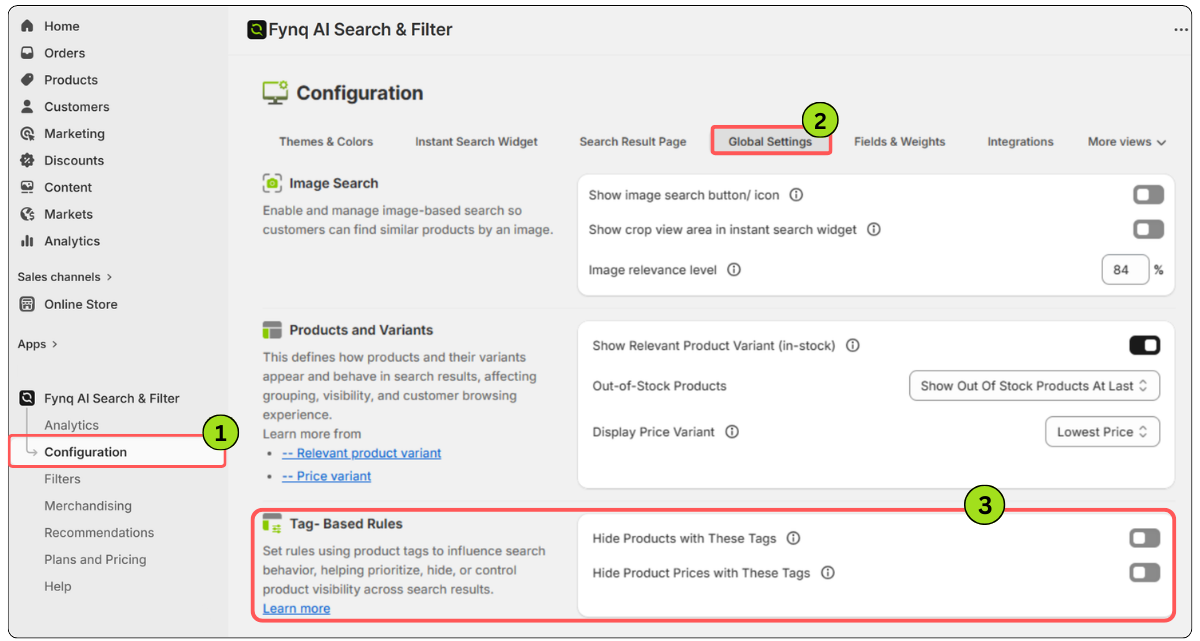
Here, you’ll find two smart tools —
- One to hide entire products, and
- Another way to hide only the prices.
Remember,
Both are based on product tags. Learn how to add a tag to a product with this Shopify guide.
1. Hide Products with These Tags
This setting hides complete products from appearing in your search results or product listings. You’ll see a toggle switch to turn the feature on or off.
What it does:
Once it’s on, Fynq will automatically hide any product that has the tag you enter in the field.
When to use this:
- To keep seasonal items out of view until the right time
- To remove sold-out items that you don’t want customers to see anymore
How to set it up:
- Turn on the toggle for Hide Products with These Tags
- Type the tag you’ve already added to the products (for example: hide-now)
- You can enter multiple tags, separated by commas (like hide-now, VIP-only)
- Click Save from the top of the page.
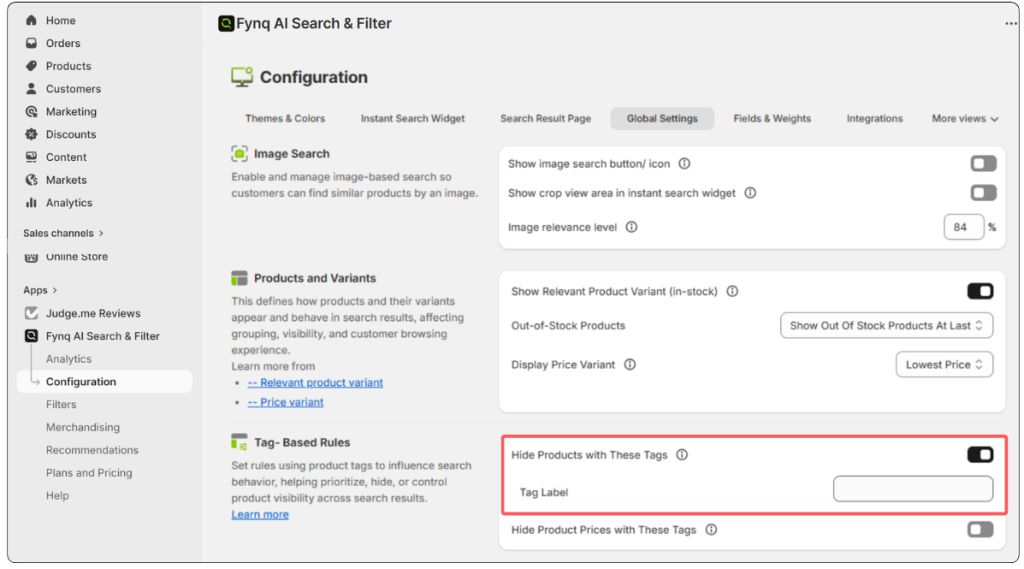
Fynq will then remove all matching products from your search displays.
2. Hide Product Prices with These Tags
This setting is for those cases where the product should still appear, but you don’t want to show its price.
What it does:
When this toggle is on, products with the entered tag will show up as usual, but without any pricing displayed.
When to use this:
- For pre-launch products, you’re teasing but not selling yet
- For request-a-quote style products
How to set it up:
- Turn on the toggle for Hide Product Prices with These Tags
- Type the tag or tags you’ve added to those products (e.g., hide-price)
- Add more tags separated by commas if needed
- Click Save at the top of the page.
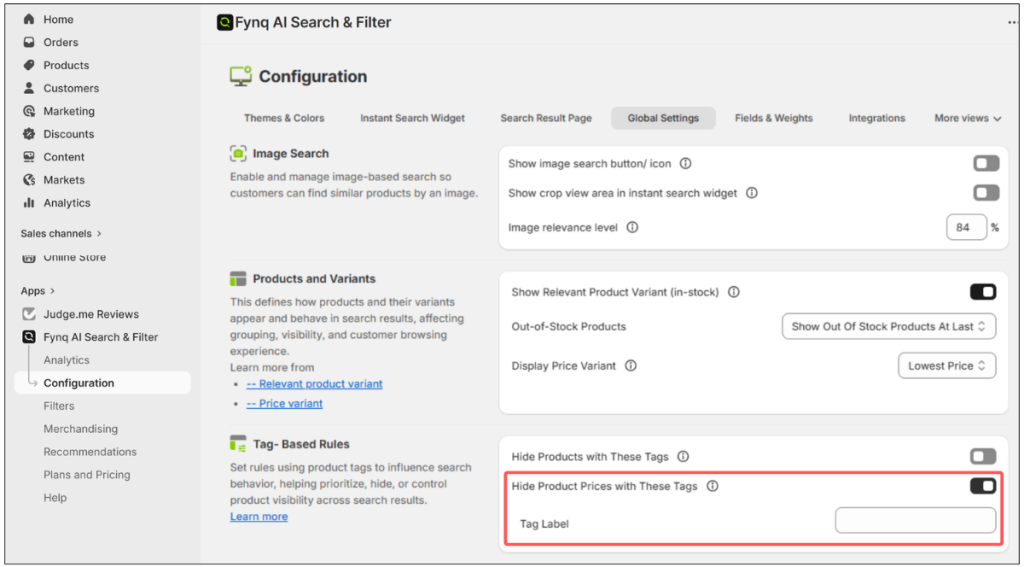
This gives you the flexibility to control pricing visibility without creating separate product listings or using extra apps.
Please Note:
To use these tag-based settings, make sure the tags already exist on the products in your Shopify admin. You can add tags by going to the Products tab in Shopify, selecting a product, and entering tags in the Tags field. To know more, click here.
Fynq will then match those tags and apply your visibility rules. You can use one tag or multiple tags separated by commas, depending on your needs.
Wrap-up
Controlling what your customers see would help you run a smarter, cleaner store. Whether you’re hiding seasonal items or keeping prices private until the time is right, Fynq’s tag-based rules give you full control.
Once your tags are set, turning these options on takes just a few seconds, but gives your store a polished, professional edge.
