 Fynq
Fynq How to Export Data from the Analytics Page (through CSV file)
Sometimes, you just want to work with your analytics outside the app. Whether you’re building a custom report, sharing search trends with your team, or simply saving a backup, exporting your data is quick and easy with Fynq.
Table of Content
Here’s how it works
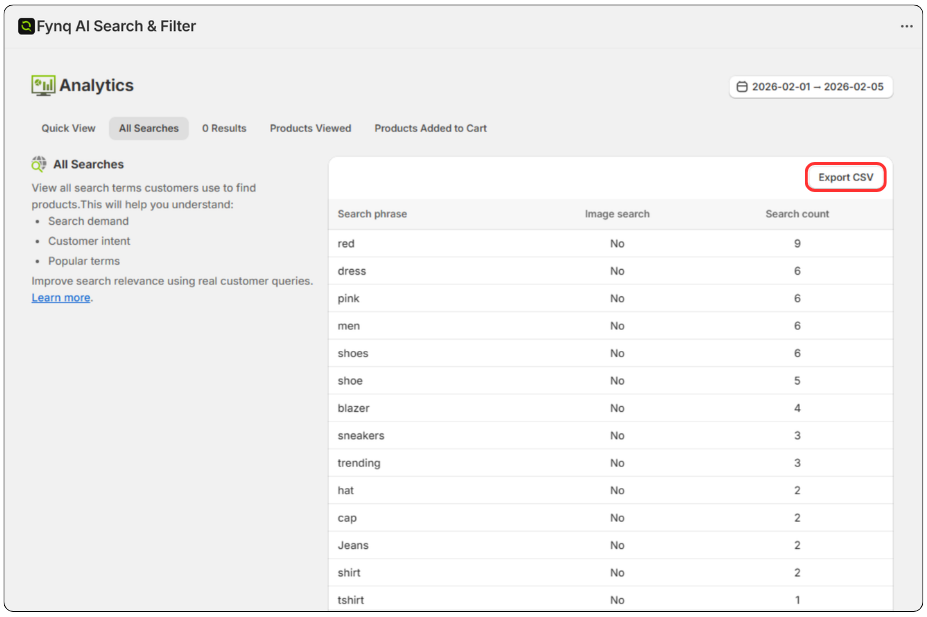
Each tab inside the Analytics section: All Search, 0 Result, Products Viewed, and Products Added to Cart, comes with a built-in export option. You’ll find it in the top right corner of the page labeled as Export CSV.
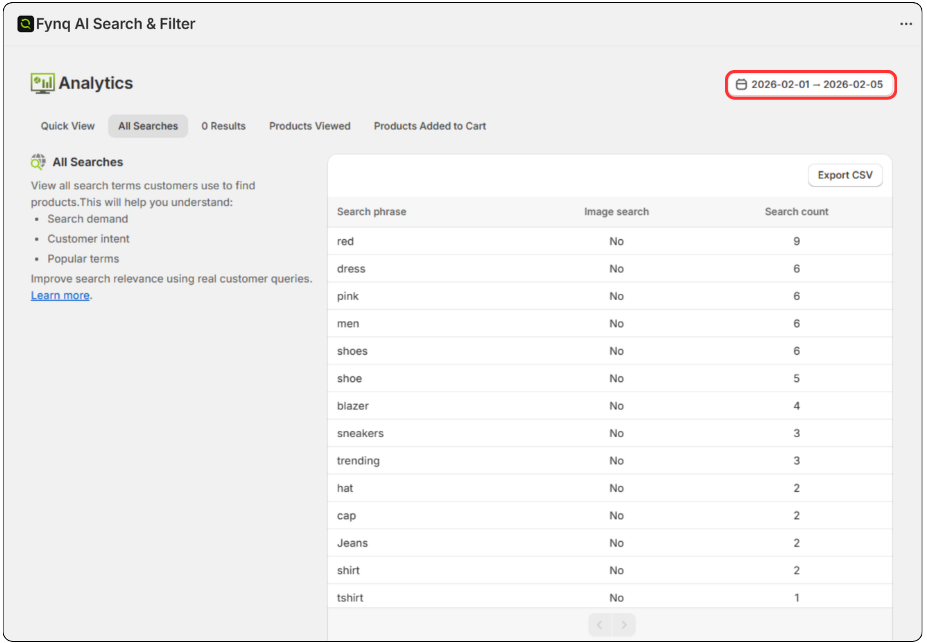
Before you hit that button, you’ll want to make sure you’re downloading data for the right time period. That’s where the date-picker, located just to the left of the Export button, comes in.
To learn more information about each tab, click here.
You can choose from the following preset time ranges:
- Today
- Yesterday
- Last 7 days
- Last 30 days
- Last month
Or, if you’re looking for something specific, you can manually enter your own From and To dates.
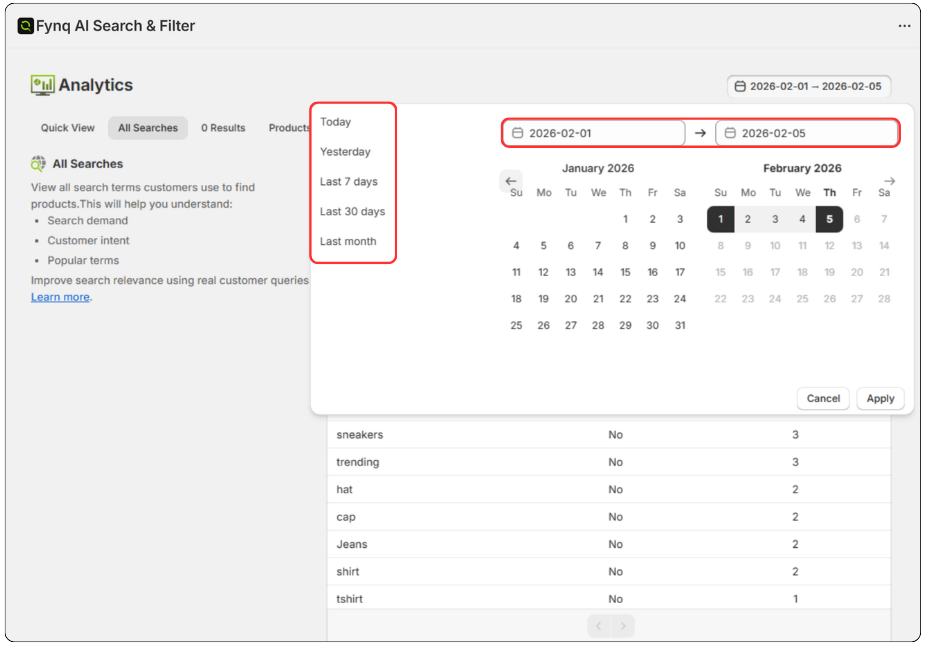
Once your desired date range is selected, don’t forget to Apply. Then click Export CSV. That’s it. A CSV file will be downloaded to your device instantly with all the relevant data for that tab.
N.B. The export is based on the tab you’re currently viewing, so make sure you’re on the one you need.
A few tips
- CSV files open easily in tools like Excel, Google Sheets, or Numbers.
- It’s a good habit to export analytics monthly if you’re tracking trends over time.
That’s all there is to it
There’s no setup or extra steps needed. Just pick your date, click export, and you’re done. Fynq makes it easy to access your store’s search insights whenever and however you need them.
