 Fynq
Fynq How to Enable App Embed in Shopify for Fynq
So, you’ve installed the Fynq app, synced your product data, and even configured your search page URL. But when you go to your live store, nothing seems to be happening. No filters, no smart search, no Instant Search Widget.
Nothing to worry about. You’re just one switch away.
To fully activate Fynq on your storefront, you need to enable the app embed block in your Shopify theme settings. This article will walk you through what that means, why it’s required, and how to do it in under a minute.
Table of Contents
- What Is an App Embed in Shopify?
- How to Enable the Fynq App Embed Block (Step-by-Step)
- How to Check the Status?
What Is an App Embed in Shopify?
Shopify introduced App Embed Blocks to let third-party apps (like Fynq) safely insert features into your storefront without touching your theme code. It’s a secure way for apps to run scripts, widgets, and styles using Shopify’s native customization tools.
Instead of pasting code manually, you can now toggle app features on or off directly from your Shopify theme editor.
In Fynq’s case, the embed block enables:
- Instant Search Widget
- Search Results Page layout
- The dynamic filters, product labels, and AI-powered search engine
Please Note: Without this toggle turned on, Fynq’s features are installed, but not active on the front end.
How to Enable the Fynq App Embed Block (Step-by-Step)
Here’s how you do it:
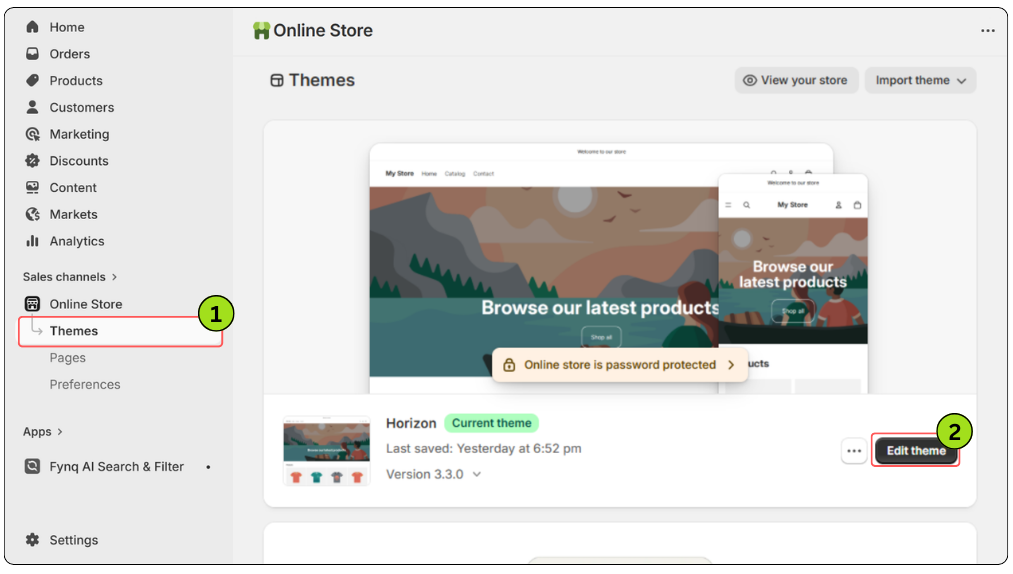
- Go to your Shopify Admin panel
- Click Online Store > Themes
- Next to your current theme, click the Customize button
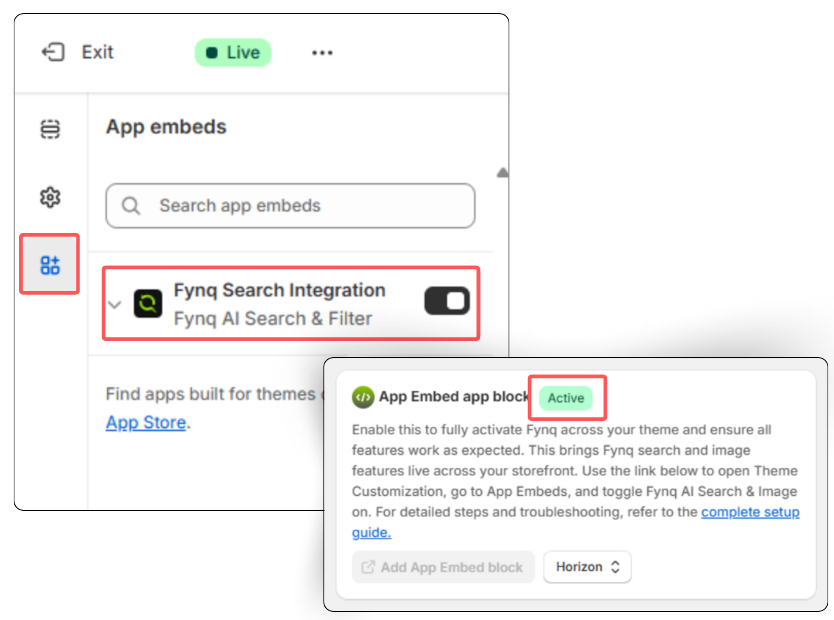
- On the left sidebar, click App Embeds (usually at the bottom of the list)
- Look for Fynq AI Search & Image
- Toggle the switch to turn it ON
- Click Save (top-right corner)
That’s it. As soon as you save, Fynq’s search engine and filters will become visible on your storefront.
How to Check the Status?
Once the above process is done, you should come back to the Dashboard. Scroll down a bit, and you will find that same section (named ‘Search Page App block and URL Configuration’). If a green backgrounded ‘Active’ text appears there, you’ve done the work successfully.
What to Do Next?
Now that the app embed is active, you can:
- Test your store’s search bar to see the Instant Search Widget in action
- Visit a collection page to see filters showing up
- Press Enter on a search to land on Fynq’s smart Search Results Page
If nothing appears, double-check that the embed is toggled on and saved correctly. Moreover, in the search page, there should be an active app block for Fynq (with deactivating the default one) to configure the search page URL.
If you’re using a heavily customized theme, you may need minor adjustments. Contact Fynq support if needed.
Final Thoughts
Enabling the app embed block is a one-time step that unlocks everything Fynq can do. It’s like flipping the “Go Live” switch; once it’s on, your store starts delivering faster, smarter, and more personalized search experiences right away.
Don’t skip it. Without it, Fynq can’t function on the front end, and your shoppers won’t see all the improvements you’ve worked hard to set up.
