 Fynq
Fynq Custom Selector for Search Button – When & Why to Use?
The Custom Selector for Search Button lets you place the search function anywhere on your storefront.
Instead of using only the search bar or icon in the header, you can turn any text, button, or section into a search trigger. When customers click it, Fynq opens its search modal with the Instant Search Widget.
You do this by using a selector such as a tag, an ID, or a class.
📍 This setting aims to keep Fynq ready for any possibility of inconvenience.📍
Where Can You Find Custom Selector Settings?
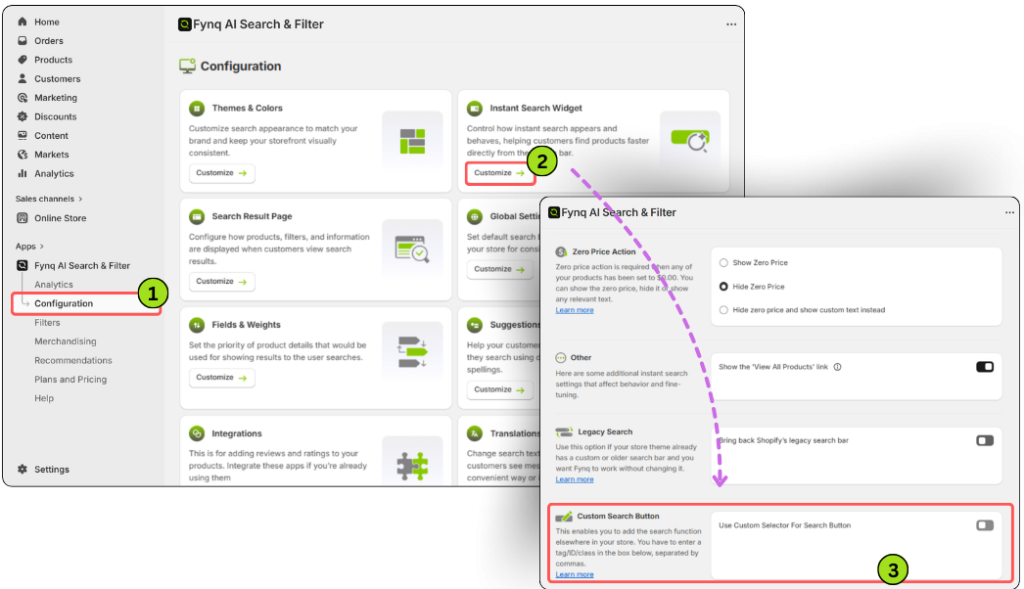
You can find this option in your Fynq dashboard.
Go to:
Fynq Image & Search AI → Configuration → Instant Search Widget
Scroll to the bottom of the page and find: Custom Search Button
What Happens When the Toggle Is OFF?
When the toggle is OFF, and Fynq is active:
- Search works only from the header search bar or search icon
- Customers can search only from their usual position
This is fine for most stores using standard themes.
Why and When Should You Turn It ON?
You may want to turn this ON in two common situations.
Case 1: You Want to Search Somewhere Else
You may want the search to open when customers click:
- A text on the homepage
- A banner
- A specific section of a page
This setting lets you do that. But remember, it cannot be done on an already existing button, as the button is already embedded with a redirecting link.
Case 2: You Are Using a Custom Theme
If you are using a fully custom theme and the default Shopify search bar is missing or not working (it generally doesn’t happen), this setting gives you a way to create your own search trigger anywhere on the page.
How to Use This Custom Selector Setting?
- Turn ON the toggle for Use Custom Selector For Search Button
- A text box will appear
- Open your storefront in a new tab
- Right-click on the element where you want search to open and choose Inspect
- Find the selector for that element (follow the guide below)
- Enter the selector name into the box (e.g., ‘h2’ in the above image)
- Save your changes.
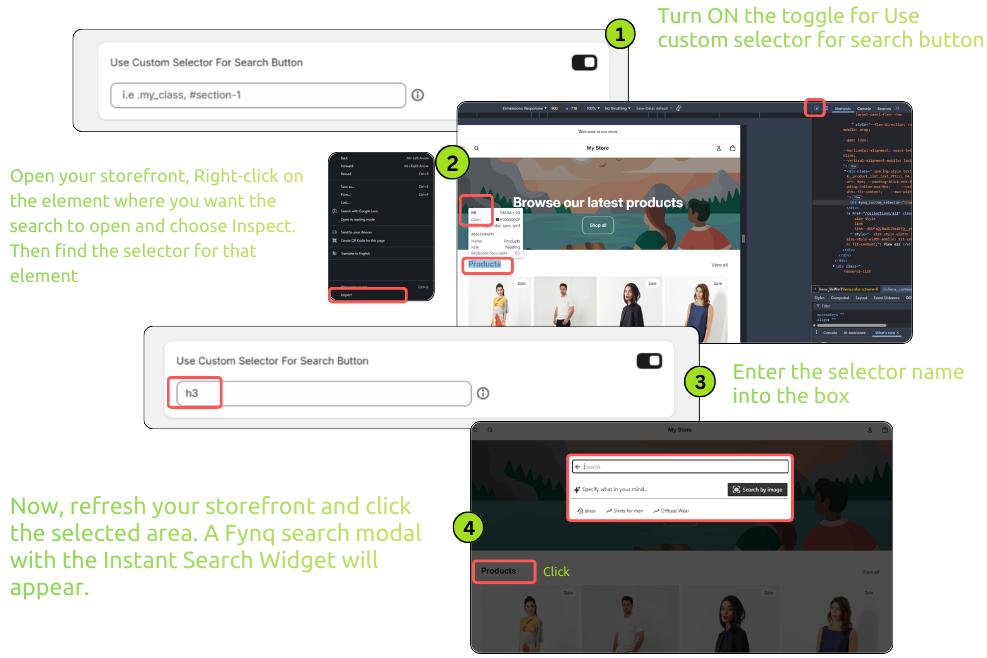
Now, refresh your storefront and click the selected area. If set correctly, a Fynq search modal with the Instant Search Widget will appear.
How to Enter the Selector Correctly
Selectors tell Fynq which part of the page should open the search.
- If you use a tag, enter it without any symbols
Example: h1, h2 - If you use an ID, add a hash (#) before the name
Example: #searchButton - If you use a class, add a dot (.) before the name
Example: .search-area
You can also use multiple selectors together, separated by commas.
Example:
h2, #button, .flex
Here, #button is an ID and .flex is a class.
Final Tip
This feature gives you full control over where search lives on your store. Try different selectors and test them one by one until the search placement feels just right.
