 Fynq
Fynq How to Customize “Sort by” Placeholder Texts on the Search Result Page
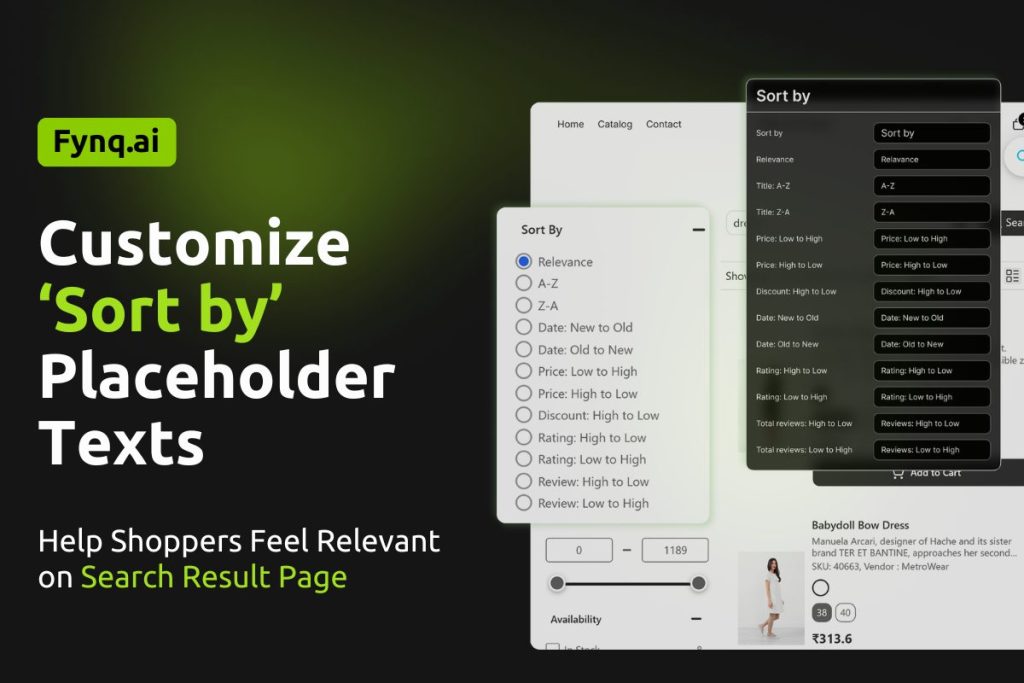
Do you want to fine-tune the way sorting options appear in your search result dropdown? Fynq gives you the flexibility to rename each ‘Sort By’ label so it matches your store’s language, tone, and branding. This guide shows you how to quickly update those placeholders to make your search interface more consistent and user-friendly.
Whether you want a more casual tone or need to translate labels for international customers, updating these texts takes just a few minutes.
Where to Find the Sort-By Text Settings
To customize the ‘Sort By’ texts shown on your storefront:
Go to Fynq Image & Search AI > Configuration > Translations & Texts > Search Result Page > Sort By
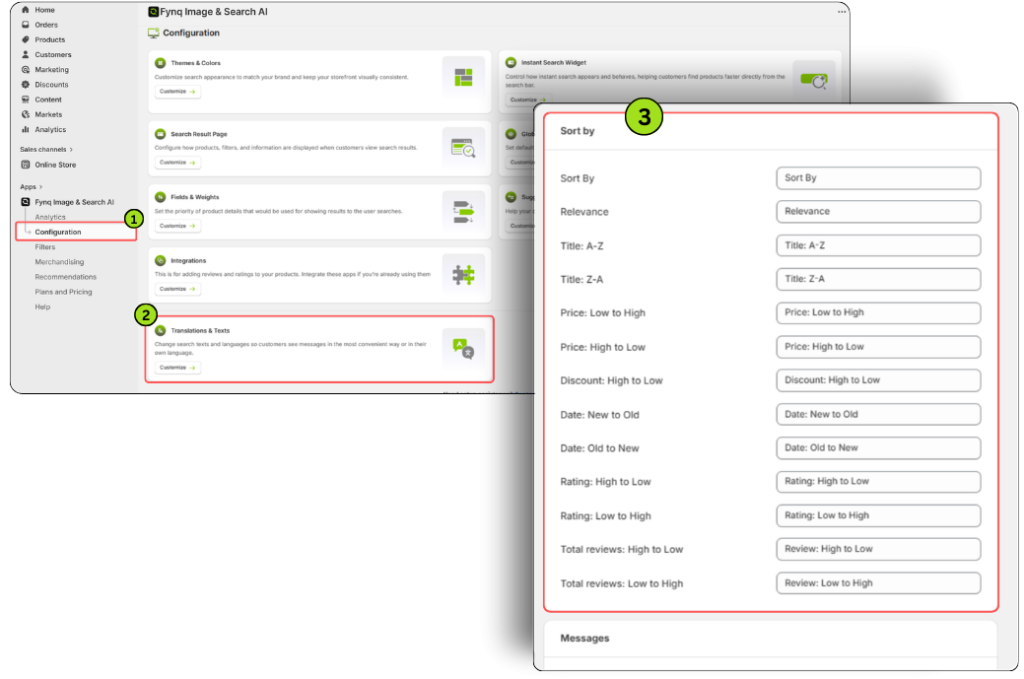
This section includes all the editable sort labels that appear in the sort dropdown on your store’s Search Result Page.
Why This Customization Matters
The sort dropdown helps customers organize search results based on their preferences, like price, date, or rating. While default labels like “Price: Low to High” work for most stores, you might want to adjust these for tone, clarity, or localization.
For example, you could change “Relevance” to “Best Match” or “Total Reviews: High to Low” to something simpler like “Most Reviewed.”
Sort-By Fields You Can Edit
Here are the 13 fields you’ll see in this section. Each has a default label already filled in, but you can change any of them as needed:
- Sort By (Title of the dropdown itself)
- Relevance
- Title: A-Z
- Title: Z-A
- Price: Low to High
- Price: High to Low
- Discount: High to Low
- Date: New to Old
- Date: Old to New
- Rating: High to Low
- Rating: Low to High
- Total Reviews: High to Low
- Total Reviews: Low to High
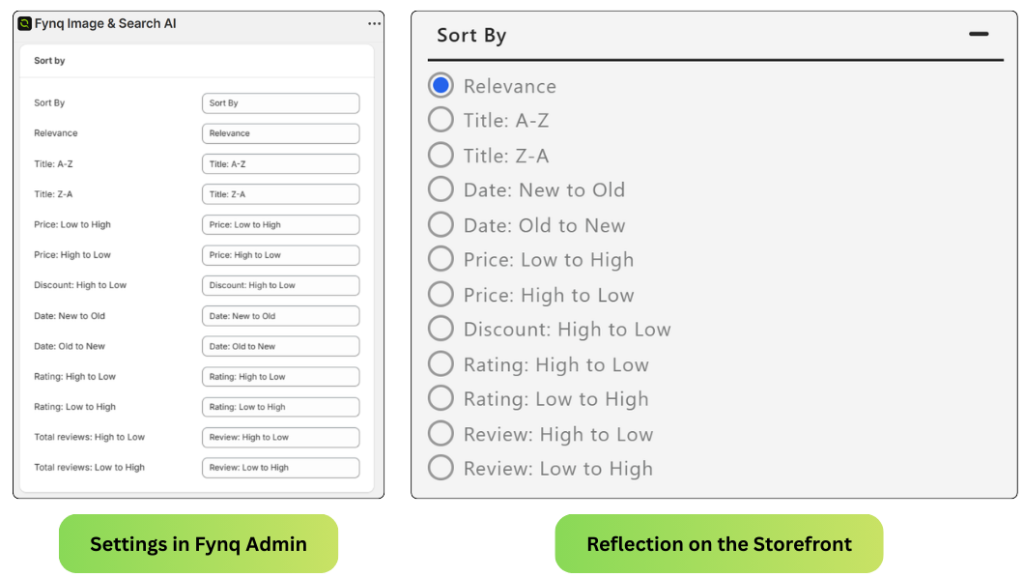
Each of these options can be updated to better reflect your store’s voice or regional formatting.
NB: All of these fields come pre-filled with standard ecommerce labels. If the default wording works for your store, no changes are needed.
Final Thoughts
The sort dropdown may seem like a small part of your search results page, but clear and friendly labels can improve usability and help customers find what they need faster. By customizing the ‘Sort By’ placeholders, you create a smoother and more branded experience.
Jump into the Sort By section in your Fynq app and make sure the labels match how you want to communicate with your customers. A few small tweaks can make your store look more polished and professional.
