 Fynq
Fynq How to Create Merged Values to Simplify Filters for My Shoppers?
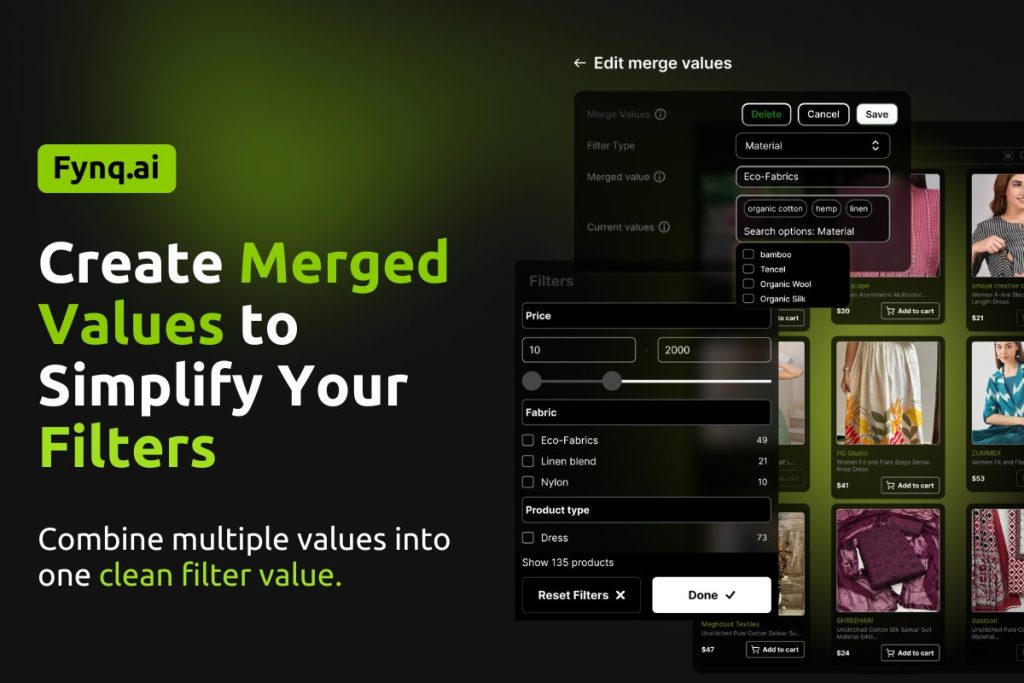
Sometimes, your filter list grows too long. For example, you may have size values like XS, S, Small, and Extra Small, all meaning nearly the same thing. Instead of making customers scroll through similar options, you can group them under a single value using Merged Values in Fynq.
This keeps your filters clean, improves navigation, and helps shoppers find what they need more quickly.
What is a Merged Values?
A merged value is a simple label that combines similar filter values into one clean option.
For example, instead of showing XS, Extra Small, and Tiny, you can merge them into a single filter value like Small Sizes.
This helps keep your filters short and makes shopping feel smoother for your customers.
Where to Find Merged Values in Fynq
- Open the Fynq Image & Search AI app
- Go to Filters
- Go to the tab: Merged Values
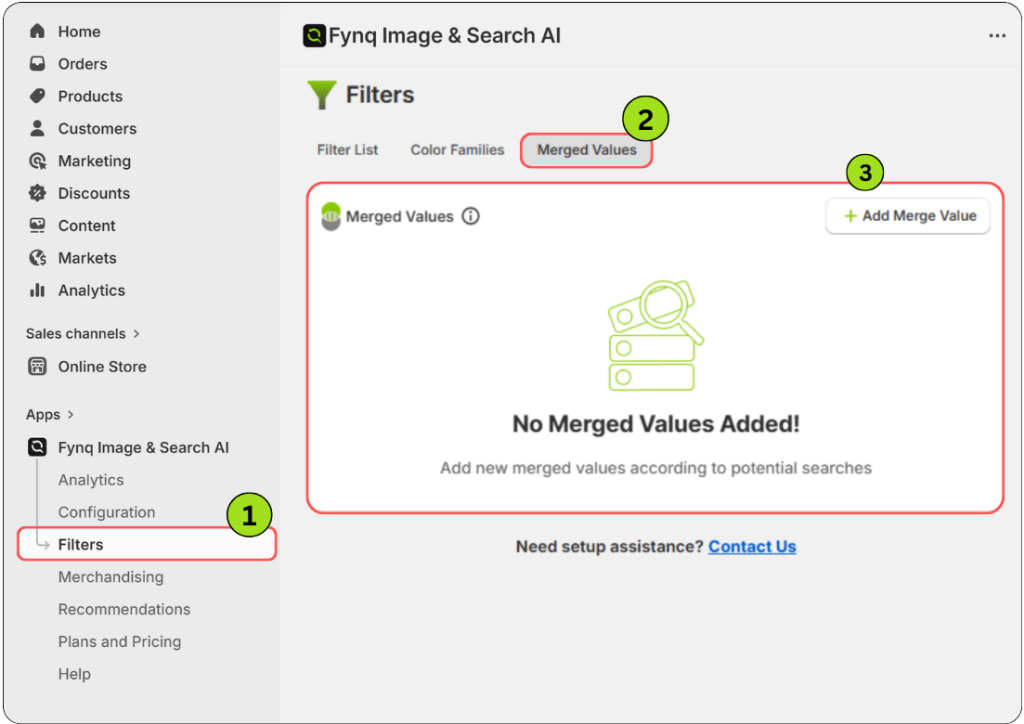
This section is dedicated to creating merged filter values that show up neatly under existing filters like Size, Color, or anything else you can create.
Step-by-step: How to Create a Merged Value
Step 1: Click “+ Add Merged Value”
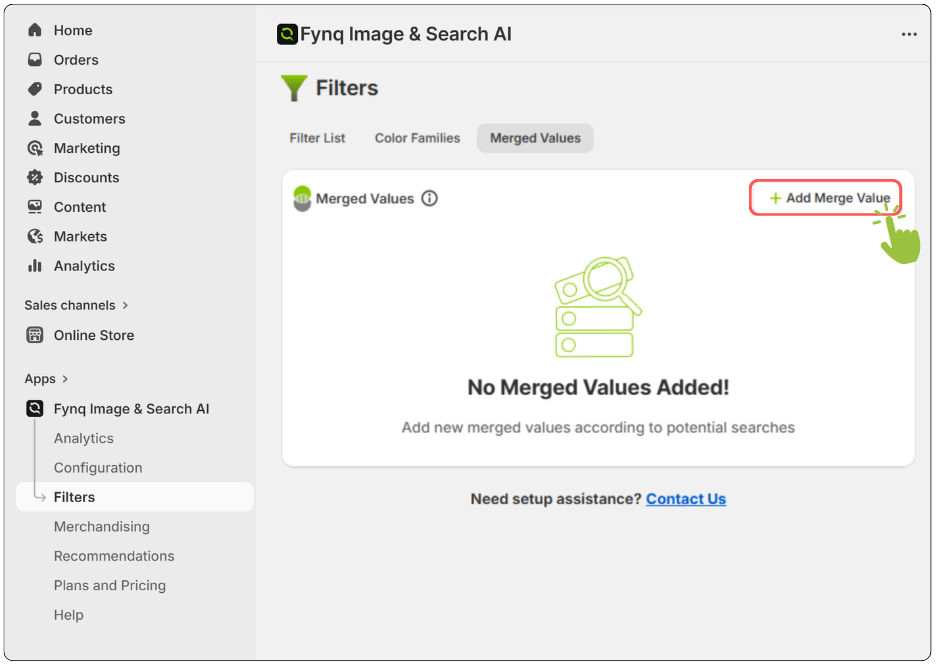
This is where you start. Clicking this button opens a form where you’ll define a new grouped value that will appear in one of your filters.
If you skip this step or forget to define merged values, your filters will continue showing every individual value separately, which can quickly get overwhelming for the shopper.
Step 2: Choose the Filter Type
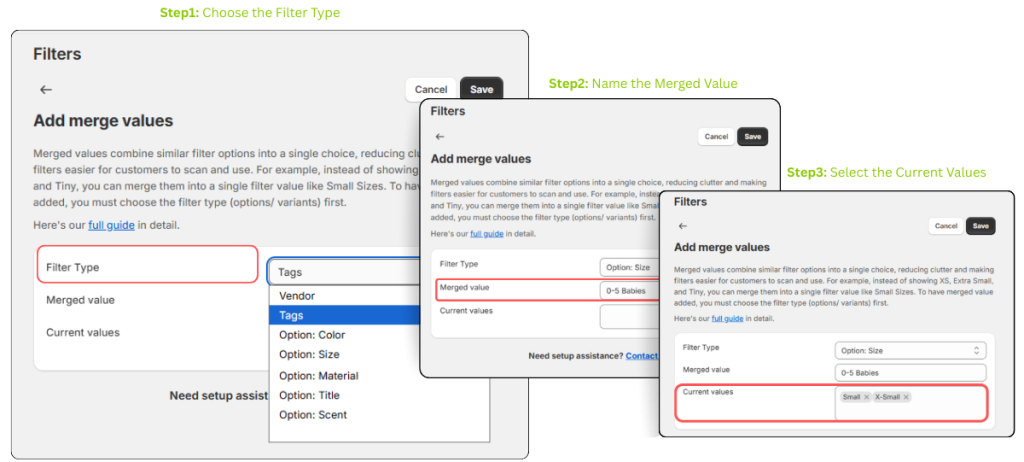
Select the filter where this merged value will appear. This might be “Size,” “Color,” “Material,” or any other filter you’ve already built using product options.
Note:
Make sure this filter type already exists in your store as a filter created by options. If it doesn’t, the merged value won’t show up in the storefront filter at all.
If you don’t assign the merged value to an existing filter type, your grouped value won’t appear anywhere, and your customers will still see scattered values like “XS,” “Extra Small,” and “Tiny” separately.
Step 3: Name the Merged Value
Enter the name you want to show on the storefront; this is what customers will click on. Use names that are easy to understand, like “Small Sizes” or “Neutral Colors.”
What Happens If You Don’t Name It Well?
A vague name like “Group A” may confuse shoppers, while a clear label like “For Babies” makes it obvious what they’ll find inside.
Step 4: Select the Current Values to Merge
Now choose the individual values you want to group together. These could be similar colors (like “navy” and “midnight blue”) or sizes (like “XS,” “Extra Small,” and “Small”).
If you don’t merge these, your filter sidebar will list every variation separately, making the list longer and harder to use. That can lead to choice fatigue or shoppers missing relevant products.
Note:
If you’re missing values, go to Shopify Admin → Products, choose the right product, and add or edit the option values under the Variants section. After that, they’ll appear in the selection box.
Step 5: Save Your Changes
Once you’ve selected the values and entered a name, scroll to the top and click Save.
Wrap-up
Merged values are a simple way to clean up crowded filters without changing your product structure. Use them when you have different terms that mean the same thing to your customers. Whether it’s sizes, colors, or styles, this tool helps present your catalog in a clearer, more organized way.
