 Fynq
Fynq How to Handle Zero-Priced Products on the Search Results Page
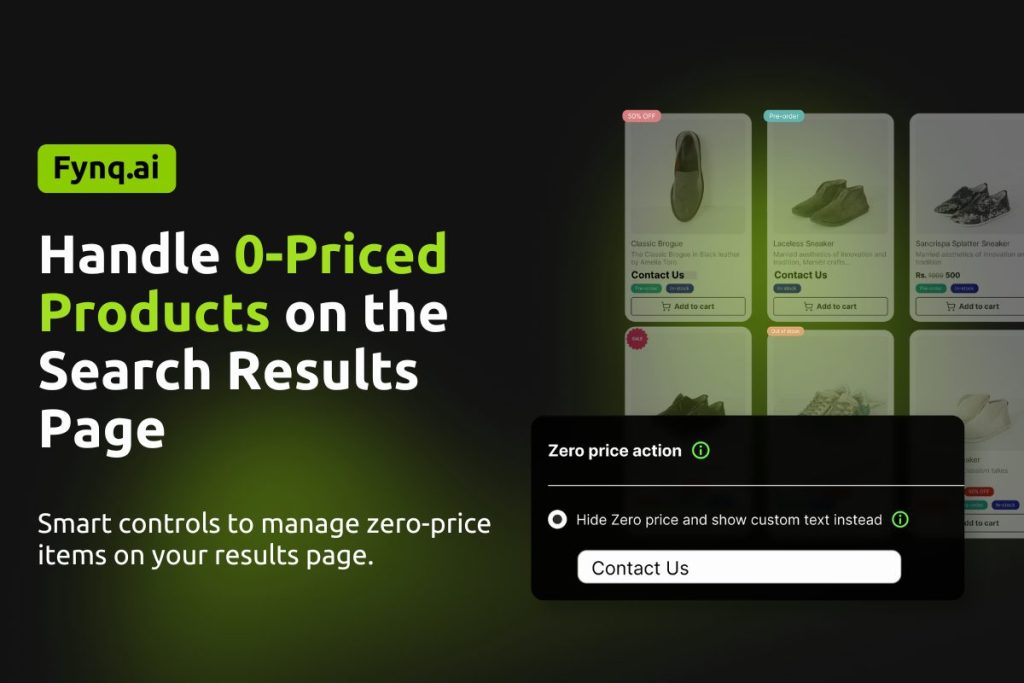
When customers search and land on your results page, the product price is one of the first things they check. But what if some of your products have a price of $0.00? Maybe it’s a pre-launch item, a request-for-quote product, or just a listing where the price isn’t ready yet.
In those cases, showing zero as the price can look confusing or even suspicious. Fynq Image & Search AI gives you a clear way to control how these products appear in your Search Results Page, so your store still looks clean and professional.
Let’s go over how to set this up and what each option really means.
To handle Zero Price Action on the Instant Search Widget,
Refer to this guide:
How to Handle Zero-Priced Products in the Instant Search Widget
Where To Find Zero Price Action (SRP) Setting in Fynq
To control how zero-priced products appear on your Search Results Page:
- Open the Fynq Image & Search AI app
- Go to the Configuration
- Click on the Search Result Page
- Here you will find Zero Price Action
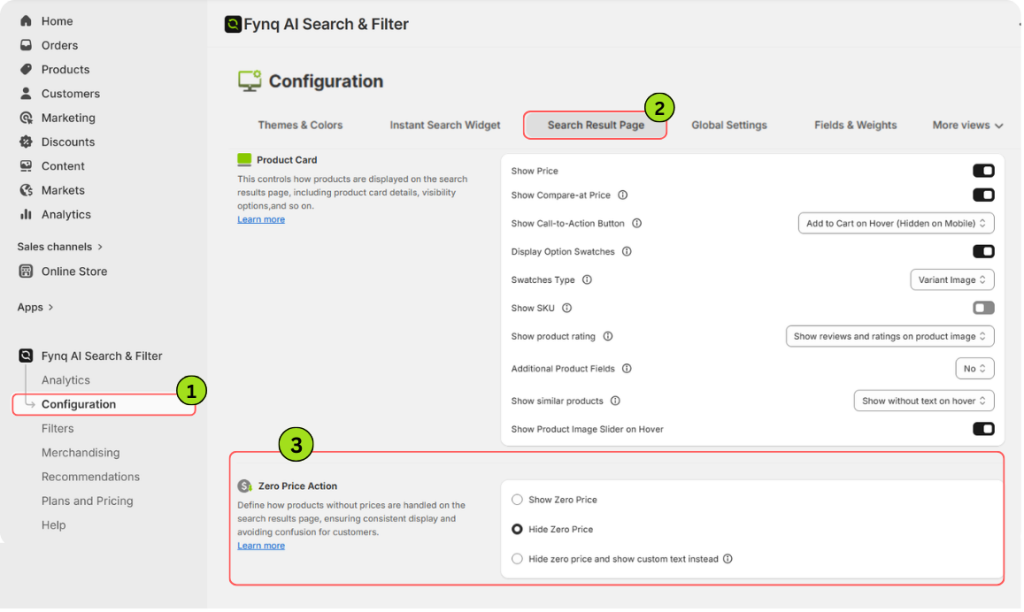
Here’s where you can choose what to do when a product is priced at zero.
What Is a Zero-priced Product?
In Shopify, if you don’t assign a price to a product, it shows up as $0.00. This can happen for several real reasons:
- A new product is being listed, but pricing is not set yet
- The item is meant for quote requests only, not direct purchase
- It’s a promotional product, like a free sample
- A temporary setup before actual prices are entered
- A data entry error or placeholder listing
Instead of leaving it up to chance, Fynq lets you decide what to show, clearly and confidently.
Your Options for Managing Zero-priced Products
You’ll see three options under Zero Price Action. You can choose only one at a time.
1. Show Zero Price
This will display the price as $0.00 directly in your Search Results Page.
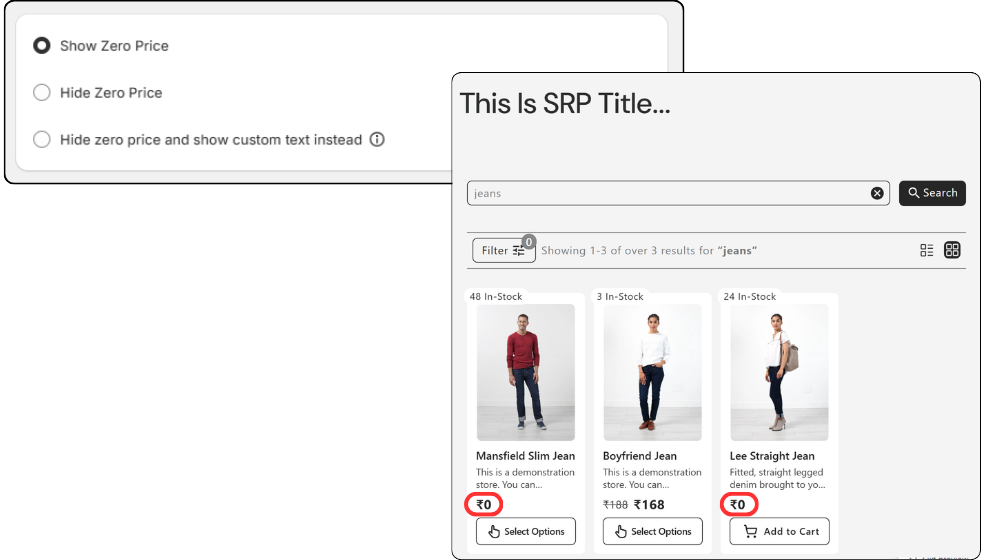
Use this if:
You’re intentionally offering a free item, or showing $0.00 won’t confuse your customers.
What it looks like:
Each product card will show “$0.00” under the product title.
Tip:
If you’re using this, make sure your product description explains the zero price, so customers don’t assume it’s a mistake.
2. Hide Zero Price
This hides the price section completely for any product priced at zero.
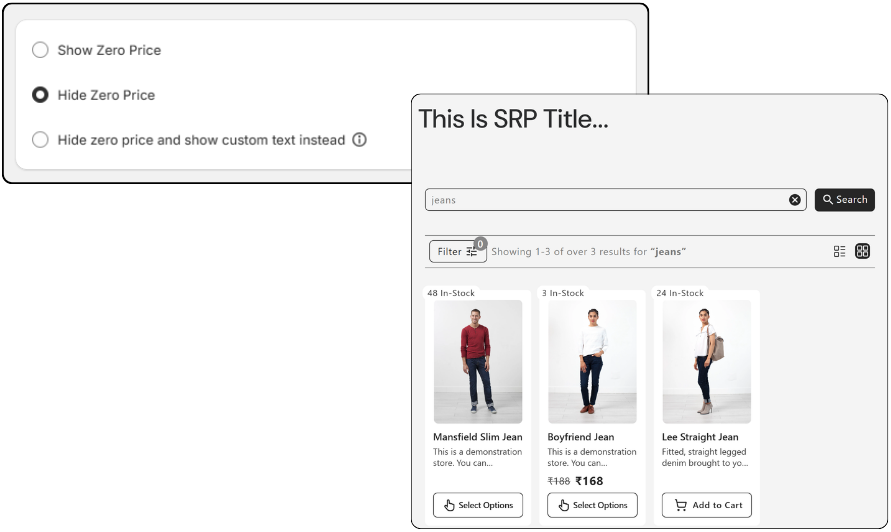
Use this if:
You want to keep the product visible, but don’t want to show an empty or misleading price.
What it looks like:
Product appears in search results, but there’s no price shown at all.
Tip:
This is a good default for draft items, upcoming launches, or hidden pricing models.
3. Hide zero price and show custom text instead
This option lets you replace the zero price with your own custom message.
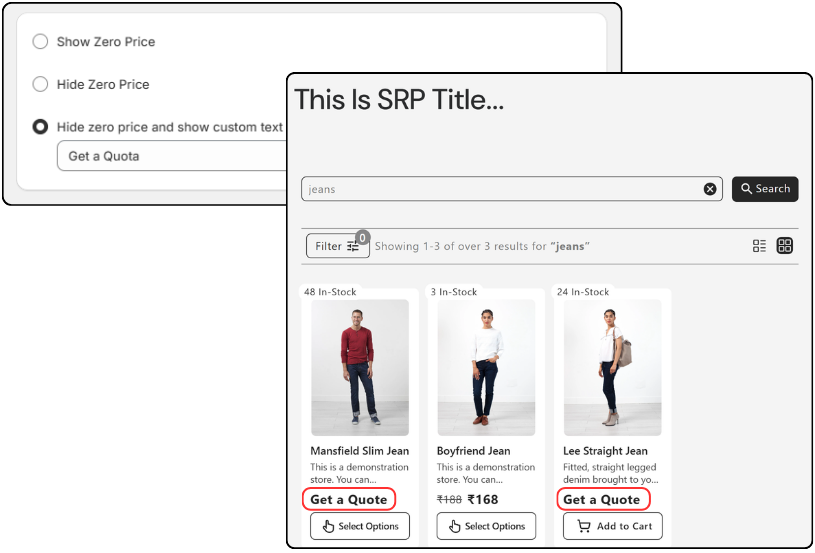
When you choose this, a text box will appear. You can enter any message you like, such as:
- “Ask for Price”
- “Coming Soon”
- “Quote on Request”
Use this if:
You want to explain why the price isn’t shown and give a nudge for customer action.
What it looks like:
Your message will appear in the place where the price usually goes.
Tip:
Use short, clear phrases that match your store’s tone. Avoid jargon or long sentences.
Wrap-up
It’s totally fine to have products without a listed price, as long as you handle them smartly. Whether you choose to show $0.00, hide the price, or display a custom message, Fynq helps you stay in control of your storefront experience.
Visit this setting, pick the option that fits your style, and make sure your product listings stay clear and trustworthy, even when pricing is still on the way.
