 Fynq
Fynq How to Customize the Main Search Result Page in Fynq
Your search results page is often the first full view a shopper sees after typing a keyword. How this page looks and behaves can decide whether they keep exploring or bounce away. With Fynq, you don’t need to stick to one rigid format; you get full control over how search results are shown, sorted, and styled.
Let’s walk through the settings that help you customize your search results page to match your brand and improve customer experience.
Where To Find Search Results Page Settings
To start customizing:
- Open the Fynq Image & Search AI app
- Go to the Configuration
- Click on the tab called Search Result Page
- Come to Page Settings and start making changes.
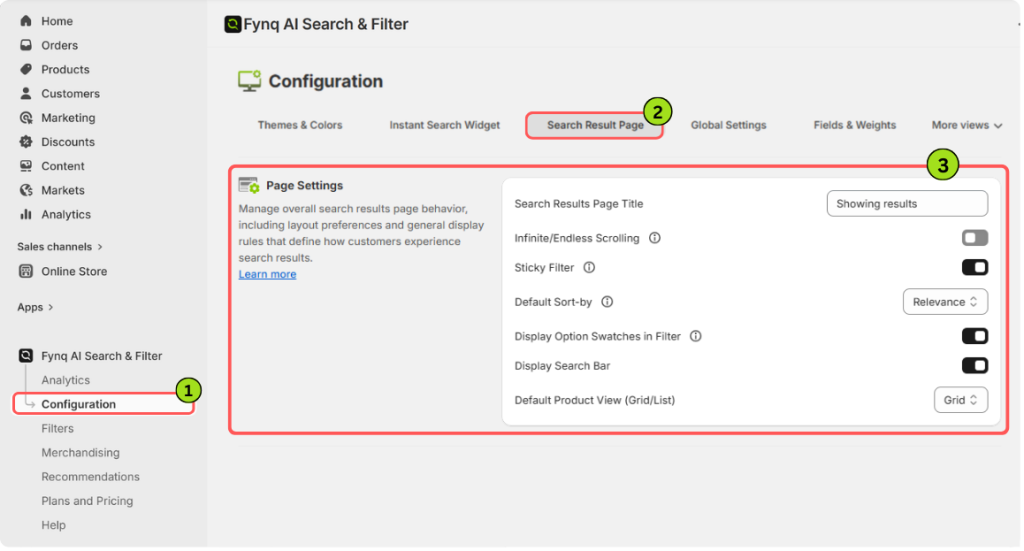
You’ll now see a list of helpful options. Let’s go through what each one does and how you might use it.
1. Search Results Page Title
This is a simple text field where you can name your search results page. For example, you might write “Explore Your Results” or “Products Matching Your Search”. Here is an example:
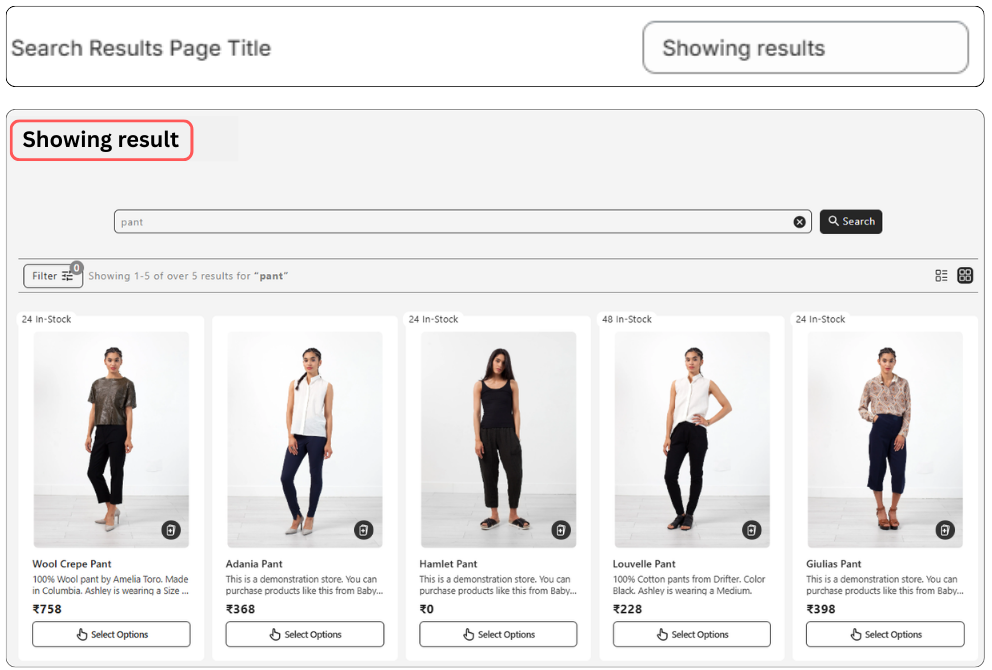
Tip: Keep the title short and clear. Avoid long headings to match your store’s aesthetics so that shoppers glance fast.
2. Infinite/Endless Scrolling
This toggle enables endless scrolling on the search results page. Instead of clicking through pages, shoppers can just keep scrolling, and more products will load automatically.
Why turn it ON?
It’s smoother and faster. Shoppers stay focused without much navigation & interruptions.
Why keep it OFF?
If you prefer traditional pagination for performance reasons or theme consistency.
3. Sticky Filter
This keeps your filter column fixed in place while a user scrolls down the product results page.
Why use it?
Filters stay in view, which encourages shoppers to keep refining their search without needing to scroll back up. It’s handy for large catalogs.
Please Note:
If you have selected ‘Left Side Fixed’ or ‘At the Top’ as your Filter Position Layout, the Sticky Filter should appear automatically when you open the Search Results Page.
However, if you’ve chosen ‘Left Side Collapsible’, you need to click the ‘Filter’ button on the Search Results Page to activate the sticky filter.
If the filter still doesn’t appear, check whether it has been set to ‘Hide Filter’. To update this setting, go to (Refer to this guide):
Configuration > Search Result Page > Filter Position Layout.
4. Default Sort-by
This dropdown lets you choose how your search results are sorted by default. Options include:
- Relevance (default)
- Title A-Z
- Title Z-A
- Date: New to Old
- Date: Old to New
- Price: Low to High
- Price: High to Low
- Discount: High to Low
Tip: If your store focuses on trend-based products or seasonal launches, use Date: New to Old.
If you run offers often, Discount High to Low can drive more sales.
Leave it on Relevance if your search is well-optimized for accuracy.
5. Display Option Swatches in Filter
Turn this ON to show color, size, or style of Swatches directly in the filter section in the search results page.
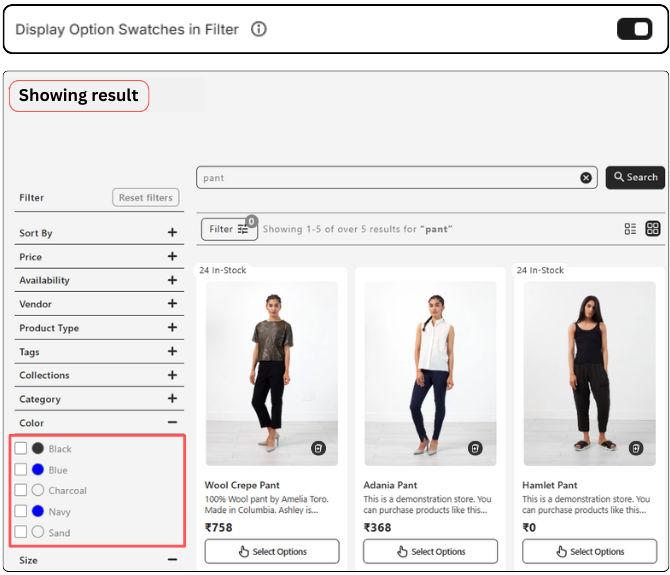
Why it matters in your store:
Customers love to see color blocks or size icons in the filter section without clicking on each product. It saves them time and improves decision-making.
Tip: This works great for fashion, accessories, or any store with visual variants.
6. Display Search Bar
This toggle shows an additional search bar at the top of the search results page, just below the title.
Why enable it?
It allows users to immediately tweak or redo their search, without scrolling back to your store’s main search bar.
When to skip it?
If you want a cleaner layout or already have a fixed main search bar in your store theme.
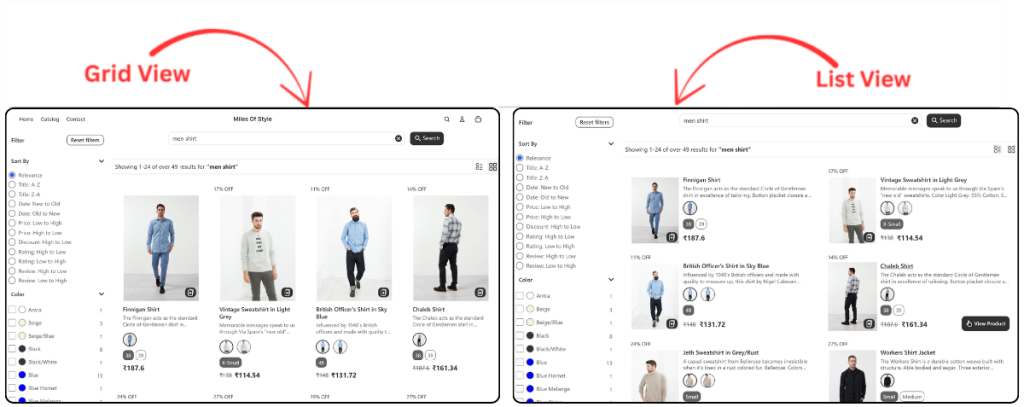
7. Default Product View (Grid/List)
You can choose between two ways to display product results:
- Grid View shows multiple items in rows, which is great for visual browsing
- List View shows one item per row, which is better for detailed descriptions
What to choose?
Grid view applied search result page is popular for general shopping.
As per the market standard, the list view works well for B2B, technical items, or when you want to highlight product info like specifications.
Wrap-up
Customizing your search results page helps you guide shoppers smoothly from search to purchase. Whether it’s letting products scroll endlessly, adding swatches, or fine-tuning how results are sorted, every small change can make your store feel more polished and easier to shop.
Set these once, test them a few times, and you’ll start seeing better engagement and a faster path to checkout.
