 Fynq
Fynq How to Control Product and Variant Visibility in Your Shopify Store
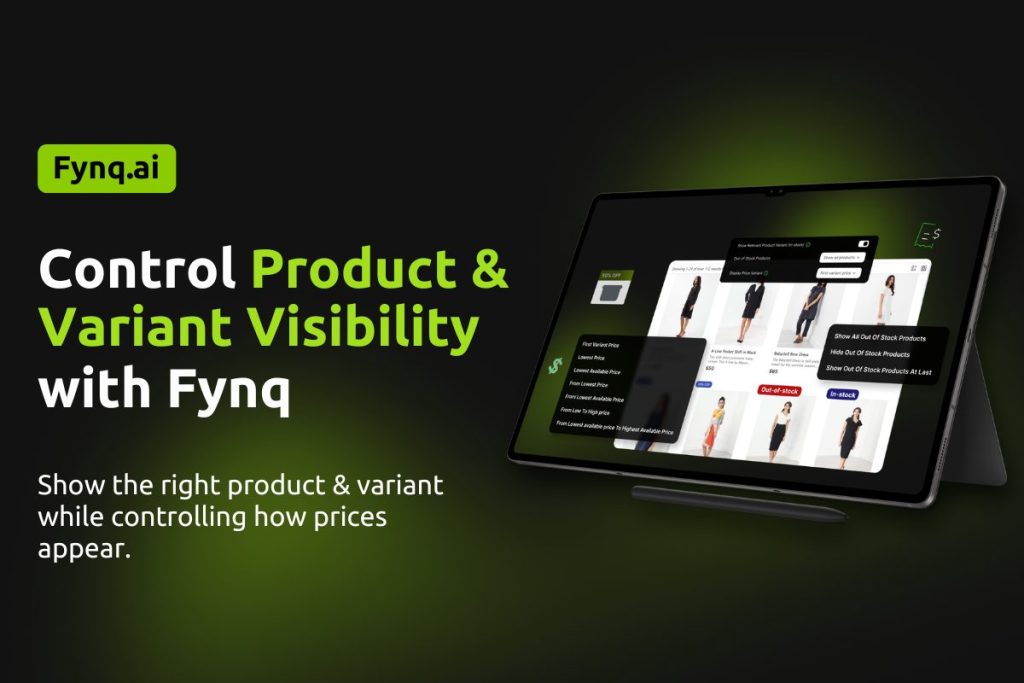
It may be the case that not every product in your store is always available. Some are out of stock. Also, some come in different variants, like sizes or colors. And not all of them are equally useful to show during a customer’s search.
How you display products, and their variants, plays a big role in how smooth the shopping experience feels. Your store has to be open to shoppers. Done right, these settings can help customers find what’s in stock faster, which can increase clicks, reduce confusion, and boost conversions.
Let’s explore how Fynq gives you easy control over these settings.
Show Relevant Product Variant (in-stock)
The first setting you’ll see is a toggle called “Show Relevant Product Variant (in-stock)”.
This means Fynq will automatically show the most relevant product variant, not just the main product, but the one that best fits what the customer is looking for.
It could be:
- A variant that’s in stock
- A variant that matches the customer’s past behavior
By turning this ON, your customers get to see a version of the product that’s available and likely to match their needs. It helps avoid dead ends where they click something, only to find it’s sold out or not available in their size or color.
This setting improves customer experience and helps more people move from search to purchase without frustration. It’s a small switch that can lead to more conversions.
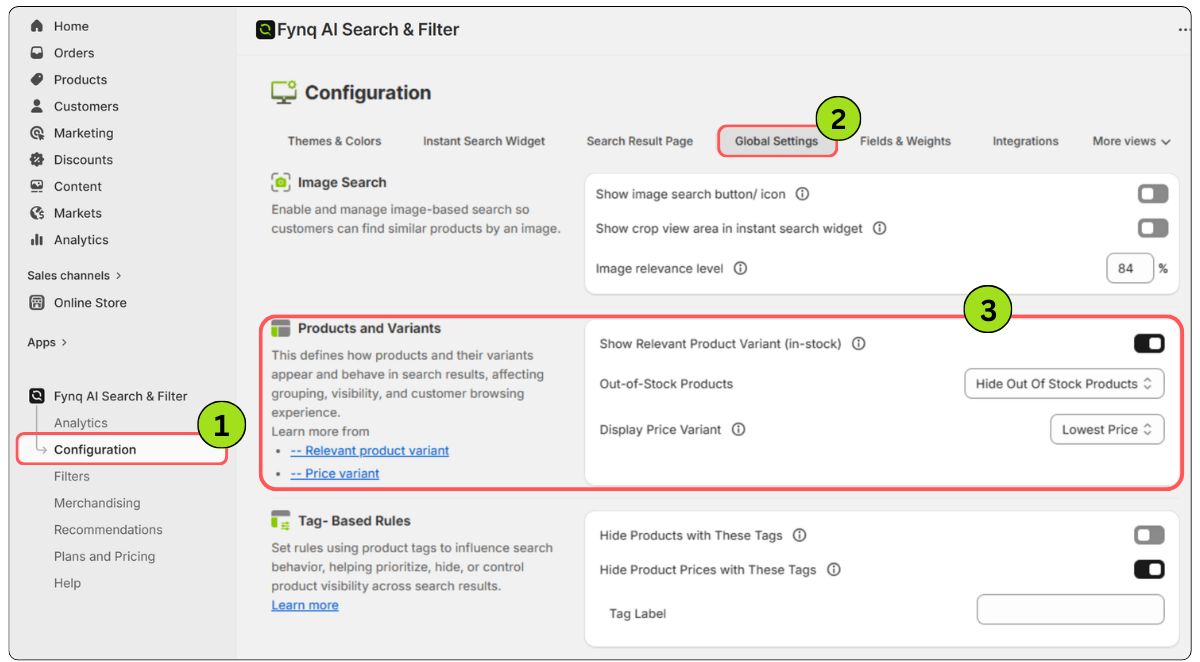
To enable this:
- Open the Fynq Image & Search AI app
- Go to Configuration > Global Settings > Products and Varients
- Turn on the toggle for Show Relevant Product Variant (in-stock)
- Click Save
What happens when this setting is ON or OFF?
Let’s break it down with a real example so it’s easier to understand.
Suppose you sell a shirt in multiple colors: red, blue, and green. Now, a customer types “red shirt” in the search bar.
When the toggle is ON
Fynq will review your product variants and display the ones that match the customer’s intent and are actually available.
In this case, it will:
- Show the red variant already selected on each matching product
- Only show that red shirt if it’s in stock.
So, the shopper gets results where the red variant is already active and ready to buy. It’s clean, direct, and helps people find what they want faster.
When the toggle is OFF
Now, the same customer types “red shirt”, but this time, Fynq does not try to pre-select or match the most relevant variant.
Here’s what happens:
- You’ll still see products that match “red shirt”
- But the red color won’t be pre-selected on those product cards
- And even out-of-stock red shirts might show up in the search results
This could make shoppers click into products, only to find that the variant they actually wanted (like red) isn’t available, which may lead to frustration or drop-off.
In a nutshell,
Turning this setting ON makes the shopping experience smarter and smoother. Customers get the right product, in the right variant, only if it’s actually available to buy. It saves them time and helps you close more sales.
Out-of-stock Products
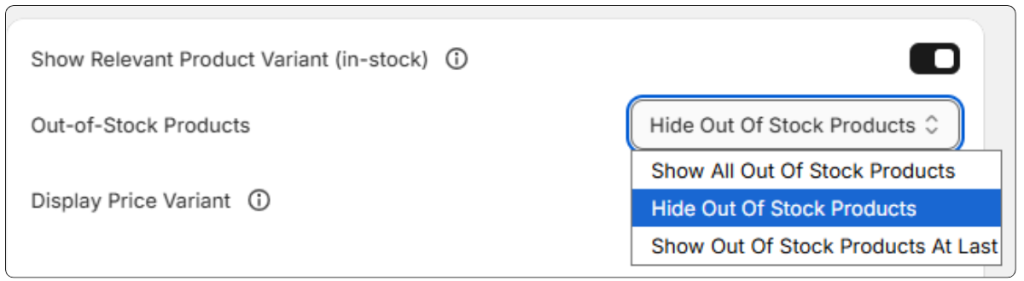
Next, Fynq lets you choose what happens when a product is out of stock. You’ll see three clear options, and you can pick the one that best suits your business.
Here’s what each option does:
1. Show All Out of Stock Products
This setting displays every product, even if it’s currently unavailable.
When to Use:
If you sell limited items, want to build demand, or want people to sign up for restock alerts, choose this option. It can be useful when products come back often or if you want your full catalog to be visible to the shoppers.
2. Hide Out of Stock Products
This setting removes sold-out products from search and result pages completely.
When to Use:
If you don’t want shoppers to waste time on items they can’t buy, choose this option. It helps keep things clean and focused, especially if restocks are rare or unpredictable.
3. Show Out-of-Stock Products At Last
This option pushes out-of-stock products to the end of search results so they’re still there, but not in the way.
When to Use:
It’s preferable if you want customers to focus on available products first, but still let them see what used to be in stock. It works well for stores with seasonal items or collections that rotate.
Display Price Variant
When your store has products with multiple variants, like different sizes, colors, or styles, showing the right price becomes important. If the customer sees one price, clicks, and sees something different on the product page, it can create confusion.
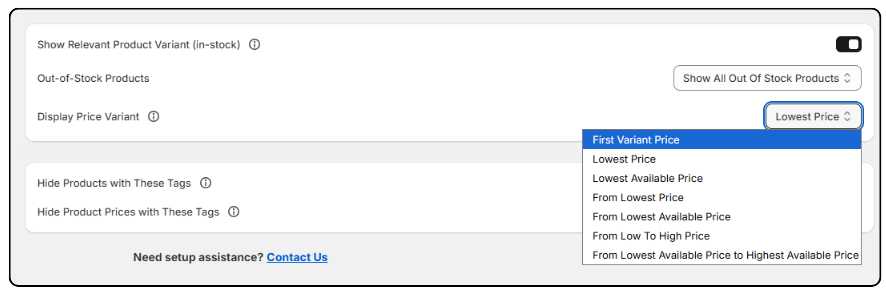
Let’s walk through how to find this setting and understand which display style works best for you:
Each option changes how the price appears in the search widget or results page. This function works especially for products with many variants. Here’s what each one means, explained using a clothing store example.
Suppose you sell a T-shirt with the following size variants and prices:
- Small: $20
- Medium: $25
- Large: $25
- XL: $30
- XXL: $35
- Small and Medium are out of stock
Now, based on your choice from the available options, any type of pricing structure will be shown to your store’s products.
1. First Variant Price
This shows the price of the first variant listed in Shopify.
Example: If “Small ($20)” is your first variant, the customer sees $20.
Use this if: You want to stick closely to your Shopify setup without dynamic changes.
2. Lowest Price
This shows the lowest price among all variants listed in Shopify, including out-of-stock ones.
Example: The lowest price is still $20 (Small), even if it’s not available.
Use this if: You want to attract attention with a low entry point, even if it’s out of stock.
3. Lowest Available Price
This shows the lowest price of variants that are currently in stock.
Example: Since Small and Medium are out of stock, the lowest available is $25 (Large).
Use this if: You want to show what customers can actually buy, not just what exists.
4. From Lowest Price
This adds the word “From” before the lowest price (includes out-of-stock variants).
Example: Customer sees: From $20, even if $20 is not in stock.
Use this if: You want a “starting at” style display for promotional impact.
5. From Lowest Available Price
Same as above, but uses the lowest in-stock variant.
Example: Customer sees: From $25, since $20 is not available.
Use this if: You want a realistic starting price that reflects current inventory.
6. From Low to High Price
This shows a range, using the lowest to the highest variant prices, whether in stock or not.
Example: Customer sees: $20 to $35
Use this if: You want to give shoppers the full idea of your pricing range, regardless of availability.
7. From Lowest Available Price to Highest Available Price
This shows a range using only in-stock variants.
Example: Customer sees: $25 to $35
Use this if: You want a clean, accurate price range based on what’s actually buyable.
Please Note:
This Display Price Variant setting will only work if the Show Price toggle is turned on in both the Instant Search Widget and Search Results Page settings. If either of those toggles is off, no price will be shown to the respective result page, no matter which option you pick here.
Wrap-up
To be candid, customers want clear results. When you show the right variant and manage out-of-stock products smartly, you remove friction from the buying journey. Utilize Fynq to make your product search results more useful, more relevant, and more likely to convert. Small tweaks here can lead to smoother shopping and better results for your store.
