 Fynq
Fynq How to Manage and Style Product Labels Across Your Store
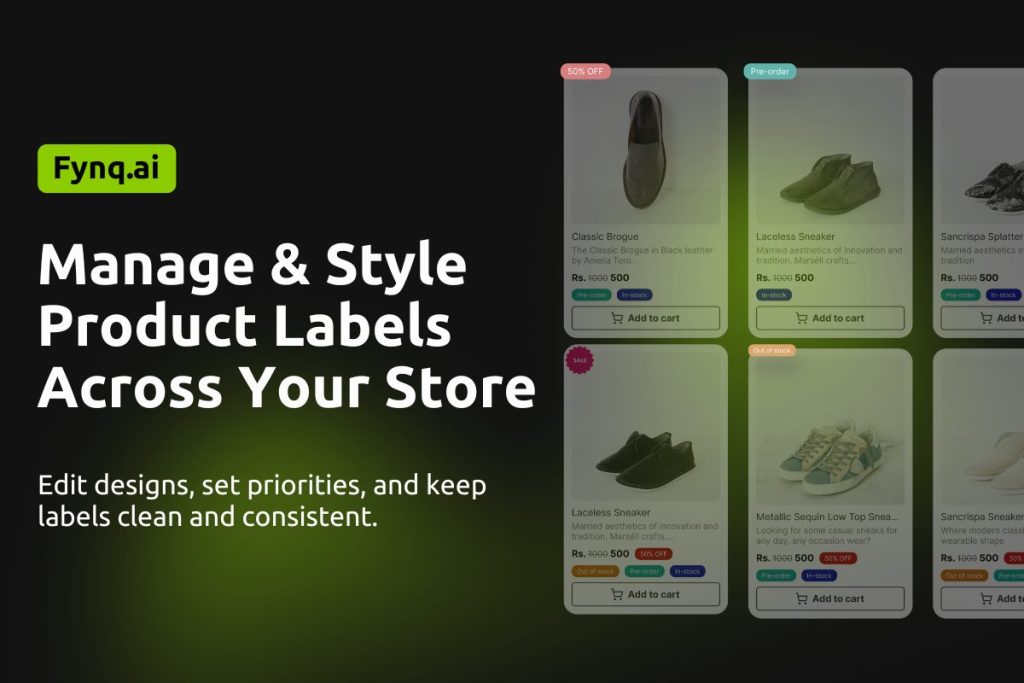
Product labels are the most effective merchandising feature available in Fynq Image & Search AI. Once you’ve started adding product labels in Fynq, you’ll want a simple way to manage them – now or later. Maybe you want to update the wording, change colors, or adjust where the label appears on a product.
You may also want to control which label shows when a product has more than one. Without good management, labels can overlap or display in the wrong order. But how?
Fynq gives you an easy space to edit, organize, and style all your product labels in one place. Let’s walk through how it works.
NB:
Learn about how to create labels using tags and collections. Read these guides:
How to create labels using tags & How to create labels using collections
Where To Manage Your Labels in Fynq
This is where you’ll find all the labels you’ve created. From here, you can view, edit, or re-order labels based on what your store needs.
To see and manage your labels:
- Open the Fynq app.
- Go to Merchandising from the left-side menu.
- You’ll land on the first tab: Product Labels.
- Scroll down and come to the section: All Product Labels.
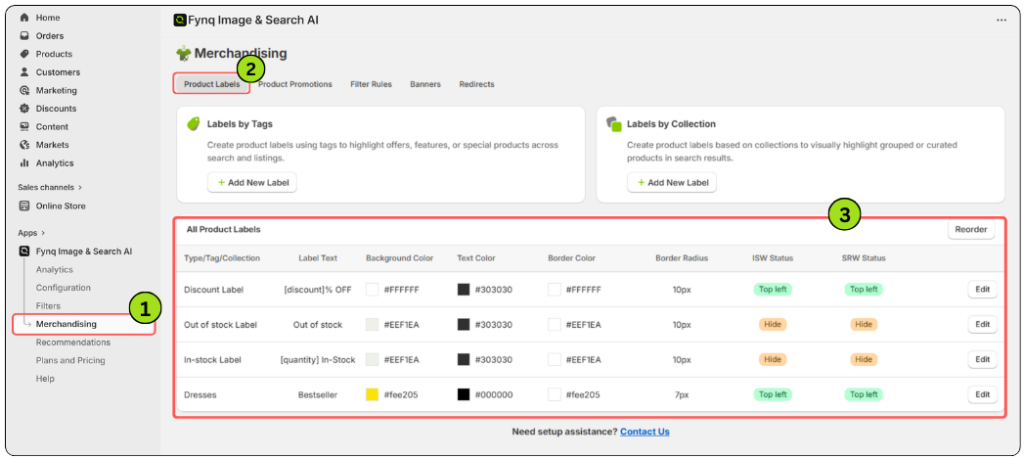
You’ll now see a table listing all the product labels you’ve added so far.
Edit A Label That Is Already There
Labels don’t have to stay the same. You can always go back and tweak their design, message, or placement, and it only takes a few clicks.
To edit a label:
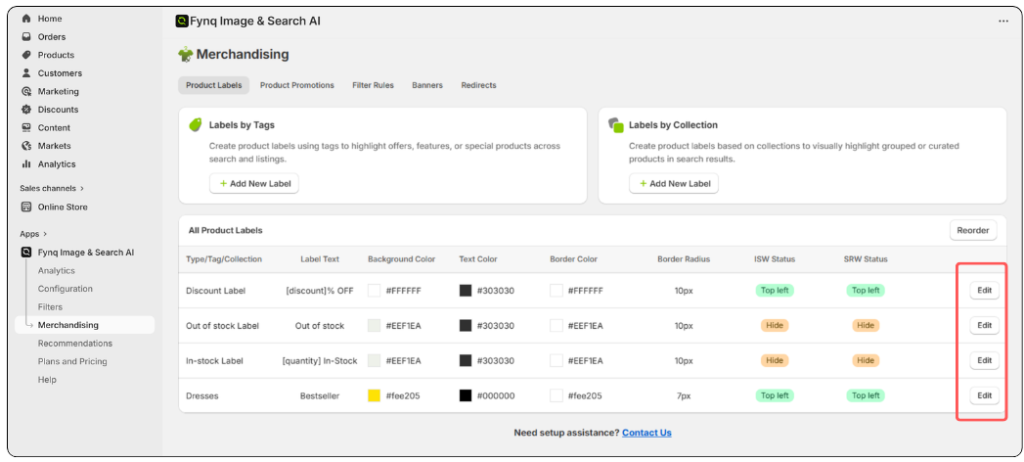
- Look at the far-right side of the label row in the table.
- Click the Edit button beside the label you want to update.
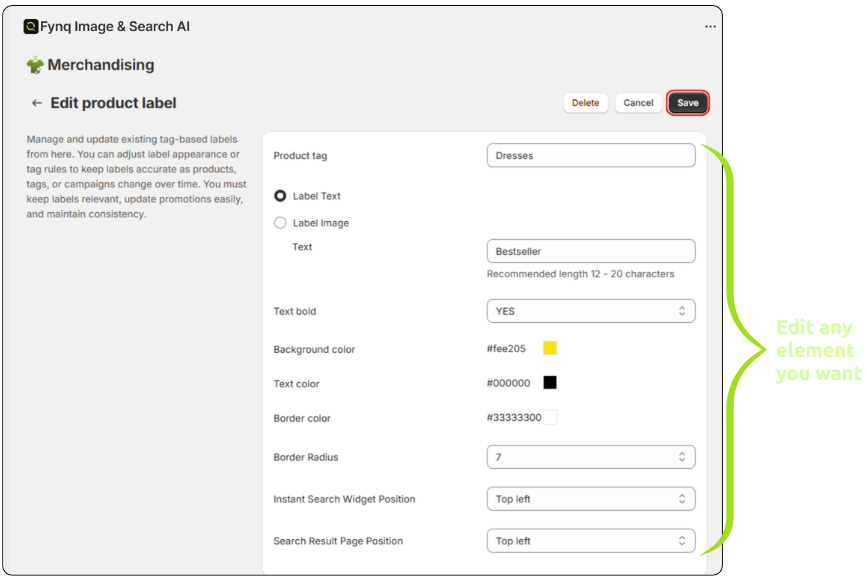
Inside the editor, you can:
- Update the label text or change the image
- Adjust the colors of background, text, and border
- Move the label to a different corner of the product image
When you’re done, hit Save. Your updates will go live right away.
What Happens When a Product Has More Than One Label?
Sometimes a product might get two labels at once, knowingly or unknowingly. Here’s how Fynq decides which one shows, and what you can do about it.
If both labels are placed in different positions, like one in the top-left and the other in the bottom-right, both will be displayed.
But if both labels are set to appear in the same position, Fynq will show just one of them: the one listed higher in your label table.
Example:
Let’s say Product A qualifies for two labels:
- “Bestseller”
- “New Season”
If both are placed in the top-left, and “Bestseller” is listed above “New Season” in your label list, then Bestseller is what the customer will see.
How To Reorder Your Labels (& Set Priority)
There may be a requirement for setting label priority. You can easily reorder them so the one that matters most shows first, especially if they share the same spot.
Here’s how:
- In the All Product Labels section, click the Reorder button at the top right.
- You’ll now see a six-dot icon next to each label.
- Hold and drag a label up or down to change its position.
- Click Done Reordering to save your new order.
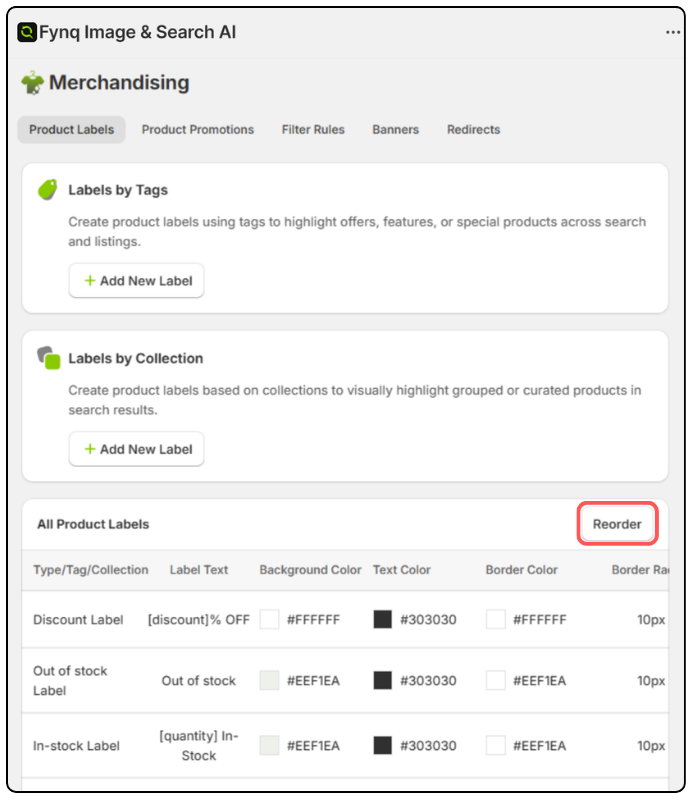
This lets you stay in control of which label gets shown when two compete for the same space.
Wrap-up
After adding labels, you may require managing product labels any time later. It’s about remaining relevant to the market trend with clarity, order, and helping customers find the right products faster. With just a few clicks, Fynq gives you full control to edit, restyle, and reorder labels across your store.
Take a few minutes to tidy things up. A well-managed label system can quietly boost clicks, sales, and the overall store’s trust.
