 Fynq
Fynq How to Create Product Labels Using Collections in Fynq
Your store likely has collections that group similar products, like “New Arrivals,” “Sale Items,” or “Valentine Gifts”. These aren’t just for organizing your products. These collections can be used to add labels collectively to catch a shopper’s eye.
In Fynq, you can create product labels based on collections, so that whenever a product is part of a specific collection, a label appears on it, automatically, just with a single setting. These are the most commonly used merchandising strategies that are a simple way to highlight what’s important and guide your customers while they browse.
Let’s go through how to create one, step by step.
Where to Find the Labels by Collection Settings
If you haven’t found the Labels by Collection section, then only you should follow this:
- Open the Fynq app in your Shopify admin.
- Go to Merchandising from the left-hand menu.
- You’ll land on Product Labels (the first tab) from the top menu.
- Go to the second section: Labels by Collection.
- Click + Add New Label to start creating one.
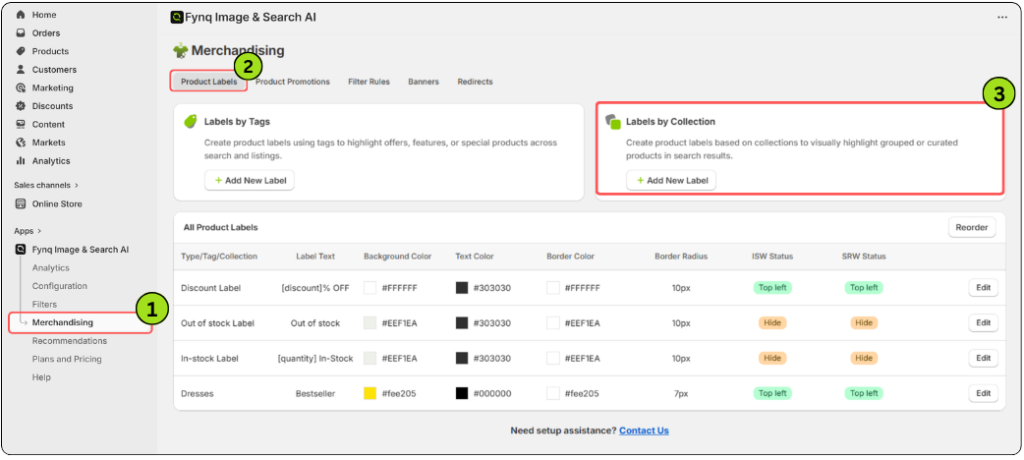
Now you’re ready to build your label.
How To Create Your Label Using Collections
Each step in this part is simple; it helps to know what each option really does. Here’s what you’ll see and what it means:
1. Search For a Collection (That Already Exists in Your Store)
Inside the Labels by Collection tab, you’ll begin by searching for the name of a collection you’ve already created. Fynq will pull that in and apply your label to all products within that group.
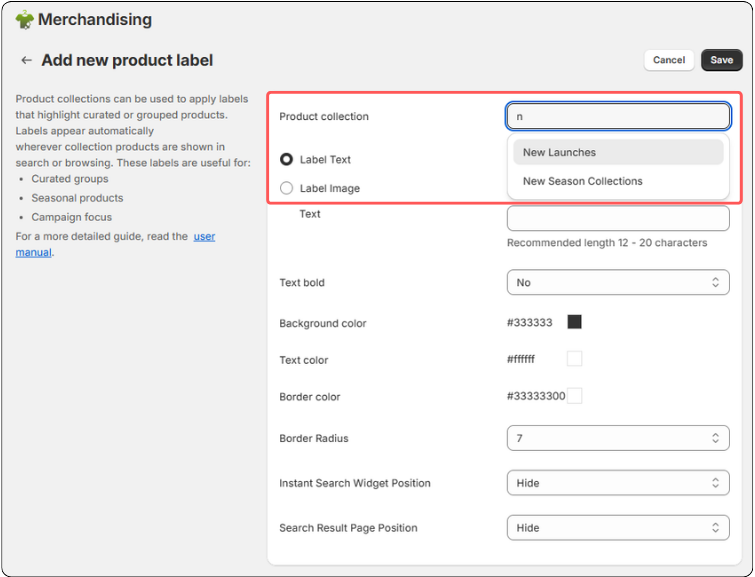
For example, if you want a label for your “Resort Collection”-titled collection, just start searching for that collection name here and select from the drop-down.
Don’t see a collection yet? Here’s how to make one first:
If you’re setting this up for a new store or haven’t built collections yet, that’s okay.
You can create one in your Shopify admin by doing this:Go to the Products tab → Click on Collections → Then click Create Collection → Add a title, description, and other credentials (if needed) → Add the products you want included. Go through this Shopify manual to understand the process better: https://help.shopify.com/en/manual/products/collections/manual-shopify-collection/
After that’s saved, you can return to Fynq and continue from here by searching for your new collection name.
Now, Design Your Label >>
2. Add a Text or Image That Will Appear on the Label
This is what your customers will see.
You can write something like “Top Pick” or “Exclusive”, or upload a small image if you prefer using visual badges.
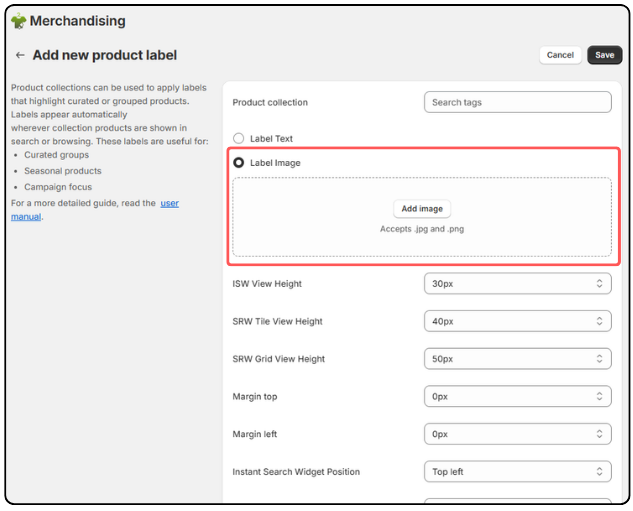
Note: You can add dynamic text using variables like [discount] or [quantity]. These will pull live data from your store. Please mind spelling; a simple typo can restrict data from the API. For best visibility, we recommend keeping the label text between 12 to 20 characters.
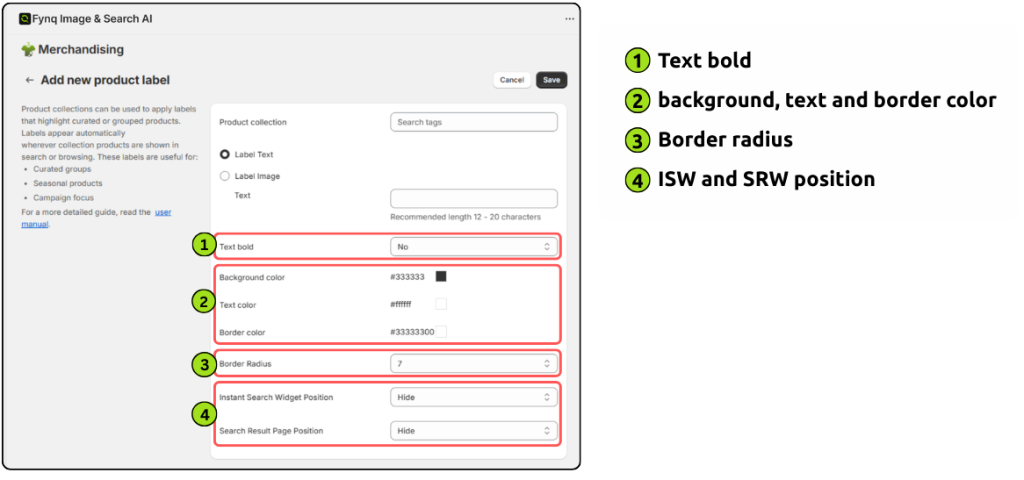
3. Decide If the Text Should Be Bold
If you want your text to stand out more, you can turn on the Bold Text option. By default, the function is chosen as ‘No’. You can choose ‘Yes’ from the dropdown. It’s not required, but it helps when the label has fewer words.
4. Choose the Colors for Your Label
Here, you’ll choose how your label looks:
- Background color gives the label its shape and fill.
- Text color controls the label text.
- Border color adds an outline; this can make it pop more on some product photos.
If your store already has a color scheme, try sticking to that for a clean, professional look. If not, experiment with contrasting shades so the label stands out.
5. Set the Border Radius
Border radius controls how rounded the label corners are.
- A lower number means sharp, square corners.
- A higher number makes the label more curved, like a soft bubble.
There’s no right or wrong here. Just choose what fits your store’s personality. Choose any number between 1-10 that works best for your store’s appearance. Try a few and preview it to see what feels right.
6. Choose Where the Label Will Appear
You’ll now select where the label should show up on two surfaces:
- The Instant Search Widget, which shows quick results as shoppers type in
- The Search Results Page, where full search results appear
For each one, pick where you want the label to show:
- Default (i.e., just beside the Product price)
- Top left
Otherwise, you can hide for any specific result page, if you don’t want to show the tag on the Instant search result page but want to keep it on the Search result page, or vice versa. Think about what looks best with your product images.
7. Click Save To Make It Live
Once you’ve finished setting everything up, click Save. Fynq will now take care of the rest, applying this label automatically to every product that belongs to the collection you picked.
You can now go to your storefront and search for the product you just added to the label. The label should be there on the product card.
If the label is NOT appearing, it may be caused by overlapping. Go through the article: Managing and styling your product labels across your store – to reorder the priority sequence.
Wrapping it up
Collection-based labels are one of the easiest ways to bring attention to entire groups of products. Instead of tagging each product by hand, you’re using the work you’ve already done like your collections; you’re now making your store clearer and more reachable to your shoppers.
It’s quick to set up, and it keeps working in the background as your store grows. Give it a try, and help customers spot what matters most.
