 Fynq
Fynq Setting Up the Right Search Page URL in Fynq for Smarter Results
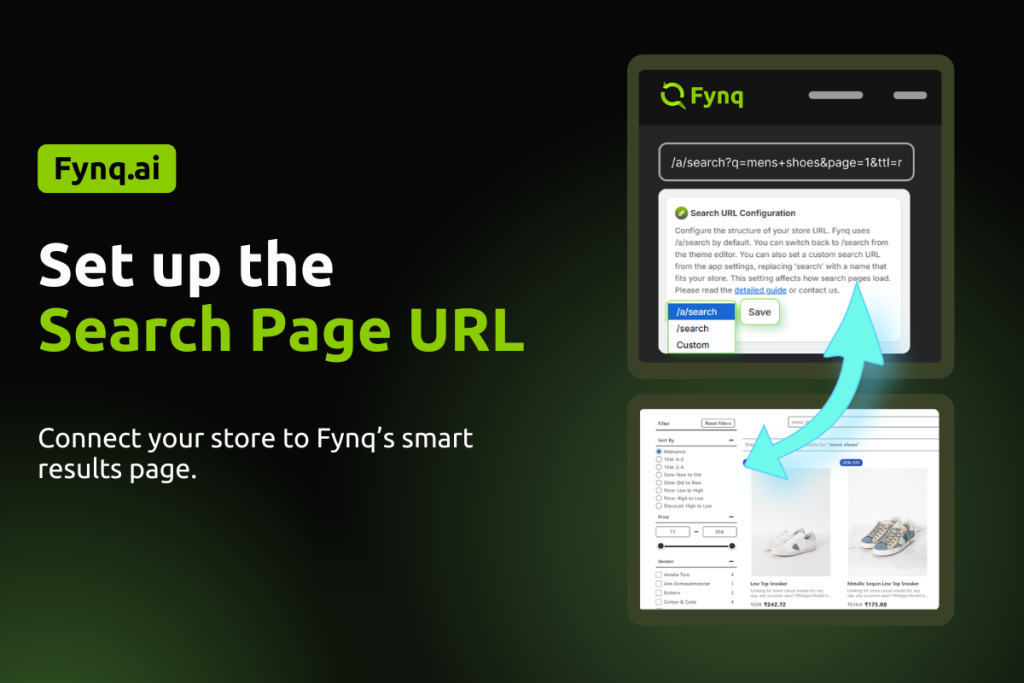
If you’re like most Shopify merchants, you’ve probably never touched your store’s search results page URL. That’s normal, it’s hidden in the background and Shopify handles it by default.
But here’s the thing: once you install Fynq, you’re no longer using Shopify’s default search. You’re upgrading to a smarter, faster, and more customizable search engine. For that to work properly, you need to tell Fynq where to take your customers when they hit “Enter” in the search bar.
This is where the Search Page URL configuration comes in.
Table of Contents
- What Is the Search Page URL & Why Does Fynq Need It?
- How to Configure the Search Page URL in Fynq
- How to Know If It’s Working
- What If You Don’t Want to Add “/a” in the URL?
What Is the Search Page URL & Why Does Fynq Need It?
The Search Page URL is the web address that shows up when a customer performs a search in your store. It’s the page that loads full search results with filters, sort options, and multiple products listed.
- Shopify uses a default path like: /search?q=yourquery
- But Fynq uses its own enhanced version: /a/search?q=yourquery
Fynq’s smart search engine is built to take over this path so it can show:
- Better search results with ranking control
- Semantic matches (even for misspellings)
- Smart filters tailored to each search
- Product labels and recommendations
- And fallback content when there are no results
So, if your store still points to /search, your customers are missing out on all the benefits Fynq offers. That’s why this step is required for proper setup.
How to Configure the Search Page URL in Fynq
Thankfully, updating this setting is super easy. Here’s how to do it:
Step-by-Step:
- Go to your Fynq AI Search & Filter – Dashboard
- Find the section called Search URL Configuration
- In the input field, choose (if not already done) from the dropdown: /a/search
- Click Save.
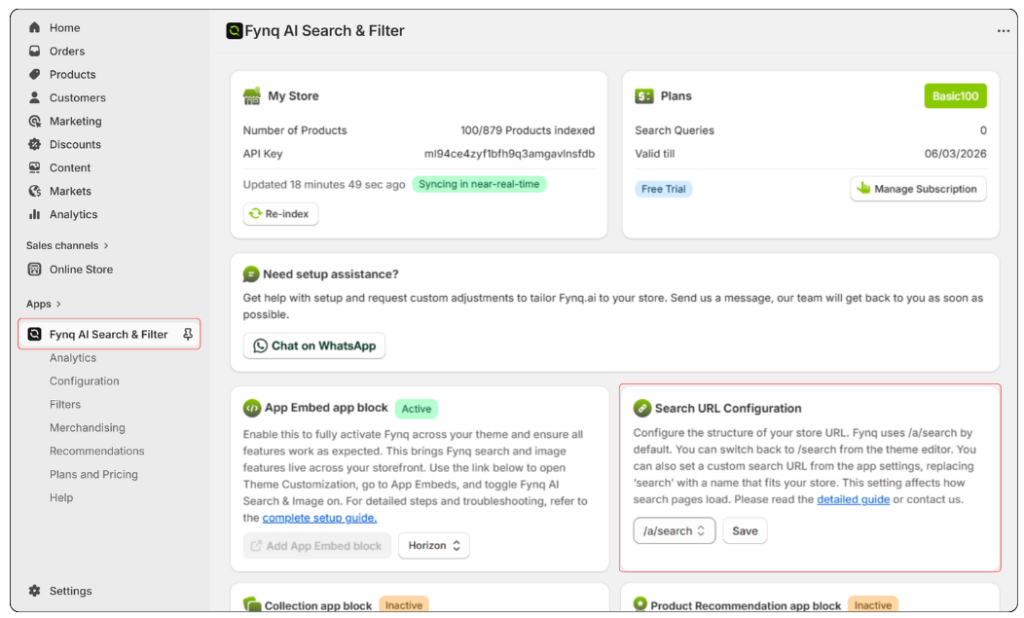
That’s it; you’re done.
Now, when your customers perform a search and hit Enter, they’ll land on Fynq’s smart Search Results Page, not the basic Shopify one.
How to Know If It’s Working
Once saved, try this quick test:
- Go to your storefront
- Type a search term (like “jacket”) into your store’s search bar
- Press Enter
You should now land on a URL that starts with /a/search
and see Fynq’s smart results page, not the default Shopify layout.
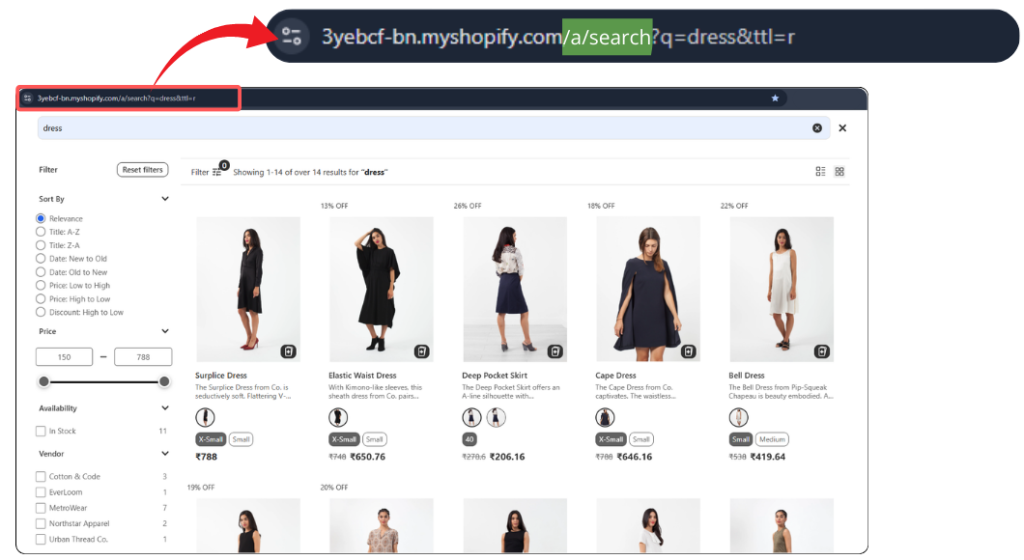
If you’re still seeing the old page, your store’s theme header might still be pointing to the default path. In that case, you have to switch the app embed in the Theme customization.
- Check your theme’s search form (Follow these steps: Go to Online Store → Themes → Customize → Select ‘Search’ from the template dropdown → Disable normal ‘search results’ → Click Add Block →Add ‘Fynq Search Page’)
Or contact Fynq support for help updating it. You can do that directly from the Help page.
Read the article to know more about app embed. Click here.
What If You Don’t Want to Add “/a” in the URL?
The easiest way to configure the search page URL is to go in the above-mentioned way. But you may not want to compromise the search page URL for simplicity. It’s your liberty. Follow the steps below to do it on your own:
1. Choose “/search” will be there in the box. Click on the immediately appearing button. Save it.
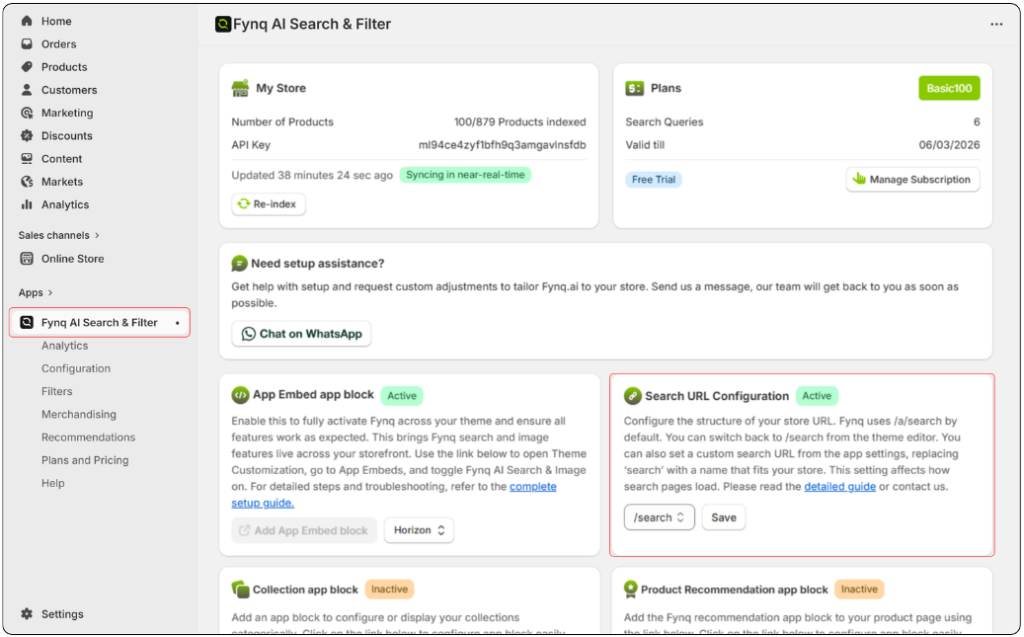
2. Go to Online Store → Themes → Customize.
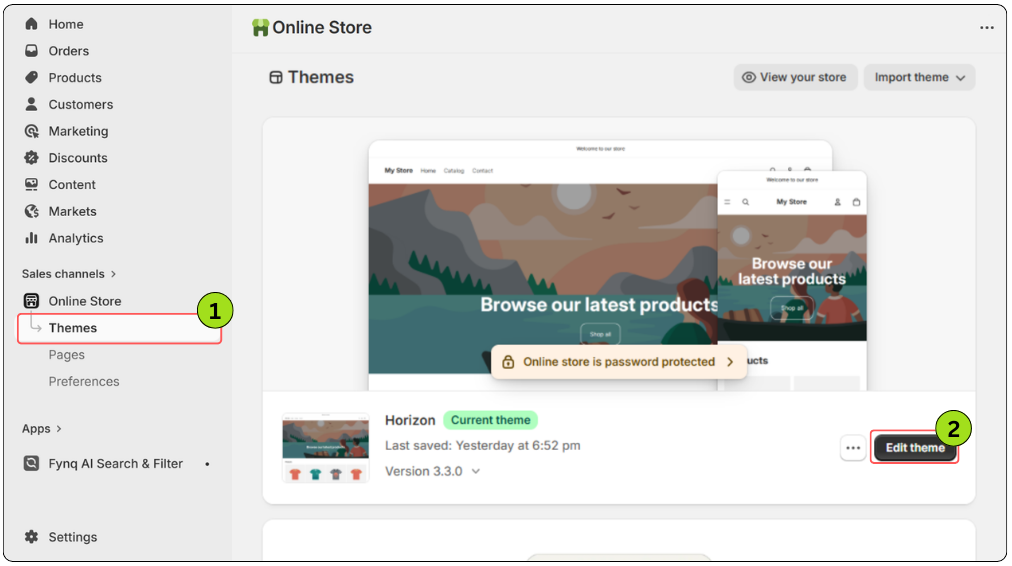
3. Now in the Sections tab (automatically opened), move to the middle top of the page. Click on the dropdown and choose Search (generally appears towards the end of the dropdown).
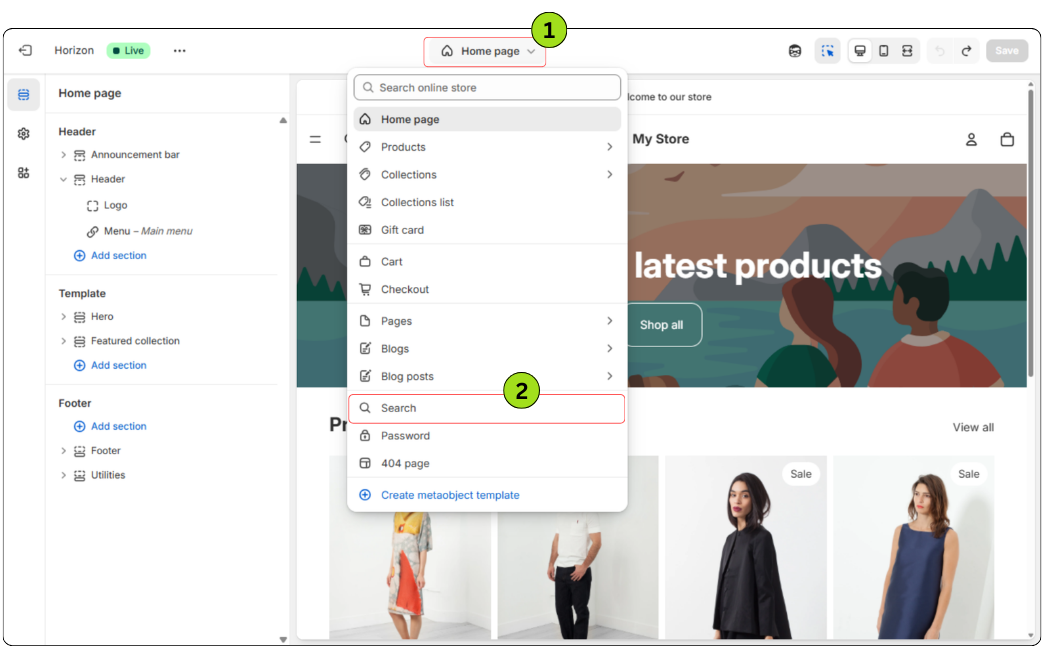
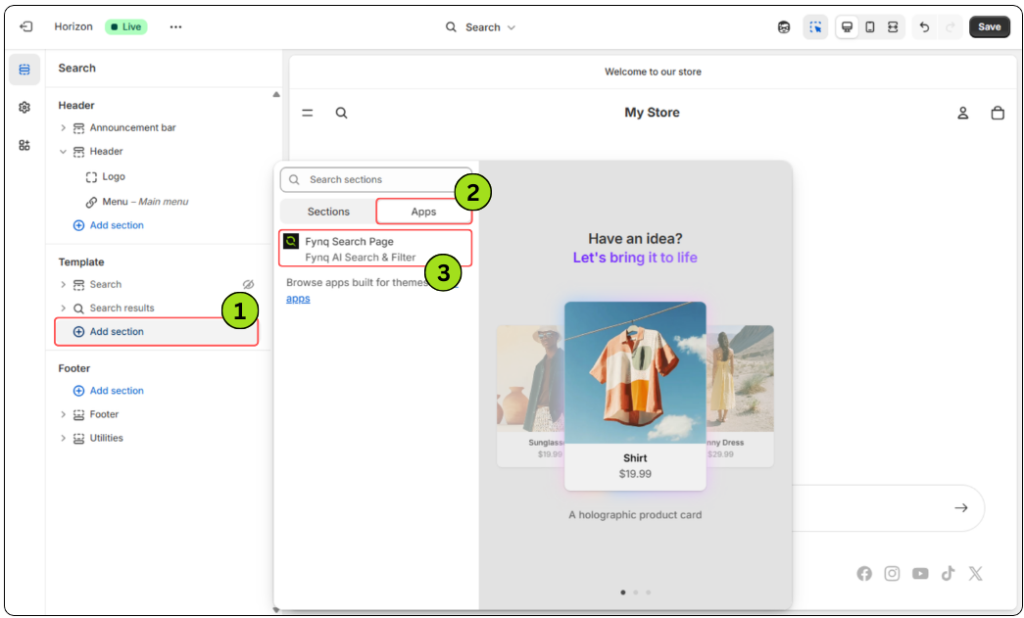
4. Come to the Template section. First, switch off the normal Search results.
5. Then, just below the Apps, click on Add Block.
6. A brief side panel should open. On clicking the right-sided tab of it, you will find Fynq Image & Search AI. Click on it.
7. Save the change from the top-right corner of the page.
You’re done.
Now, to check, go to your storefront and check your search result page URL. Now, the URL should not have ‘/a’ if you followed the above process accurately. If the issue is still not solved, please check if you missed any steps. Otherwise, you can contact the Fynq team from the Help page.
Final Thoughts
This may feel like a small detail, but pointing your store to the right search results page is what powers the full Fynq experience. Once you configure your Search Page URL to /a/search, your store exhibits Fynq’s functionality: filters, smart search, product highlights, and more.
Don’t skip it. It’s quick, it’s simple, and it makes a huge difference.
